
AI Image Editing Guide: Fix Common Issues with Better Prompts
Learn how to analyze and fix AI-generated images with precise text prompts. Improve lighting, anatomy, backgrounds, text, and style using pro editing techniques on Createimg.ai.
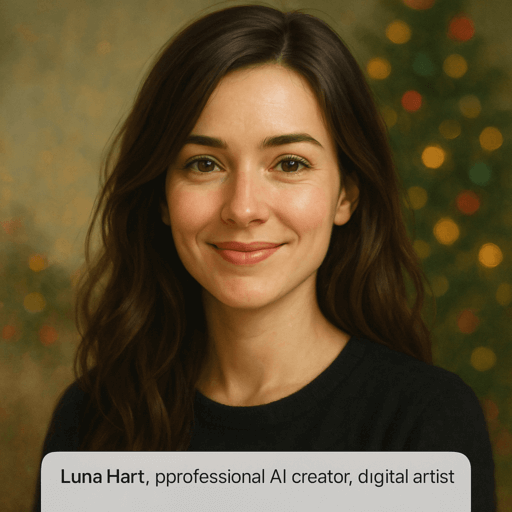

AI image generation tools have made it incredibly easy to turn “ideas into images.” Whether it’s product photos, illustrations, portraits, architecture, or brand visuals, you only need to enter a single prompt, and the AI can quickly generate a visual result.
But almost every creator has faced the same situation: “The AI-generated image is close to what I want… but something still feels off.”
Distorted facial features, inconsistent color tones, messy backgrounds, incorrect text, unnatural lighting—these are all common issues. The good news is: you don’t need to start over. With the right prompts and editing methods, you can precisely refine an AI-generated image and make it match your needs perfectly.
This guide will walk you through how to diagnose issues, understand AI behavior, and use text instructions to adjust your image step by step until it looks exactly the way you want.
We’ll also explain how to use editing modes on professional platforms (such as Createimg.ai to achieve fully controllable modifications.
Understanding the Principles Behind AI Image Editing
The process of AI image generation is essentially a probability-driven interpretation performed by a language model.
When you input a prompt, the AI predicts the image’s structure, style, lighting, color, and other visual characteristics based on semantic understanding.
The core logic of image editing is this: Using more precise language to guide the AI in regenerating part or all of the image on top of the existing visual foundation.
There are four common editing methods:
| Section | Description |
|---|---|
| Understanding the Principles Behind AI Image Editing | The process of AI image generation is essentially a probability-driven interpretation performed by a language model. |
| How AI Interprets Prompts | When you input a prompt, the AI predicts the image’s structure, style, lighting, color, and other visual characteristics based on semantic understanding. |
| Core Logic of Image Editing | Using more precise language to guide the AI in regenerating part or all of the image on top of the existing visual foundation. |
| Four Common Editing Methods | Text-based Editing, Inpainting, Image-to-Image, Control-based Generation |
Common Issues in AI-Generated Images and How to Fix Them
1.Incorrect Image Style or Atmosphere
Symptoms: The overall image tone appears too gray, too cold, or overly saturated; the atmosphere does not match the theme (for example, a warm product photo looks like a horror movie poster).
Cause: The prompt lacks descriptions of lighting, color tone, and mood, or the style keywords conflict with each other. Optimization Strategy:
- Clarify the three core elements: Style + Lighting + Color Tone
- Add mood words to improve consistency
Improved Prompt Example: ❌ Original Prompt: a portrait of a man in a room ✅ Improved Prompt: a cinematic portrait of a man in a cozy room, warm golden light, soft shadows, film grain texture
Advanced Tips:
- For a bright and cozy atmosphere → high-key lighting, soft pastel tones
- For a dramatic mood → low-key cinematic lighting, contrast shadows
2.Abnormal Subject Proportions or Distorted Details
Symptoms: Incorrect fingers, twisted body shapes, collapsed product edges, or unnatural geometric structures.
Cause: The AI has limited understanding of anatomical structure or geometric perspective; excessively high editing strength causes unnecessary reconstruction.
Solutions:
- Use ControlNet (Depth / Pose) or a reference image to lock the body structure.
- Lower the denoise / strength value to 0.3–0.5.
- Add the following terms to your prompt: correct anatomy, proportional body, realistic geometry, no distortion
Example: ❌ Original: incorrect hand structure ✅ Improved: Replace hand area, correct anatomy, natural finger position, soft light consistency
Pro Tip: In Createimg.ai’s Inpainting mode, select only the hand or face area for local repair to maintain overall consistency.
3.Unnatural Background or Poor Visual Integration
Symptoms: The person or product looks like it is “floating” on the background, lacking shadows or displaying incorrect perspective.
Cause: The prompt does not define shadows, light direction, or contact surfaces; the AI fills in the background automatically, causing inconsistency.
Solution: Replace background with [scene], match original light direction, add soft contact shadow under subject, maintain consistent depth of field.
Example: ❌ Original: product floating on a solid-color background ✅ Improved: Place the product on a matte wooden table, add soft shadow below, warm ambient light from left.
💡 Pro Tips
- The shadow term “soft contact shadow” is essential.
- Light-direction terms like “key light from right” help match background lighting to the subject.
4.Incorrect AI-Generated Text or Chaotic Typography
Symptoms: AI-generated titles contain spelling mistakes, warped text, or distorted logos.
Cause: Most models have limited ability in font rendering and text recognition.
Solutions:
- Use models specialized in text rendering, such as Qwen Image Edit or Flux.1 Kontext.
- Apply a two-stage editing workflow: ① Generate the layout first → ② Replace the text using image-editing functions.
- Specify font, perspective, and material clearly in your prompt: Replace the text “Old Title” with “New Collection” in modern sans-serif font, correct kerning, keep material and lighting consistent.
Platform Tip: In Createimg.ai, the text-replacement tool automatically recognizes lighting and font shading without needing to redraw the entire image.
5.Misaligned Composition or Cropped Subjects
Symptoms: The subject’s head is cut off, the product is not centered, or the visual balance is shifted.
Cause: The AI lacks clear framing parameters or camera-language instructions during generation.
Optimization Strategy: Use prompts such as: center composition, full body visible, balanced framing, rule of thirds, medium shot, proper headroom
Advanced Tip: In Image-to-Image mode, you can upload a reference image with the ideal composition and generate stylistic variations based on it.
6.Insufficient Sharpness / Visible Noise
Symptoms: The image appears blurry, overly grainy, or lacking fine detail.
Cause: Low output resolution or insufficient sampling steps.
Prompt Fix: sharp focus, detailed texture, 8k resolution, smooth surface, noise-free
Platform Recommendation: On Createimg.ai, enable “Enhance Clarity” or “AI Upscale” to enlarge the image 2×–4× without distortion.
7.Inconsistent Color Tone or Excessive Contrast
Symptoms: The subject and background colors clash, the image appears oversaturated, or the lighting doesn’t match.
Cause: The color palette is undefined, or the prompt contains conflicting color-related keywords.
Fix Strategy: Use a cohesive color palette: #EFD9C1, #D8B998, and #A37B58; soft contrast, balanced brightness, avoid oversaturation.
Recommendations:
- Specify the color tone (Warm / Cool / Neutral)
- Define the style (Minimal, Pastel, High-key, Cinematic)
- Use “consistent lighting tone” to maintain overall unity
Control Parameters and Fine-Tuning Techniques
| Parameter | Recommended Value | Description |
|---|---|---|
| Strength / Denoise | 0.3–0.6 | Controls the intensity of modification. Too high = “redraw,” too low = minimal change. |
| Image Weight | 0.4–0.7 | Determines how much of the original image is preserved. |
| Seed (Random Seed) | Fixed value | Keeps a series of images consistent in style. |
| Feather (Soft Edge) | 10–20px | Smooths edges and prevents a “cut-out” look. |
| Negative Prompt | Always include | Used to avoid errors, e.g., “no distortion, no blur.” |
Prompt Templates for Different Editing Scenarios
| Scenario | Prompt Template | Recommended Model |
|---|---|---|
| Background Replacement | Replace background with [scene], soft light, correct perspective, realistic shadow. | Seedream v4 |
| Text Editing | Replace “[old text]” with “[new text]”, correct kerning, consistent lighting. | Qwen Image Edit |
| Portrait Fix | Natural skin retouching, keep pores, remove blemishes, realistic makeup. | Flux.1 Kontext |
| Lighting Adjustment | Add warm sunlight from left, cinematic rim light, soft contrast shadows. | Imagen 4 |
| Style Conversion | Keep composition, convert to watercolor / cyberpunk / product style. | Seedream v4 |
Recommended Workflow for AI Image Editing
- Define the goal: Clearly identify what you want to keep and what you want to change.
- Initial generation: Produce the base image and select the version closest to your ideal outcome.
- Analyze the issues: Determine the problem category (color, lighting, composition, details, text).
- Second-round editing: Apply targeted adjustments (text-based editing / Inpainting / ControlNet). 5.Fine-tune parameters: Adjust strength, lighting, and negative prompts.
- Export and compare: Save multiple versions and choose the result that looks the most natural and cohesive.
Common Mistakes and How to Avoid Them
| Mistake | Consequence | Correct Approach |
|---|---|---|
| Overloading the prompt | Model confusion, random results | Keep only the core keywords |
| Overemphasizing style | Distorted subject | Reduce style intensity and keep structural terms |
| Ignoring negative prompts | Higher chance of visual errors | Always include “no distortion, no artifacts” |
| Re-generating without editing | Wasted time | Diagnose the issue and adjust the prompt accordingly |
| Inconsistent lighting | Background and subject mismatch | Specify “light from left/right/top” |
Advanced Use Cases for AI Image Editing
- E-commerce product photos: Standardize angles, backgrounds, and lighting.
- Brand key visuals: Quickly generate multiple poster versions with one-click text replacement.
- Social media covers: Batch-generate different themes while maintaining a consistent style.
- Film and production design: Use AI to rapidly create concept sketches for lighting, composition, and mood.
In these scenarios, intelligent platforms such as Createimg.ai allow you to switch between “generate → edit → refine” within seconds, dramatically improving workflow efficiency.
AI does not “lack artistic sense”—it simply needs clear language instructions. Once you master how to diagnose visual problems, you can direct each frame with words, just like a film director.
AI-generated images are not the endpoint, but the starting point. By learning how to “prescribe the right fix” with precise language, you can truly move from random generation to controlled, high-precision creation.
If you want a more intuitive hands-on experience, you can try text editing, masking-based inpainting, or image-to-image mode on Createimg.ai and watch how your ideas are progressively realized by AI.
Try it
Run your own prompt in the generator
Pick a model, run one prompt, and compare the results side by side. New accounts start with free credits.
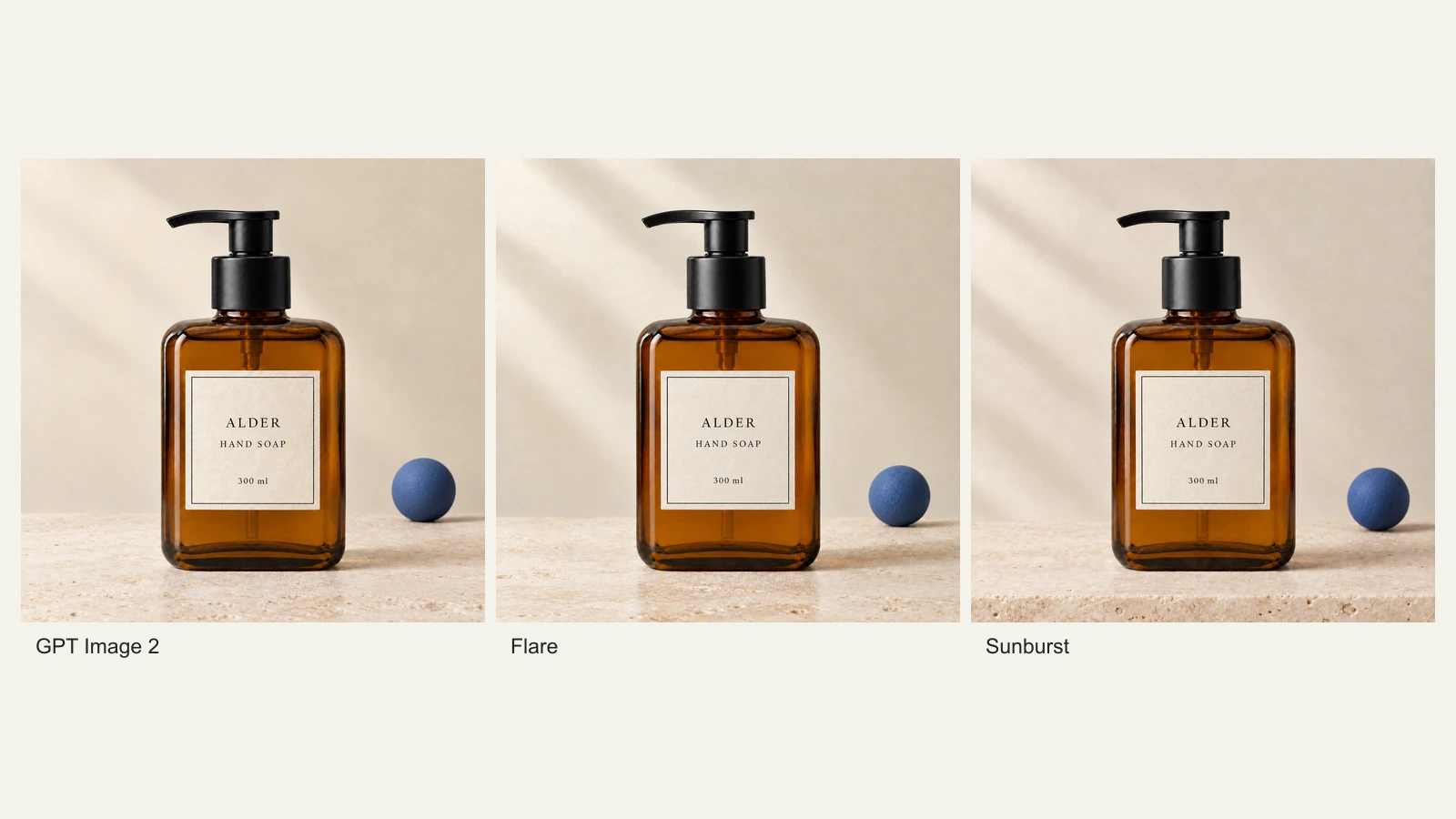
GPT Image 2.5 Flare vs Sunburst: Product Photo Edits Tested
We compare Flare, Sunburst and GPT Image 2 across 18 product-photo edits: label fidelity, material changes, editing speed and current site credits.
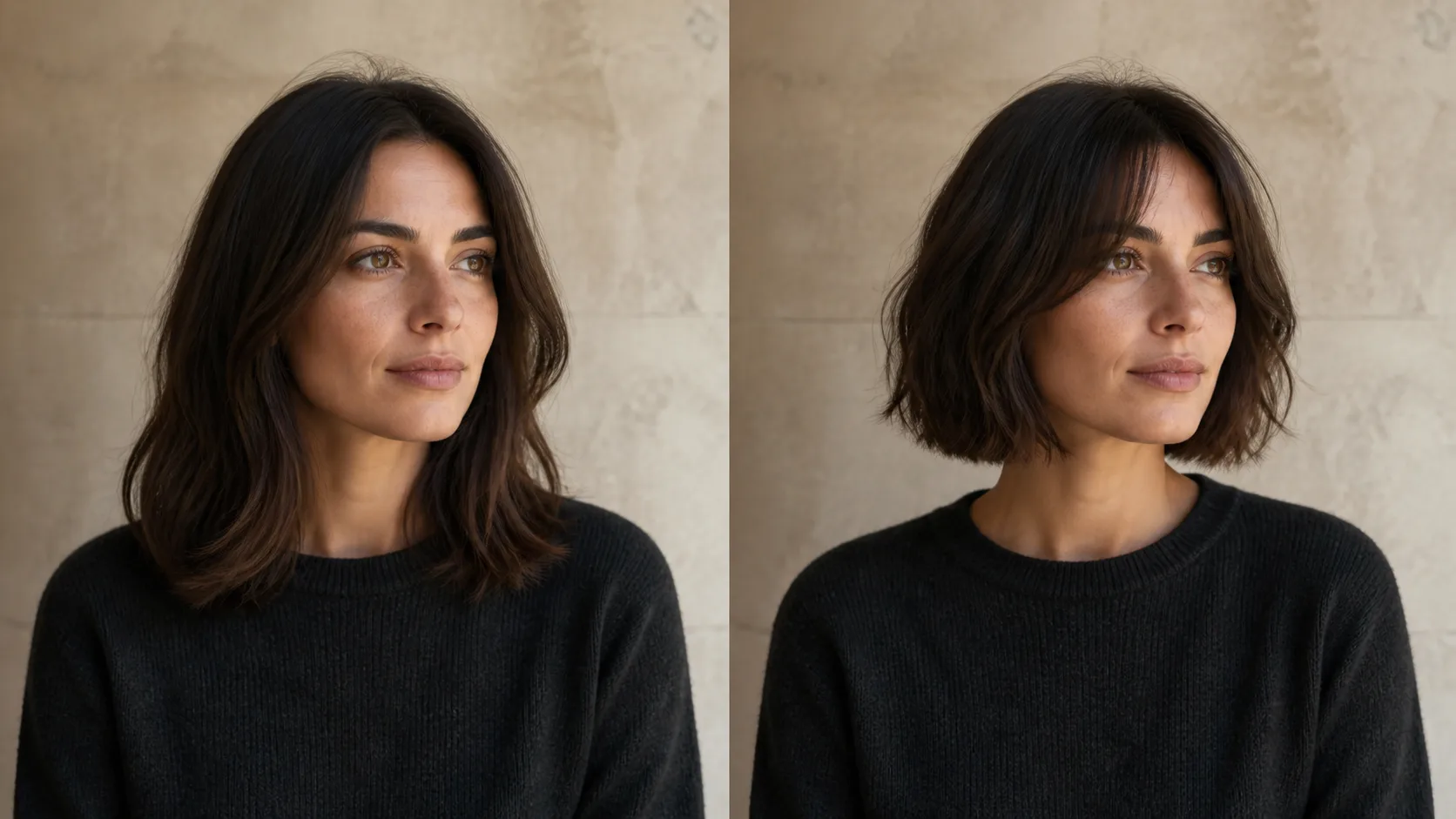
How to Preview a Haircut With AI Before You Commit
Learn how to preview a haircut with AI using better photos, precise prompts, reference images, and a realism check before visiting the salon.