
How to Use AI Background Generator to Transform Your Images
Whether you're a product seller needing clean catalog images, a social media creator looking for eye-catching visuals, or simply someone who wants better-looking photos, learning how to use an AI background generator will save you hours of manual editing. In this guide, you'll get a complete walkthrough from uploading your first image to downloading a polished result.

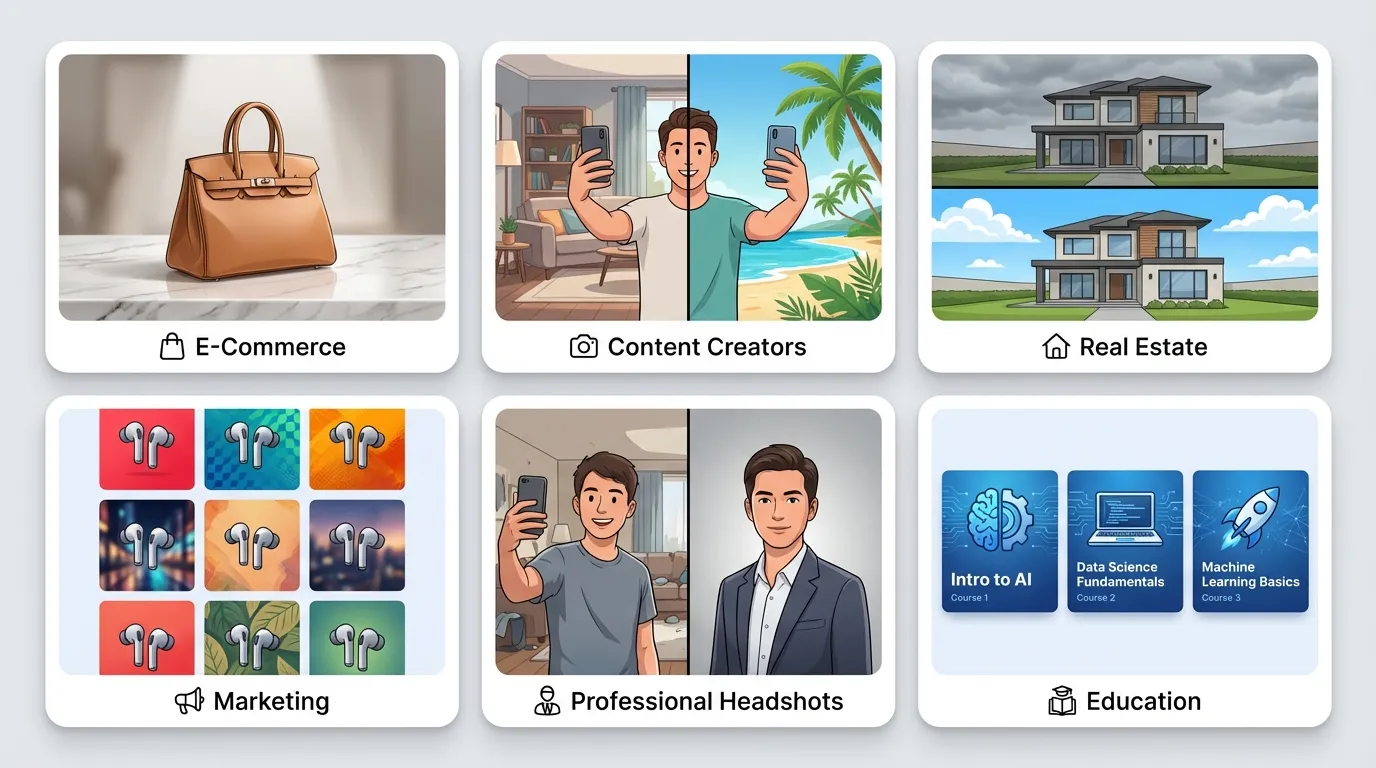
Have you ever taken the perfect photo only to realize the background ruins everything? Maybe it's a cluttered room, a crowded street, or just a plain wall that adds nothing to the shot. An AI background generator solves this problem in seconds — no Photoshop skills required. These tools use machine learning to detect your subject, remove the existing background, and replace it with anything you can imagine.
Whether you're a product seller needing clean catalog images, a social media creator looking for eye-catching visuals, or simply someone who wants better-looking photos, learning how to use an AI background generator will save you hours of manual editing. In this guide, you'll get a complete walkthrough from uploading your first image to downloading a polished result.
What Is an AI Background Generator and How Does It Work?
An AI background generator is a tool that automatically detects the main subject in your photo, separates it from the background, and either removes or replaces the backdrop with a new scene. Unlike traditional photo editing that requires careful manual masking with tools like the pen tool or magic wand, AI handles the entire process through deep learning algorithms.
Here's what happens behind the scenes:
- Subject detection — The AI identifies the primary subject (person, product, pet) using semantic segmentation models trained on millions of images.
- Edge refinement — Advanced algorithms preserve fine details like hair strands, fur textures, and translucent edges that manual selection often misses.
- Background generation — Based on your text prompt, preset template, or reference image, the AI creates a new background with matching lighting, shadows, and perspective.
The result is a professional-looking composite that would take a skilled designer 30 minutes or more to create manually. Modern AI background editors produce this in under 10 seconds.
Beginner Tip: You don't need any design experience to get great results. Most tools work with a simple upload-and-click workflow.
How to Use AI Background Generator: Step-by-Step Tutorial
Ready to replace your first background? This ai background generator tutorial walks you through the entire process. We'll use Createimg.ai as our example since it offers a straightforward browser-based experience with no software installation needed.
Step 1: Choose and Upload Your Image
Start by selecting the photo you want to transform. For the best results, pick an image where:
- The subject is clearly visible and not heavily overlapping with background elements
- The photo has decent resolution (at least 1024×1024 pixels recommended)
- Lighting on the subject is even and not overly dark
Navigate to your chosen AI background generator and click the upload button. Most tools accept JPG, PNG, and WebP formats. Drag-and-drop uploading is typically supported as well.
Step 2: Let the AI Remove the Existing Background
Once uploaded, the AI immediately processes your image. It identifies your main subject and strips away the existing background. This usually takes 2–5 seconds depending on image complexity.
At this stage, you'll typically see your subject on a transparent or white background. Review the cutout carefully — check edges around hair, clothing borders, and any semi-transparent areas.
Advanced Tip: Some tools let you select a removal style optimized for your content type (Portrait, Product, Animal, General). Choosing the correct mode improves edge accuracy significantly.
Step 3: Describe or Select Your New Background
This is where the creative part begins. You have several options to replace image background with AI step by step:
- Text prompt — Type a description like "modern coffee shop with warm lighting" or "tropical beach at sunset" and the AI generates a matching scene.
- Preset templates — Browse curated background categories such as Studio, Nature, Urban, or Abstract.
- Solid color — Choose a clean solid color background, perfect for product catalogs and professional headshots.
- Reference image — Upload a background image you'd like to use as the new backdrop.
When writing text prompts, be specific. Instead of "nice background," try "minimalist white studio with soft shadow on the left." The more detail you provide, the closer the output matches your vision.
Step 4: Adjust and Fine-Tune
After the initial generation, most tools let you refine the result:
- Repositioning — Move or resize your subject within the new background
- Regeneration — Click generate again for a different variation of the same prompt
- Lighting adjustment — Some advanced editors automatically match the lighting of your subject to the generated background
- Shadow addition — Add natural-looking drop shadows to ground your subject in the scene
Createimg.ai automatically adjusts lighting and perspective to match your subject to the new scene, which eliminates one of the most common problems in manual compositing.
Step 5: Download Your Transformed Image
Once you're satisfied with the result, download the final image. Most tools offer:
- PNG — Best for images that need transparent areas or highest quality
- JPG — Smaller file size, ideal for web use and social media
- High-resolution export — Some tools let you upscale the result for print use
That's it — five steps to a completely transformed photo. The entire process typically takes under two minutes.
Best AI Background Generator Tools Compared
Not every tool suits every use case. Here's how the leading options stack up in 2026 for anyone looking for the right online ai background editor for beginners or professionals:
| Tool | Best For | Text Prompts | Auto Lighting Match | Free Tier | Ease of Use |
|---|---|---|---|---|---|
| Createimg.ai | All-around use | Yes | Yes | Yes | Very Easy |
| Photoroom | Mobile editing | Yes | Yes | Limited | Easy |
| Adobe Firefly | Professional workflows | Yes | Yes | Limited | Moderate |
| Canva | Social media graphics | Yes | No | Yes | Easy |
| Pebblely | E-commerce products | Yes | Yes | Limited | Easy |
| Phot.AI | Quick edits | Yes | No | Yes | Very Easy |
| Pixelcut | Sellers & creators | Yes | Partial | Limited | Easy |
Our top pick: Createimg.ai stands out for several reasons. It combines text-prompt-based generation, automatic lighting and shadow matching, and multiple removal styles (General, Portrait, Product, Animal) — all in a free browser-based tool that requires no sign-up to get started. For beginners exploring AI background editing for the first time, it removes every possible friction point.
Advanced Tips for Getting Professional Results
Once you've mastered the basics of how to use an AI background generator, these techniques will elevate your output from good to professional-grade.
Match Lighting Direction
The most common giveaway of a composited image is mismatched lighting. If your subject is lit from the left, your background should have a light source on the left as well. When writing prompts, include lighting direction: "studio backdrop with soft light from the upper left."
Use High-Resolution Source Images
AI background generators produce better edge detection and subject isolation with high-resolution inputs. If you're shooting specifically for background replacement, capture at the highest resolution your camera allows. Smartphone photos at full resolution work well — just avoid heavy digital zoom.
Choose Contextually Appropriate Backgrounds
A formal business headshot on a beach background looks jarring regardless of how well the AI executes the composite. Consider what background supports the purpose of the image:
- E-commerce products → Clean studio setups, lifestyle scenes matching product use
- Professional headshots → Neutral gradients, modern office environments
- Social media content → Trendy locations, colorful abstract scenes
- Real estate → Well-manicured exteriors, aspirational interior settings
Batch Process for Consistency
If you're editing multiple product photos or team headshots, use the same prompt or template across all images. This creates visual consistency across your catalog or website. Many AI background editors support batch processing for this exact purpose.
Beginner Tip: Start with preset templates rather than custom prompts. Templates are pre-tuned for good results and teach you what effective backgrounds look like before you start writing your own prompts.
Common Mistakes to Avoid with AI Photo Background Changers
Even with powerful AI tools, certain pitfalls can reduce the quality of your results. Here's an ai photo background changer guide to what you should watch out for:
Using Low-Quality Source Images
Blurry, pixelated, or heavily compressed images give the AI less data to work with. The subject edges will look rough, and the overall composite will appear unnatural. Always start with the sharpest image available.
Ignoring Edge Artifacts
After background replacement, zoom in to 100% and check the edges of your subject. Look for:
- Halo effects (light or dark outlines around the subject)
- Missing fine details (hair strands, fabric edges)
- Jagged or unnaturally smooth borders
Most tools provide an eraser or refinement brush to clean up problem areas manually.
Over-Prompting
Writing excessively detailed prompts sometimes confuses the AI and produces cluttered or incoherent backgrounds. Keep prompts focused on 2–3 key descriptors: scene type, lighting mood, and one distinguishing detail.
Good prompt: "Cozy home office with natural window light and bookshelves" Overly complex prompt: "A home office with exactly three bookshelves made of dark walnut wood, a large window with white curtains showing a garden outside, warm tungsten lighting at 3200K, a small succulent plant on the desk"
Forgetting About Shadows
A subject floating without a shadow looks pasted onto the background. Always ensure your tool adds a natural ground shadow. Createimg.ai handles this automatically, but if your chosen tool doesn't, look for a shadow toggle or add one manually.
Mismatching Scale and Perspective
When your subject was photographed at eye level but the generated background shows a bird's-eye view, the composite immediately looks fake. Pay attention to the camera angle in your original photo and match it in your prompt. If your product was shot straight on, describe a background with a similar straight-on perspective rather than a dramatic angled scene.
Skipping the Final Review
It's tempting to download the first result and move on, but spending 30 extra seconds on review catches most issues. Check the full image at 100% zoom, paying special attention to where the subject meets the background. Look at the overall color temperature — a warm-toned subject on a cool-toned background creates visual disconnect even when the edges are perfect.
Who Benefits Most from AI Background Generation?
The versatility of AI background generators makes them valuable across many fields:
- E-commerce sellers — Create professional product photos without expensive studio setups. Consistent backgrounds across listings improve brand perception and conversion rates. Sellers on platforms like Amazon, Etsy, and Shopify report that lifestyle-style backgrounds generated by AI increase click-through rates compared to plain white product shots.
- Content creators and influencers — Produce location-diverse content from a single shooting spot. Change backgrounds to match seasonal themes or brand campaigns instantly. This is especially powerful for creators who film from home but need to appear in varied settings for brand partnerships.
- Real estate agents — Enhance property photos by replacing overcast skies with blue-sky alternatives, cleaning up distracting exterior backgrounds, or staging empty rooms with generated furnishings. Virtual staging powered by AI background generation costs a fraction of physical staging.
- Marketing teams — Generate ad creatives and social media assets at scale without scheduling photo shoots for every campaign. A/B test different backgrounds to see which visual environment drives higher engagement.
- Job seekers and professionals — Transform casual selfies into polished headshots with appropriate business backgrounds. LinkedIn profiles with professional headshots receive significantly more views than those with casual photos.
- Educators and presenters — Create visually consistent slide decks and course thumbnails. Generate branded backgrounds that match your institution or personal brand across all materials.
Get Started with AI Background Generation Today
You've now learned how to use an AI background generator from start to finish — from uploading your first image to fine-tuning professional results. The technology has reached a point where anyone, regardless of design experience, can produce studio-quality background replacements in minutes.
The tool we recommend for getting started is Createimg.ai. It combines powerful AI background generation with an intuitive interface that works entirely in your browser. With automatic subject detection, text-prompt-based scene generation, intelligent lighting matching, and multiple export options — all available for free — it's the easiest way to transform your images today.
Upload your first photo and see the difference an AI background generator makes. Whether you're enhancing product shots, creating social media content, or building a professional portfolio, better backgrounds are just a few clicks away.
Try it
Run your own prompt in the generator
Pick a model, run one prompt, and compare the results side by side. New accounts start with free credits.
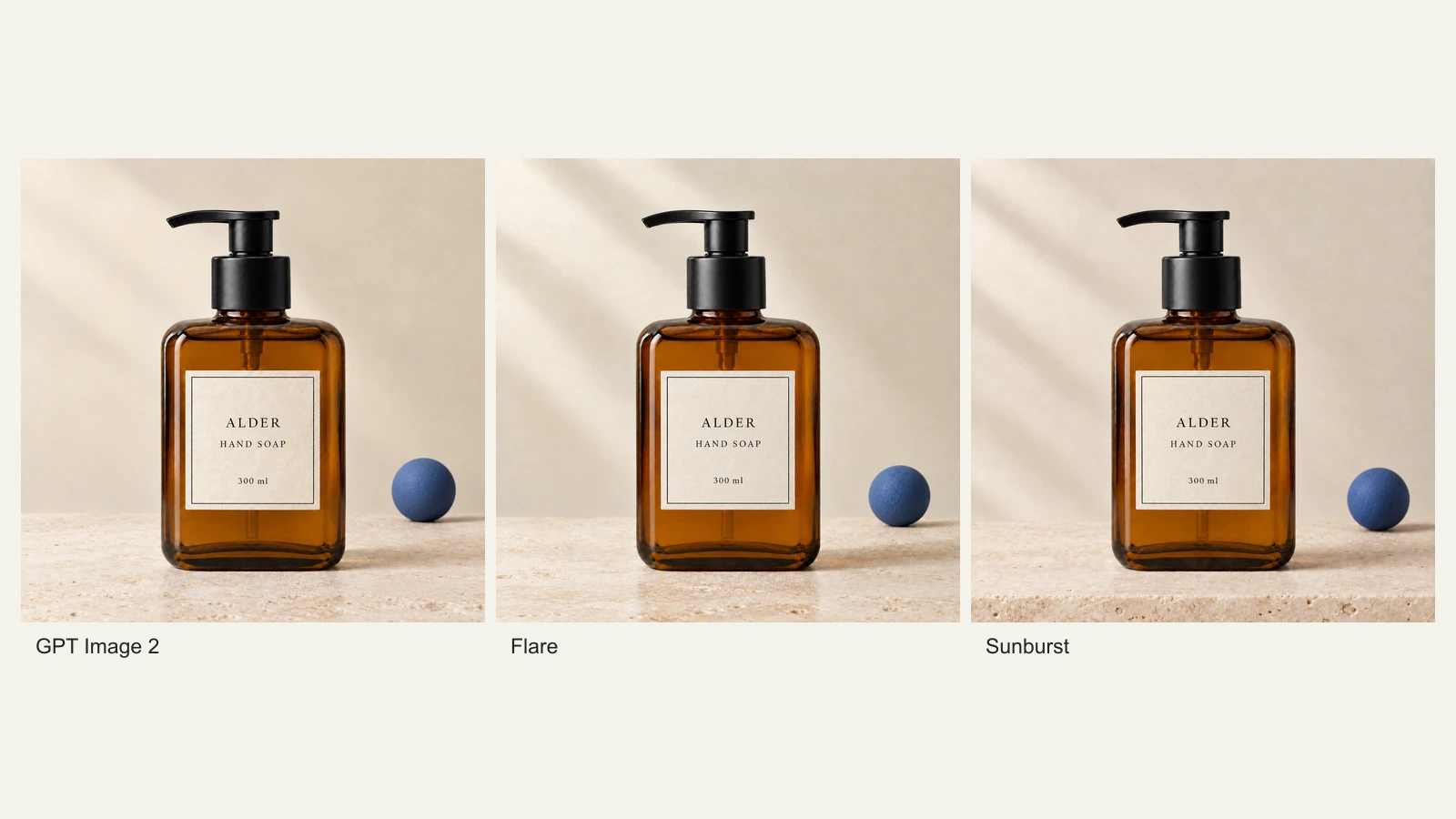
GPT Image 2.5 Flare vs Sunburst: Product Photo Edits Tested
We compare Flare, Sunburst and GPT Image 2 across 18 product-photo edits: label fidelity, material changes, editing speed and current site credits.
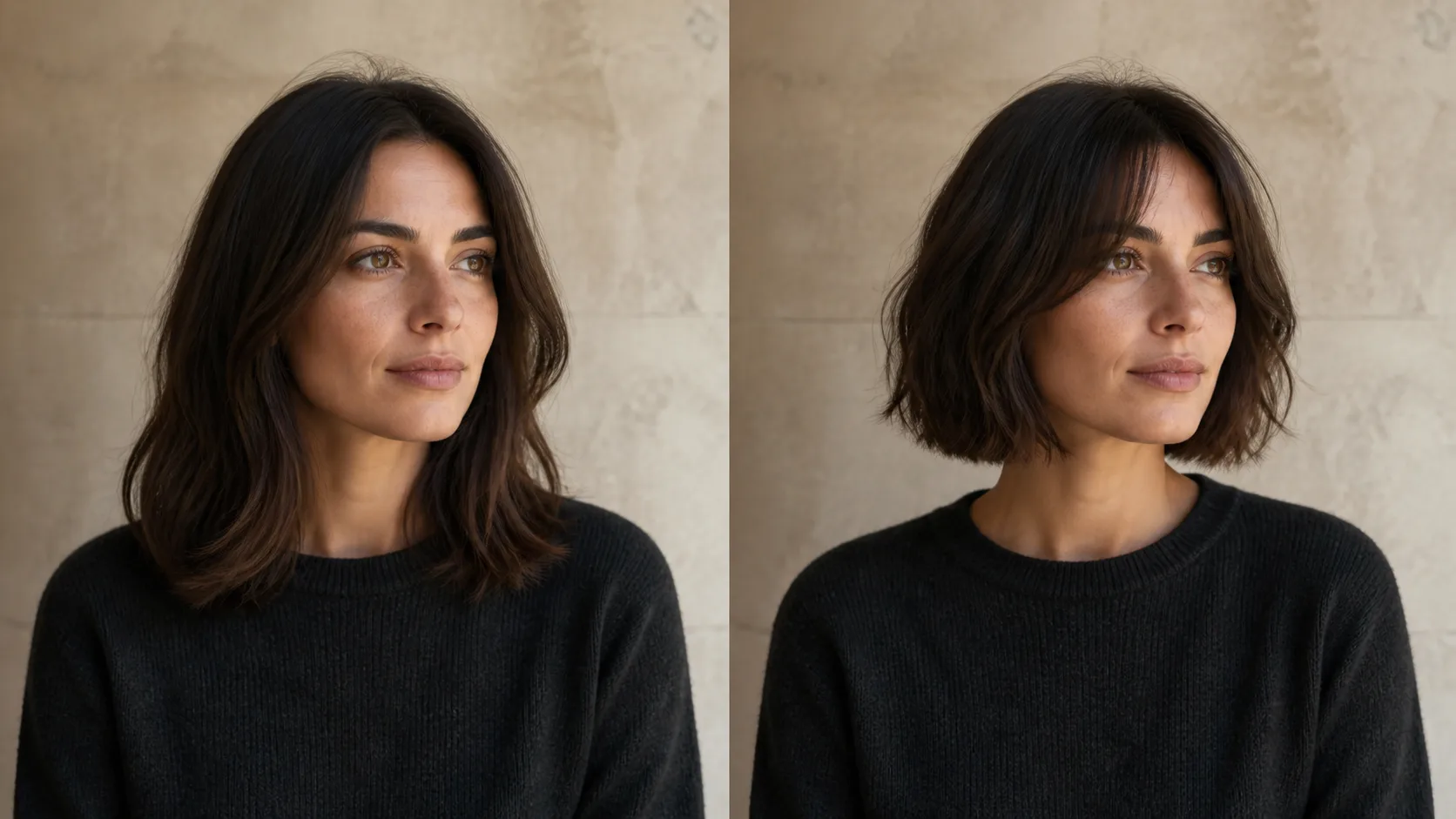
How to Preview a Haircut With AI Before You Commit
Learn how to preview a haircut with AI using better photos, precise prompts, reference images, and a realism check before visiting the salon.