
AI Image Unblur Tool — Restore Sharpness & Clarity in One Click | Createimg.ai
Fix blurry photos instantly with AI. Whether it’s a shaky portrait, defocused product photo, or unclear document, Createimg.ai’s AI Unblur Image tool restores clarity and natural detail with professional precision.
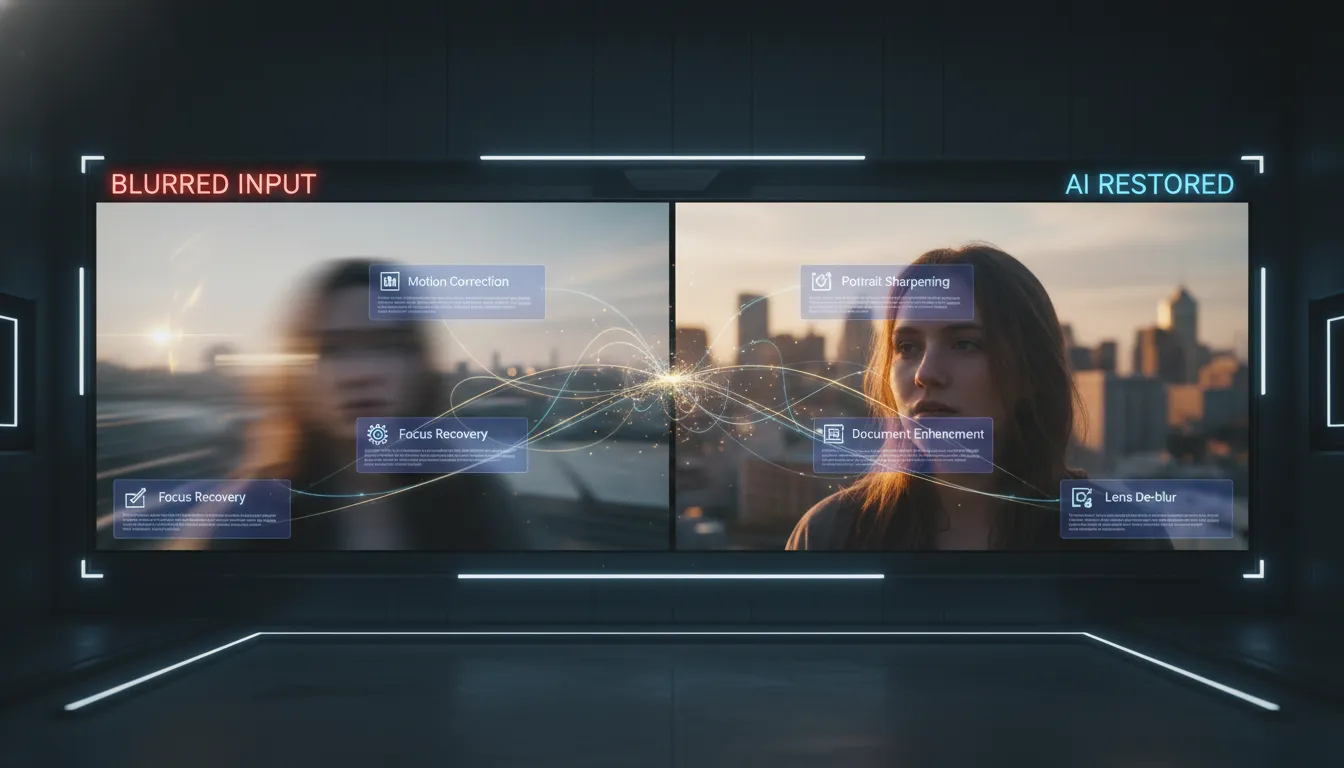
Blurry photos are a problem almost every creator, photographer, designer, and even everyday user will encounter. Maybe a great candid shot became blurry due to hand shake, maybe an old photo has very low resolution, or maybe you simply want to make a product image, screenshot, or profile picture sharper.
Traditional methods often require Photoshop skills or plugin adjustments, but today, AI Unblur Image is making the entire process simple and professional.
You only need to upload an image, and the AI can automatically identify the type of blur, restore edge details, and rebuild textures, giving your photo a refreshed, clearer look.
However, for most users, the real question is not “Can AI do it?” but rather:
“Why does AI unblurring sometimes work perfectly, and sometimes look unnatural?” “What method should I use for different types of blur?” “How do I adjust parameters to make the image both sharp and realistic?”
This article will address practical needs and common doubts, giving you a systematic explanation of the underlying logic and hands-on techniques of image deblurring, helping you fully master professional AI image restoration.
On Createimg.ai, this process is designed to be even more efficient and intuitive: Simply upload your image, choose a style, and click generate — the clarity restoration is completed automatically.
Why Do Images Become Blurry? — The 5 Most Common Situations
The causes of blurriness are diverse; from the shooting process to image compression, any step may result in loss of details.
Most blurry photos stem from the following reasons:
| Blur Type | Typical Scenario | Visual Appearance |
|---|---|---|
| Motion Blur | Hand shake during shooting or movement of the subject | Directional streaks or ghosting across the image |
| Out-of-Focus Blur | Incorrect camera focus or overly shallow depth of field | Soft edges and an unclear main subject |
| Camera Shake Blur | Long-exposure shooting in low-light conditions | Mild overall blur with reduced sharpness |
| Compression Blur | Social media uploads, screenshots, low-resolution video frames | Smudged details with noticeable blocky artifacts |
| Low-Light Noise Blur | Night scenes or dim-light environments | Heavy noise, color smearing, and dirty-looking edges |
🔍 Common Confusions:
- “My selfie had decent lighting, so why is it still blurry?” → The focus was not properly set.
- “The text in my document photo is unclear — how can I fix it?” → Compression blur + low contrast.
- “Old photos look unnatural after enhancement, with skin appearing waxy?” → The restoration algorithm was overapplied or the settings were too strong.
Each type of blur has different characteristics, so choosing the appropriate deblurring method is extremely important.
Best Solutions for Different Use Scenarios
Different users face different types of blur issues. The AI Deblurring Tool from Createimg.ai supports multiple restoration modes and can precisely match algorithms for different scenarios.
Portrait Restoration: Make facial features clearer and skin texture more natural
Suitable for selfies, ID photos, and portrait photography. The AI intelligently recognizes facial structure, repairing blurry eyes, lips, and hair details while maintaining natural skin texture.
- Recommended Mode: Portrait Sharpening
- AI Focus Areas: Facial structure, skin texture, hair strand details
- Result: Delicate and realistic, without “waxy skin”
✨ Prompt: restore facial details, keep pores visible, avoid plastic skin.
Dynamic Photos: Restore the Clarity of the Moment
Suitable for sports photography, pet photos, and stage performance snapshots.
The AI analyzes motion trajectories and compensates for directional blur with reconstruction.
- Recommended Mode: Motion Correction
- AI Focus Areas: Dynamic edges, background separation, motion direction reconstruction
- Result: A more stable subject and a cleaner overall image
Documents & Scans: Make Every Character Clear and Readable
Suitable for PPT screenshots, ID scans, and old book photocopies. The AI enhances edge contrast and repairs compression artifacts, making text sharp and distinguishable again.
- Recommended Mode: Document Enhancement
- AI Focus Areas: Text edges, anti-aliasing, grayscale correction
- Result: No need to retake the photo — the document becomes as clear as the original
✨ Prompt: enhance text clarity, remove compression blur, no halo.
Product & E-commerce Images: Restore Authentic Textures and Materials
Suitable for e-commerce main images and product showcase photos. The AI detects object edges and highlight reflections, reconstructs textures, and reduces noise.
- Recommended Mode: Focus Recovery
- AI Focus Areas: Edge sharpness, logos, surface reflections
- Result: Brighter metal, clearer fabrics, sharper text
✨ Prompt: restore texture of product surfaces; natural reflection; crisp edges.
AI Deblurring in Three Steps — From Upload to Clarity in Just Seconds
Createimg.ai makes the complex AI restoration process extremely simple, allowing anyone to achieve professional-level image sharpening in just three steps.
1.Upload Your Blurry Image
Choose the picture you want to enhance — whether it’s a shaky portrait, a blurry product photo, or a scanned document.
The AI automatically analyzes the image after upload, identifying the blur areas, blur type, and blur intensity.
- Supports JPG / PNG / WebP
- Recommended to use the original or a high-resolution version
- Preview allows direct comparison of before-and-after results
2.Choose a Deblurring Style
You can choose from the following modes in the tool interface:
- Dynamic Deblurring → Restores motion trails and blur caused by shaking or fast movement, making dynamic scenes stable and clear again.
- Focus Recovery → Enhances edges and overall sharpness, suitable for photos with focus shift or mild out-of-focus blur.
- Portrait Deblurring → Designed specifically for portraits, optimizing facial details, skin texture, and hair strands while maintaining natural skin tones.
- Text & Document Deblurring → Improves clarity of text and lines, removes compression artifacts, and makes scans or screenshots easier to read.
- Lens Deblurring → Corrects issues caused by lens smudges, halos, and imaging softness, restoring true contrast and transparency.
The AI automatically matches the appropriate algorithm and intensity to precisely restore the most natural clarity.
Whether you are a photographer, an e-commerce seller, or a student, you can achieve professional restoration results within one minute.
3.Generate and Download the Restored Result
Click “Generate”, and the AI deblurring system will automatically complete:
- Blur type recognition
- Edge detail reconstruction
- Light and contrast optimization
- Output of a high-definition version
Within seconds, you can download the restored high-resolution image.
AI deblurring is not just a technology — it is a way to bring “regretful photos” back to life.
What used to require tedious manual adjustments and layers of complex filters can now be restored with a single click, bringing back the real details of those out-of-focus moments.
Whether it’s a precious portrait, an important product photo, or a blurry scanned document,the AI Unblur Image tool from Createimg.ai can turn blur into clarity — transforming an “almost perfect” shot into a true final image.
Try it
Run your own prompt in the generator
Pick a model, run one prompt, and compare the results side by side. New accounts start with free credits.
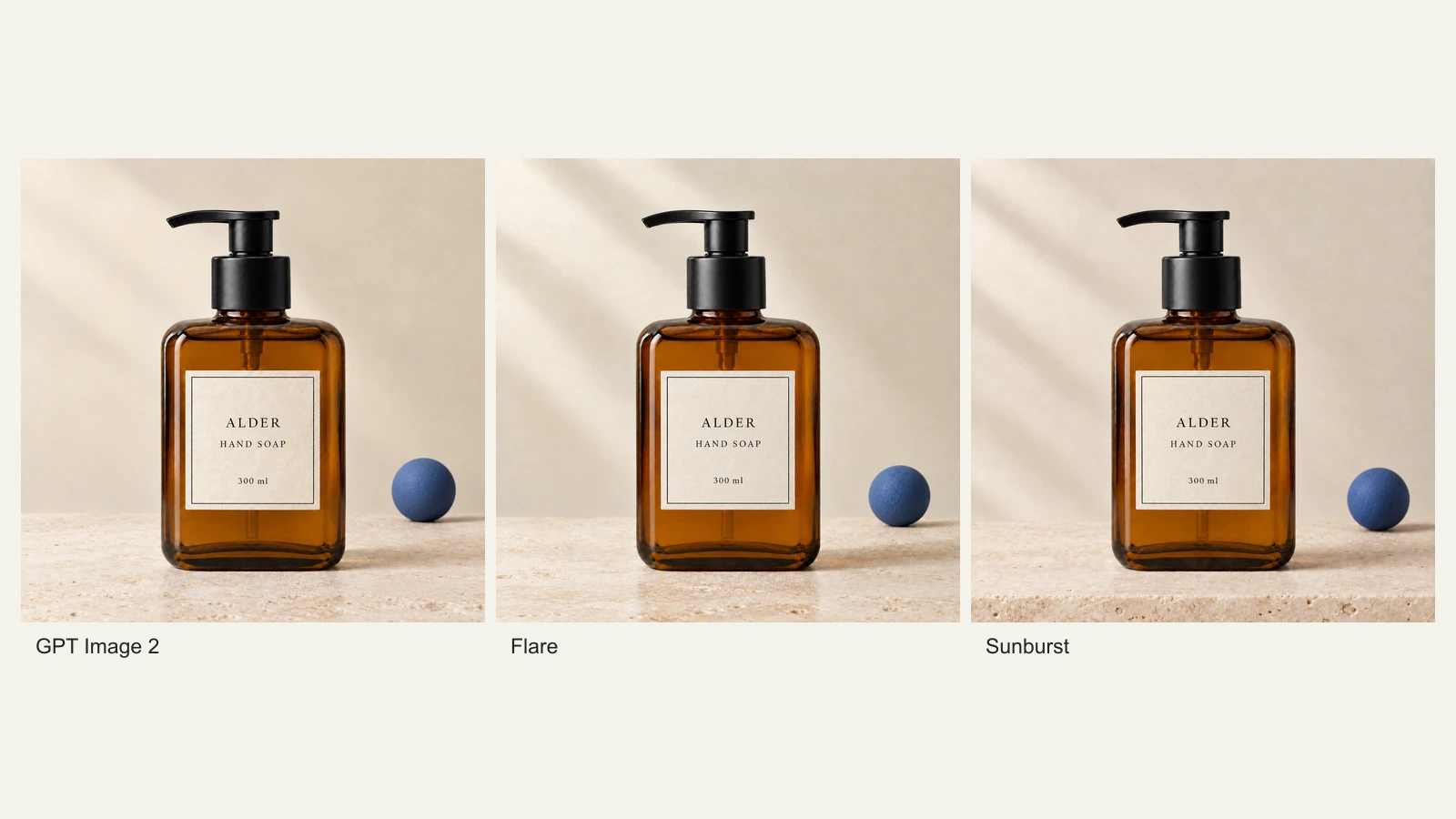
GPT Image 2.5 Flare vs Sunburst: Product Photo Edits Tested
We compare Flare, Sunburst and GPT Image 2 across 18 product-photo edits: label fidelity, material changes, editing speed and current site credits.
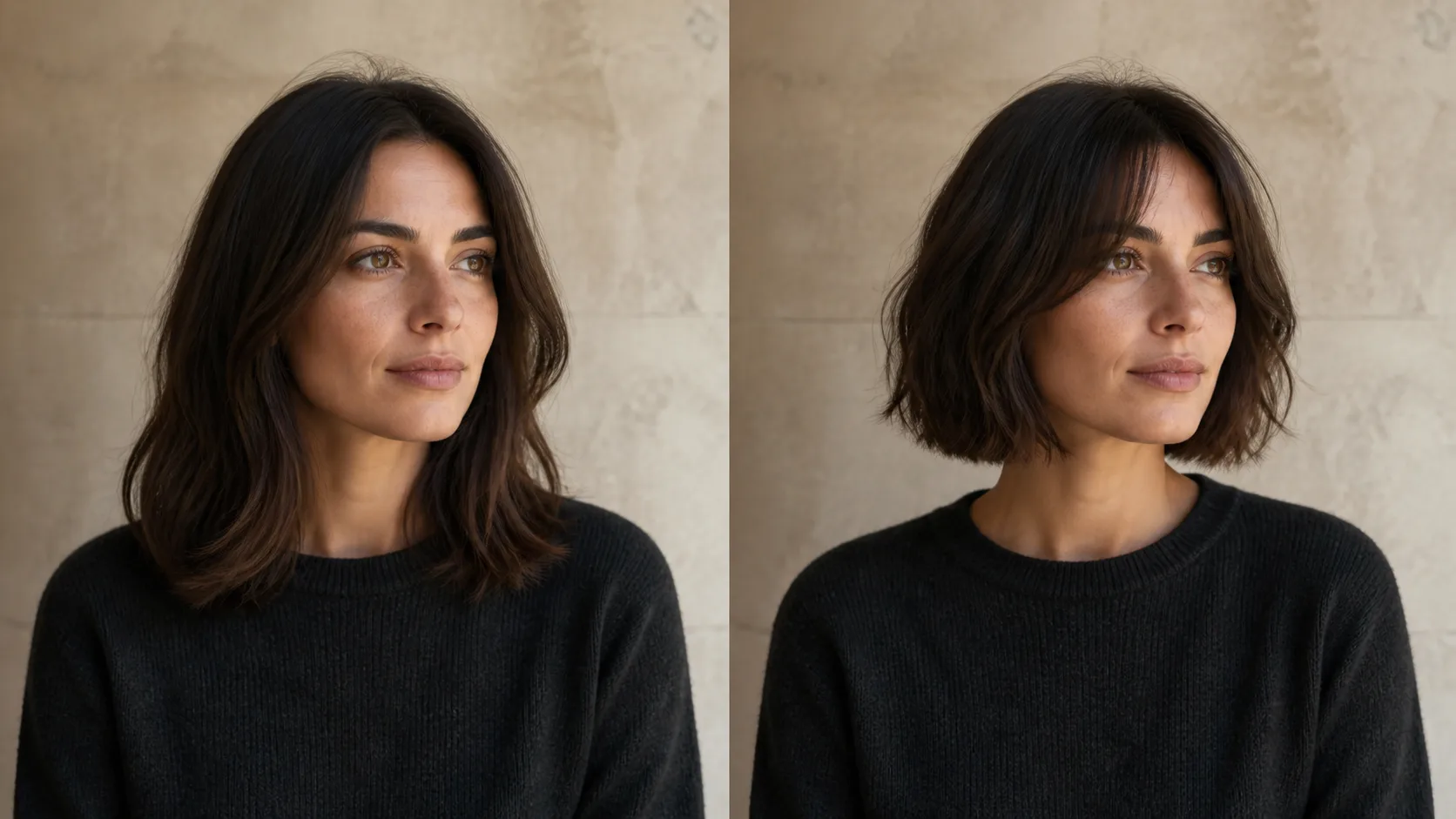
How to Preview a Haircut With AI Before You Commit
Learn how to preview a haircut with AI using better photos, precise prompts, reference images, and a realism check before visiting the salon.