How to Turn an Image into a Prompt: 3 Editable Examples
Turn a reference image into an editable AI prompt with three examples. Learn how to change lighting, setting, or subject and fix unclear descriptions.

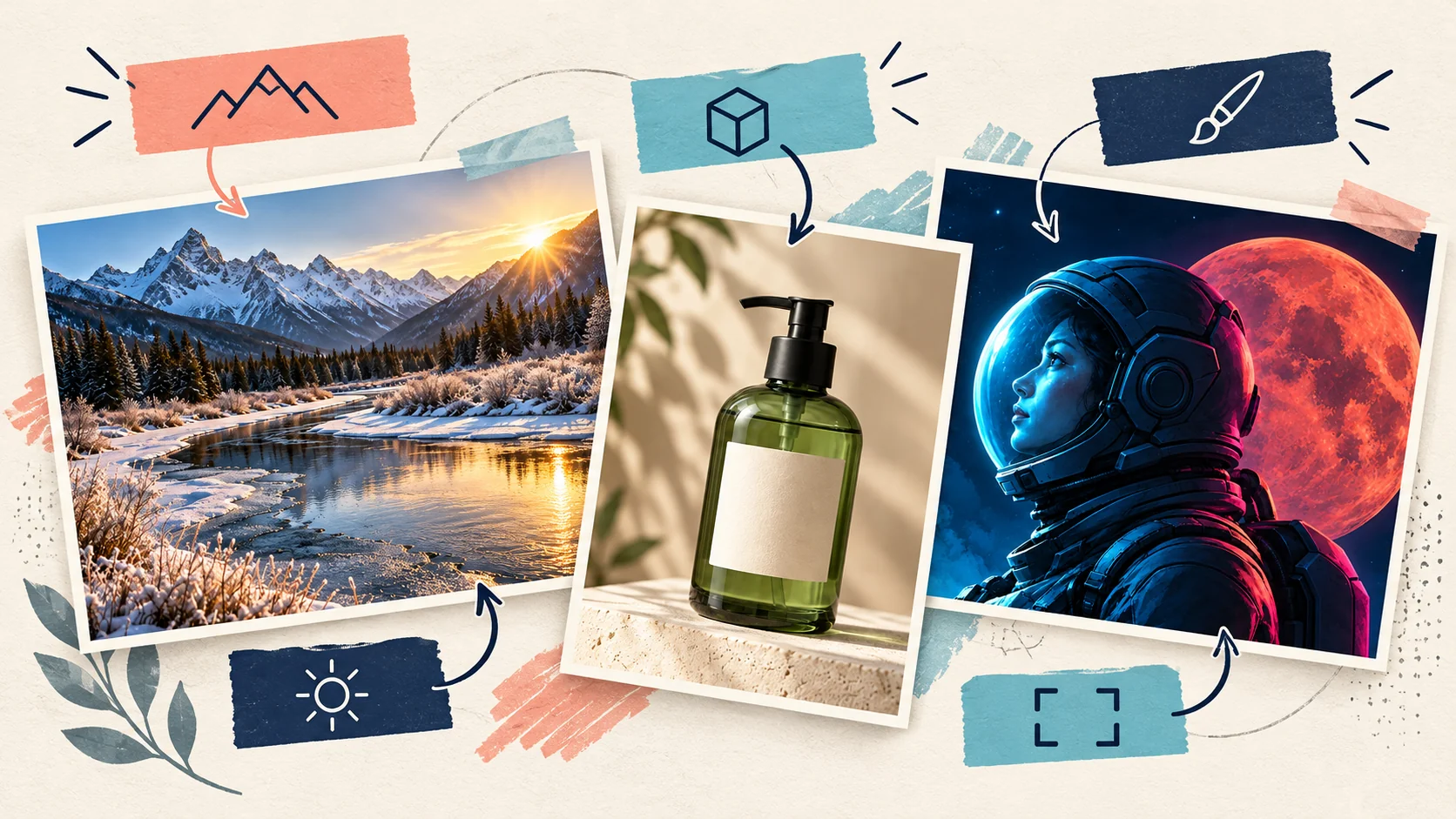
To turn an image into a prompt, start with a clear reference, check the description it produces, then edit the subject, setting, style, lighting, and composition separately. The useful part is deciding what to keep and what to change before you generate another image.
You might like the morning light in a landscape but want an overcast scene, or the colors of an illustration but want a different character. Below, three image-to-prompt examples show how to make those changes with complete prompts you can copy and adapt.
The reference images were generated for this guide. Their descriptions and revisions are hand-written teaching examples, not recorded extraction or generation results from Createimg.
Turn your reference image into an editable prompt
Open the Image to Prompt generator when you are ready to try your own picture.
- Choose one clear reference. Start with a picture where the subject and the feature you want to borrow are easy to see. If you care about the lighting, choose an image that shows the light and shadows clearly.
- Upload the image. The tool accepts JPG, PNG, and WebP. Check the sign-in and credit requirements displayed beside the generate button before you start.
- Choose the output format. Detailed and Sentences are a useful starting point for reading the description. Concise produces a shorter version; Keyword tags produces a list rather than prose.
- Generate and inspect the five parts. Check the subject, setting, style, lighting, and composition against your reference. Correct an omitted object or a wrong color before adding more descriptive words.
- Edit, then copy or continue creating. You can edit the parts or the full prompt. The page also offers a way to continue in Text to Image or to carry the reference into Image to Image.
The result describes what the tool can see. Treat it as a starting description, rather than the exact original prompt that created the picture.
Break the image into five parts
Use these questions when reading the output:
| Part | What to identify |
|---|---|
| Subject | What is the main person, animal, object, or scene? Which visible details matter? |
| Setting | Where is it, and what surrounds or supports it? |
| Style | Is it a photograph, digital illustration, watercolor, or another medium? |
| Lighting | Where does the light come from? Is it warm or cool, soft or sharply shadowed? |
| Composition | How is the subject framed and positioned? What is close, distant, large, or small? |
Keep a detail only when it helps describe your goal. A precise camera model, hidden material, or exact lens cannot always be established by looking at an image; you do not need to invent one.
Example 1: change a landscape from sunrise to overcast
Look at how the warm reflection on the river contrasts with the cool snow shadows. That contrast belongs in the lighting description; the river bend and mountain arrangement belong in the composition.
| Part | Description for this reference |
|---|---|
| Subject | A partly frozen river and snowy alpine mountains |
| Setting | Frosted riverbanks, evergreen trees, and a quiet winter valley |
| Style | A realistic landscape photograph |
| Lighting | Low golden sunlight from the right, warm water reflections, cool snow shadows |
| Composition | A wide view near river level, with the river leading toward distant peaks |
Starting prompt
Wide photograph of a partly frozen river curving through a snowy alpine valley. Frosted grasses line the foreground, dark evergreen trees stand in the middle distance, and jagged snow-covered peaks rise behind them. Low golden sunlight enters from the right, creating warm reflections on the water and cool blue shadows on the snow. View from near river level, with the river leading into the distance. No buildings or people.
Change to try: replace the lighting description with an overcast winter day. Remove the golden sunlight and warm-reflection instructions so the prompt does not ask for two incompatible lighting conditions.
Revised prompt
Wide photograph of a partly frozen river curving through a snowy alpine valley. Frosted grasses line the foreground, dark evergreen trees stand in the middle distance, and jagged snow-covered peaks rise behind them. An overcast winter sky provides soft, diffuse light, a muted cool palette, gentle snow shadows, and subdued reflections on the water. View from near river level, with the river leading into the distance. No buildings or people.
Check the next result: has the light become soft and subdued? If bright sunshine remains, check for leftover instructions such as sunrise, golden hour, or direct sunlight. The description asks for a new scene with those ingredients; it does not lock the river and mountains to identical shapes.
Example 2: move a product into a different setting
Here, separate the bottle from the surface and backdrop. That makes it easier to replace the setting without accidentally describing a different product.
| Part | Description for this reference |
|---|---|
| Subject | One green glass bottle, black pump, and blank cream label |
| Setting | A pale stone plinth against a warm beige backdrop |
| Style | Realistic product photography |
| Lighting | Warm light from the upper left, with leaf-shaped shadows |
| Composition | A centered bottle, fully visible, photographed at bottle height |
Starting prompt
One translucent green glass pump bottle with a black dispenser and a blank cream label stands on a pale textured stone plinth against a warm beige backdrop. Realistic product photograph with believable glass reflections. Warm light from the upper left casts leaf-shaped shadows across the background. Centered composition at bottle height, with the entire bottle visible and a gently blurred background. No text or logos.
Change to try: move the bottle to a bathroom counter. Replace the whole setting phrase, including the stone plinth, while keeping the bottle description and the desired lighting.
Revised prompt
One translucent green glass pump bottle with a black dispenser and a blank cream label stands on a pale oak bathroom counter against a plain cream wall. Realistic product photograph with believable glass reflections. Warm light from the upper left casts leaf-shaped shadows across the background. Centered composition at bottle height, with the entire bottle visible and a gently blurred background. No text or logos.
Check the next result: is the bottle on the new surface, and does its shape still suit your task? If the stone plinth remains, remove any remaining mention of stone, plinth, or pedestal.
For a real product, the words “green glass pump bottle” are only a general description. If its exact cap, proportions, or label matter, use your product photograph as a reference in Image to Image and inspect those details in the result. Recreating a look and preserving a particular product are different goals.
Example 3: keep an illustration’s palette and change the subject
In this reference, the recognizable visual ingredients include the cyan and magenta lighting, the dark blue sky, and the close-up profile. You can describe those separately from the astronaut.
| Part | Description for this reference |
|---|---|
| Subject | An astronaut in a dark spacesuit and clear helmet |
| Setting | A large red-orange moon against a dark navy, starry sky |
| Style | A polished digital science-fiction illustration |
| Lighting | Strong cyan light from the left and magenta rim light from the right |
| Composition | A close-up side profile facing left, with the moon behind the head |
Starting prompt
An astronaut in a dark spacesuit and clear helmet, shown in close-up side profile facing left. A large red-orange moon sits behind the head against a dark navy sky with a few small stars. Polished digital science-fiction illustration with a navy, cyan, and magenta palette. Strong cyan light from the left and magenta rim light from the right. Clear silhouette, with breathing room around the moon. No lettering or emblems.
Change to try: replace the astronaut with a robotic fox. Replace the entire subject phrase, including the spacesuit and helmet, rather than only swapping the word astronaut.
Revised prompt
A robotic fox with brushed-metal facial panels and pointed ears, shown in close-up side profile facing left. A large red-orange moon sits behind the head against a dark navy sky with a few small stars. Polished digital science-fiction illustration with a navy, cyan, and magenta palette. Strong cyan light from the left and magenta rim light from the right. Clear silhouette, with breathing room around the moon. No lettering or emblems.
Check the next result: does the new subject fit the intended framing? If a helmet or spacesuit appears, check that those words have been removed. If the ears are cropped, widen the framing rather than adding more style terms.
The five parts help you organize an edit, but they affect one another. A different subject may need a different crop or position too.
Choose text-to-image or image-to-image
Once your prompt is ready, choose a route based on what you need to preserve.
| Your goal | A useful next step |
|---|---|
| Make a fresh image using a similar mood, medium, or arrangement | Copy the edited description into Text to Image. |
| Guide the next image with visual information from a reference | Continue in Image to Image, keeping the appropriate picture attached. |
| Preserve a specific person, product, or small detail | Use the relevant reference and inspect the output carefully; the written description alone may omit important visual information. |
In Createimg, the Image to Prompt page can pass the description to Text to Image, or open Image to Image with the original reference attached. Check that the attached picture is the one you intend to use, especially if you switch from a sample bottle to your own product.
When the prompt does not match what you wanted
Before starting over, identify which part of the description is wrong.
| Problem | What to check | A focused change to try |
|---|---|---|
| An important object is missing | Subject and setting | Name it and its position: “one small green bottle on the left side of the counter.” |
| The light stays warm after an overcast edit | Lighting and any mood words | Remove sunrise, golden light, and other conflicting phrases; describe soft, diffuse light directly. |
| The image becomes cluttered | Extra objects and background instructions | Keep the main subject and only the surroundings needed to explain the scene. |
| The mood is close, but the layout is wrong | Composition | State the view, crop, and relative positions; keep a visual reference attached when the layout matters. |
These are revision suggestions. Judge the resulting image against the task you actually need to complete, such as a usable product picture or a character illustration with a clear silhouette.
For more help building a description from scratch, see the general AI image prompt guide. For broader editing problems, use the AI image editing guide.
Try it with your own reference
Choose one image and one change: different light, a new setting, or another subject. Use Image to Prompt to get the first description, correct what it missed, then adapt the relevant example above.
Before generating again, check that the prompt describes the new goal and no longer contains details from the version you meant to replace.
Try it
Run your own prompt in the generator
Pick a model, run one prompt, and compare the results side by side. New accounts start with free credits.
6 Funny AI Image Prompts to Copy and Customize
Copy six funny AI image prompts for pets, work, and everyday objects. Customize each idea and use simple edits to make the visual joke clearer.
How to Preview a Haircut With AI Before You Commit
Learn how to preview a haircut with AI using better photos, precise prompts, reference images, and a realism check before visiting the salon.