
AI Color Changer
Click the object you want to recolor and pick a color. Only that object changes; its texture, logos and the rest of your photo stay as they were.
Fast, keeps texture best
Your photo keeps its original size. 2K gives sharper detail on the recolored object.
Result
Change the color of anything in your photo
Upload a photo, click the object and pick a color. Only that object is recolored; everything else stays exactly as it was.
Change the Color of Clothes, Furniture and Products
One photo, every color you want to see
Each version below was made from the same original photo with this tool. Pick a color to see it: only the object changes, the rest of the photo is the original. The example photos were made with AI.
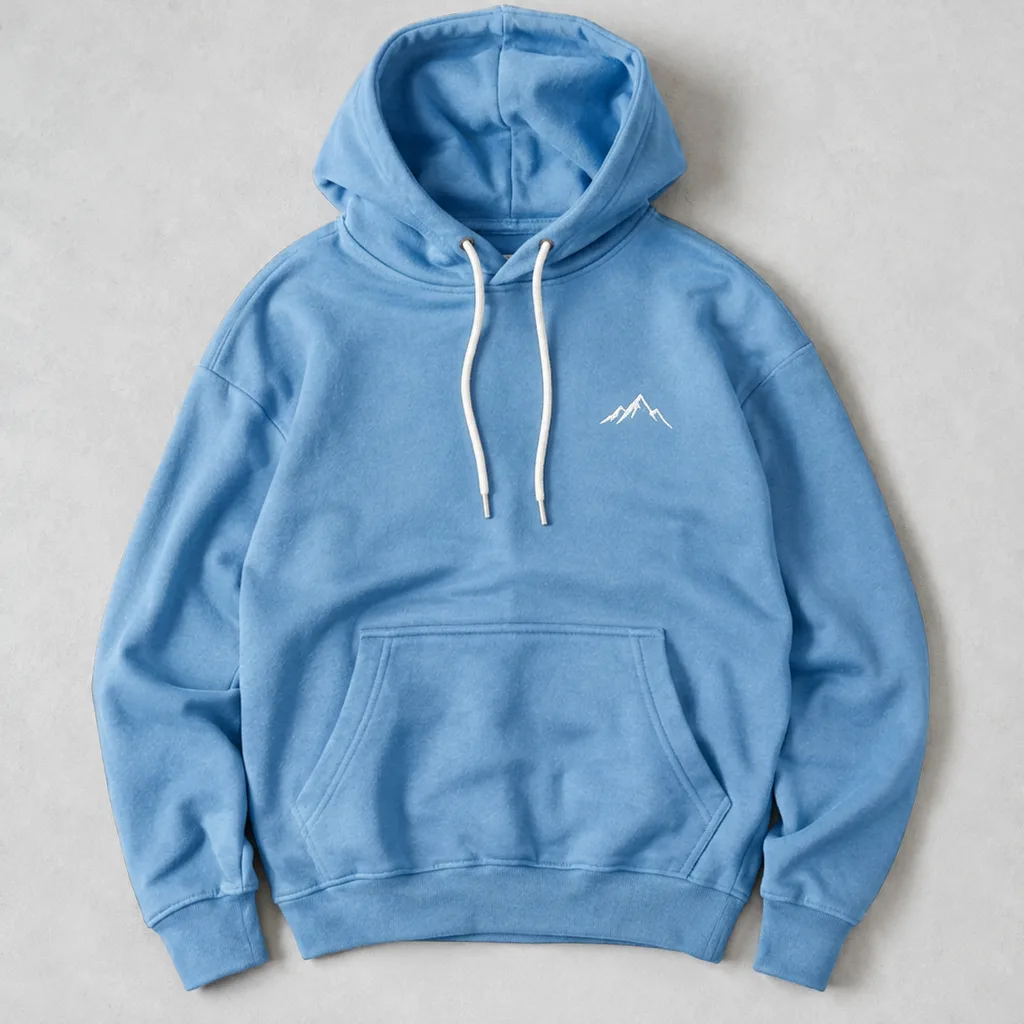
Hoodie
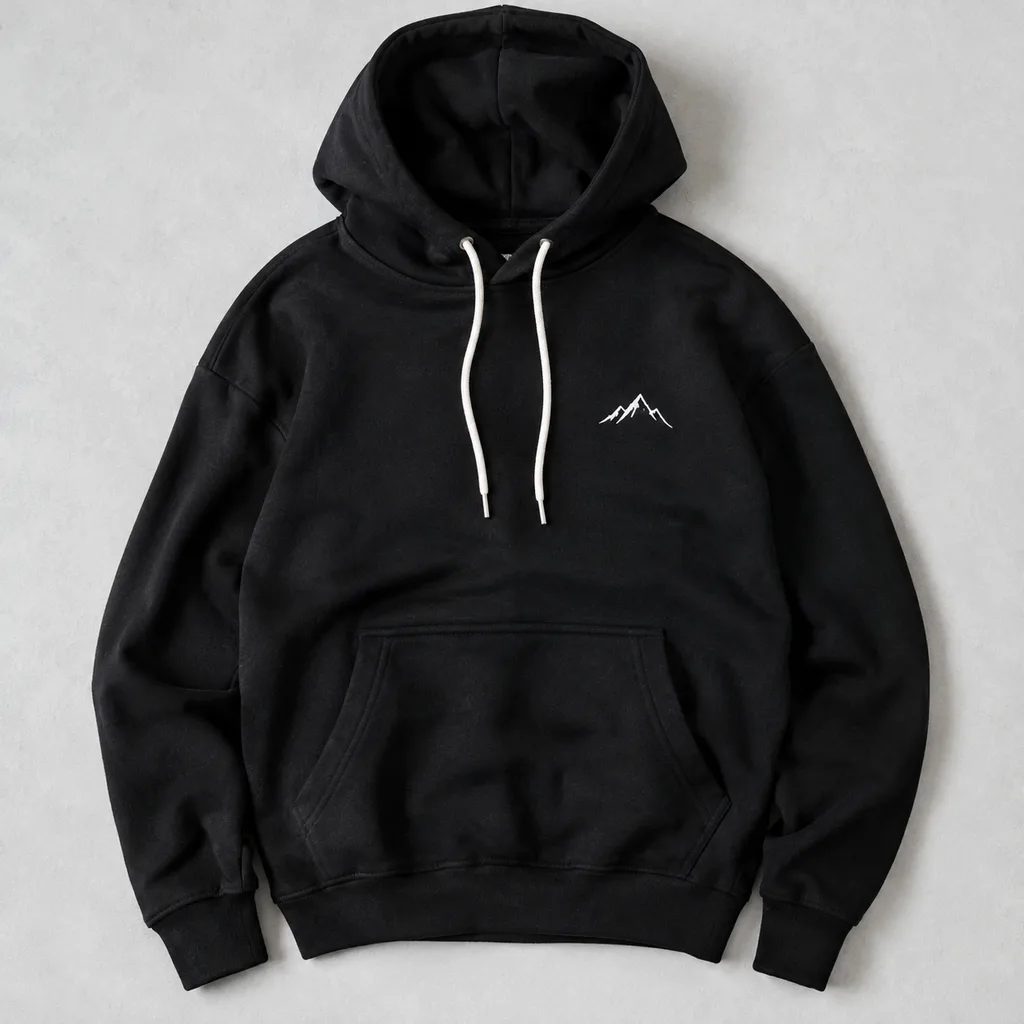
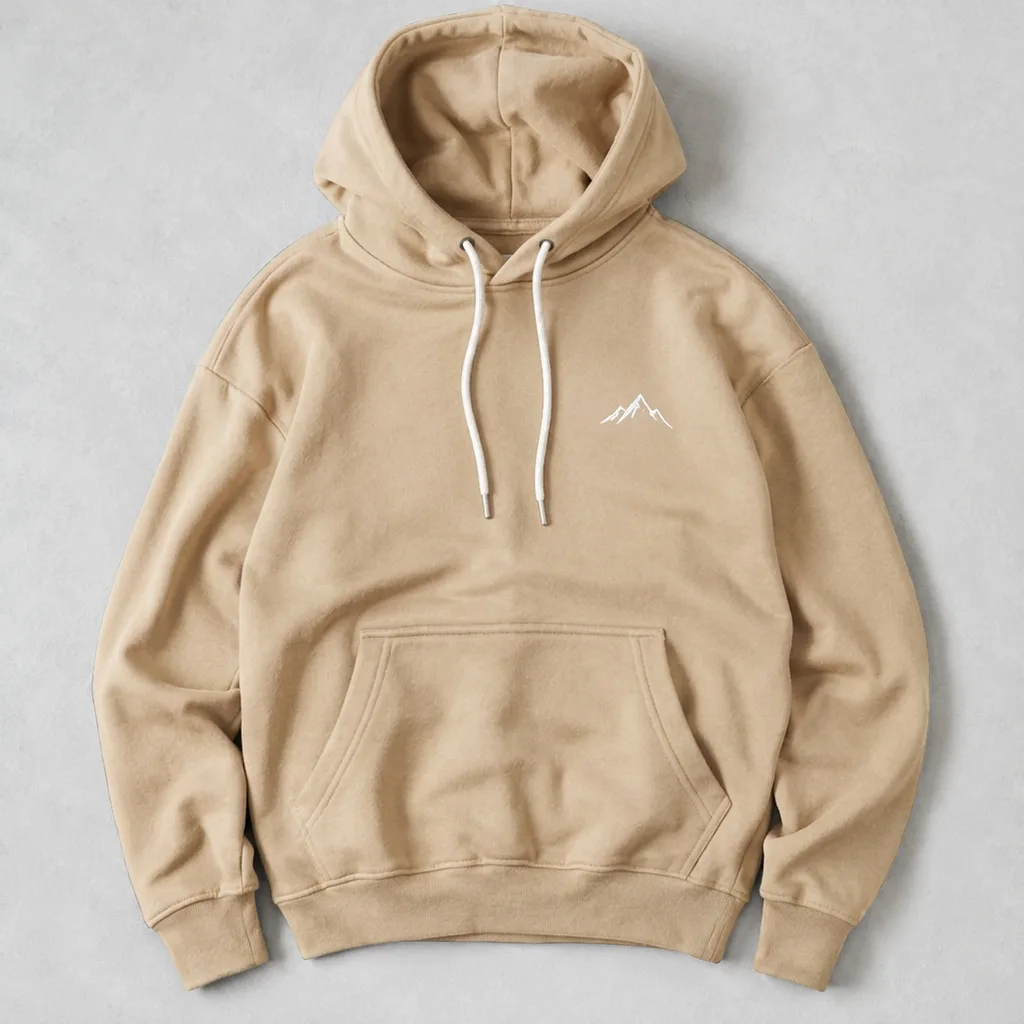
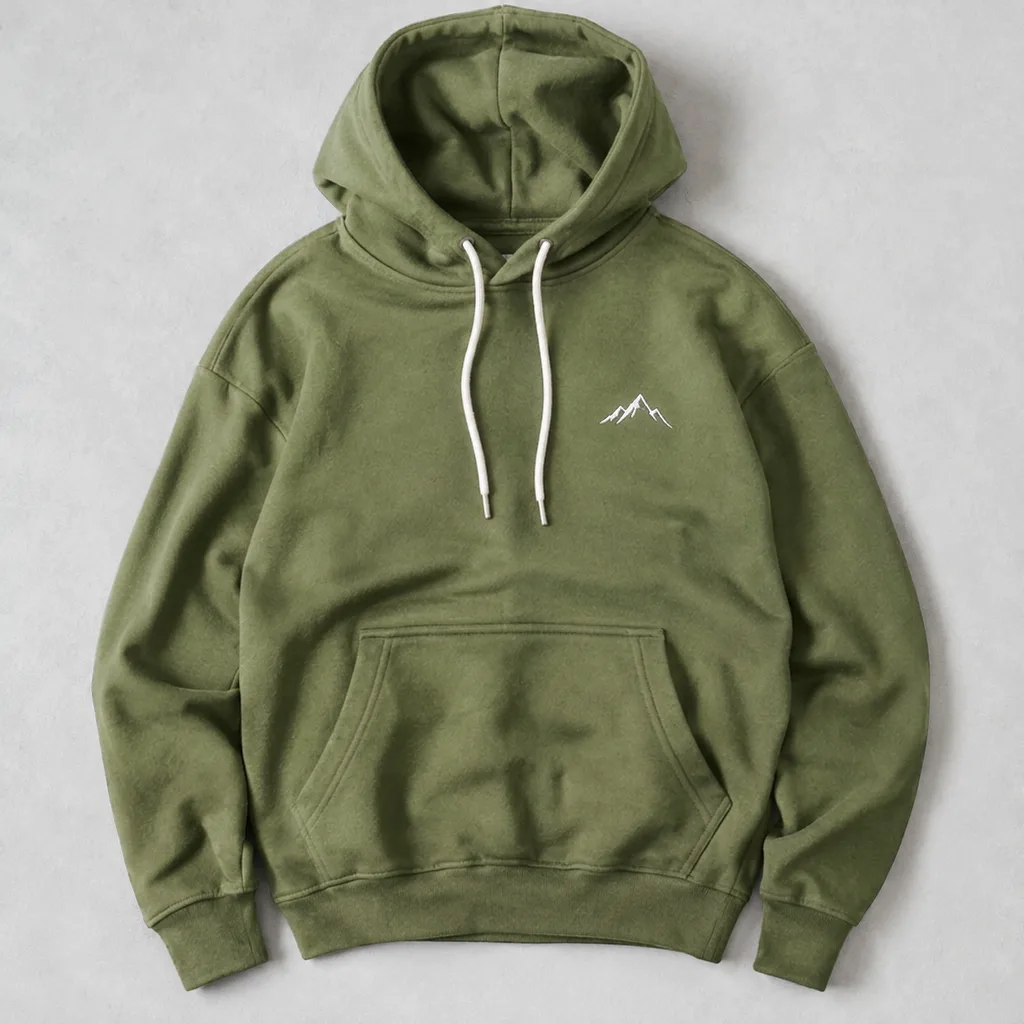
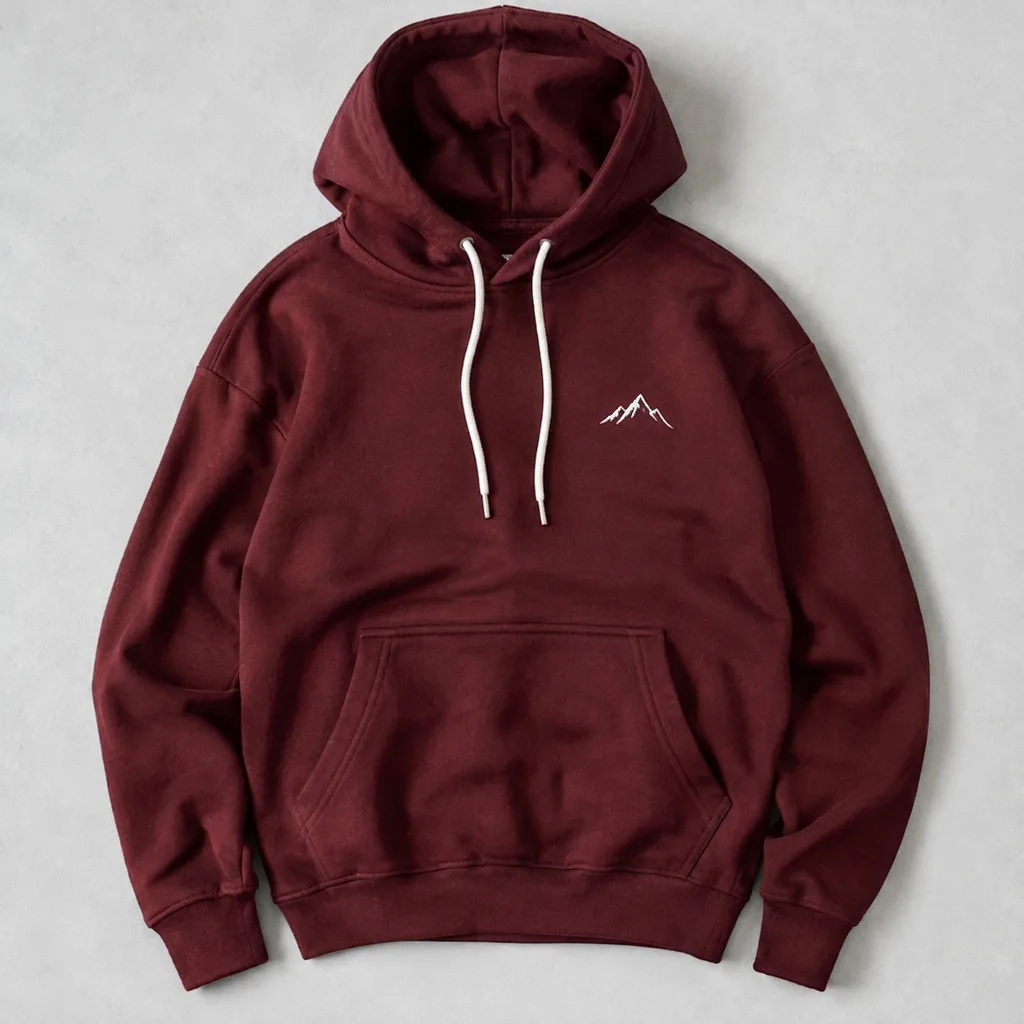
Original
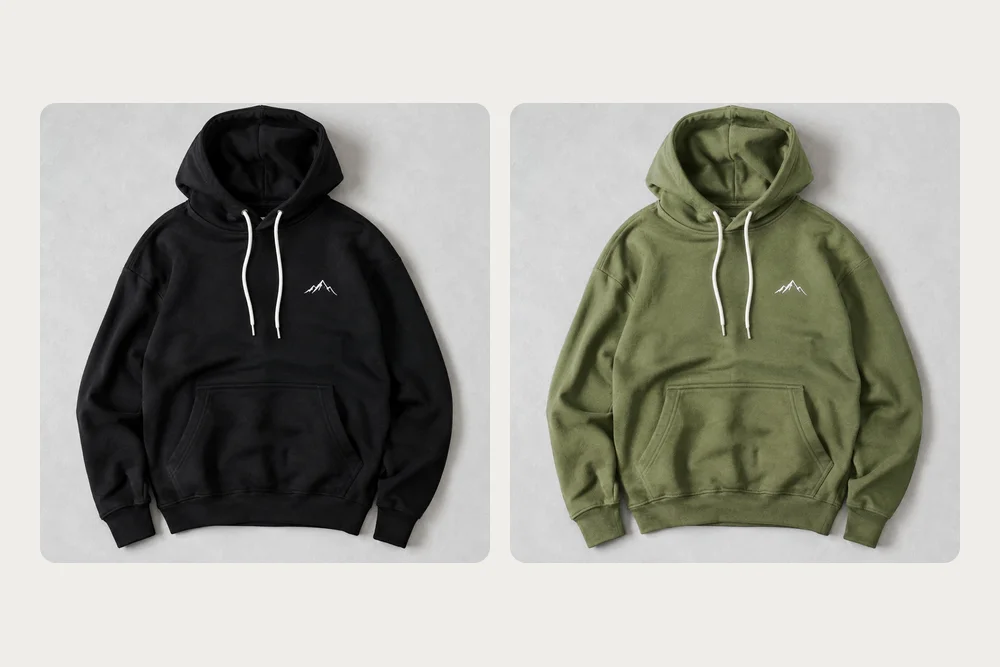
Only the hoodie changes. The white drawstrings and the small logo keep their color.
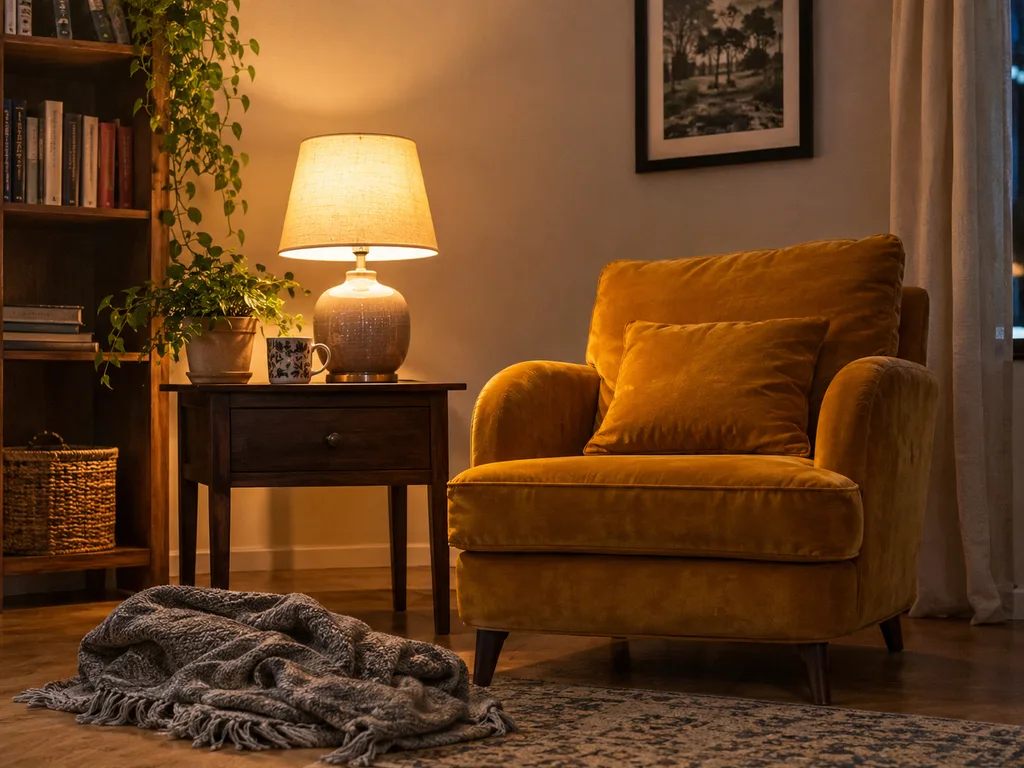
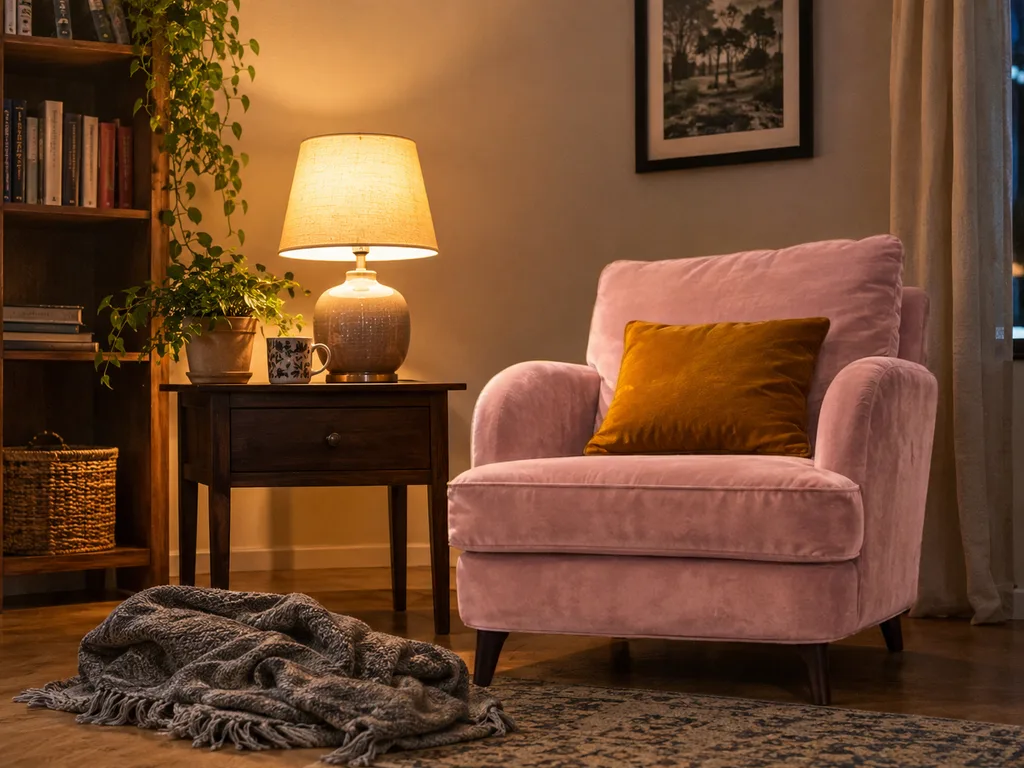
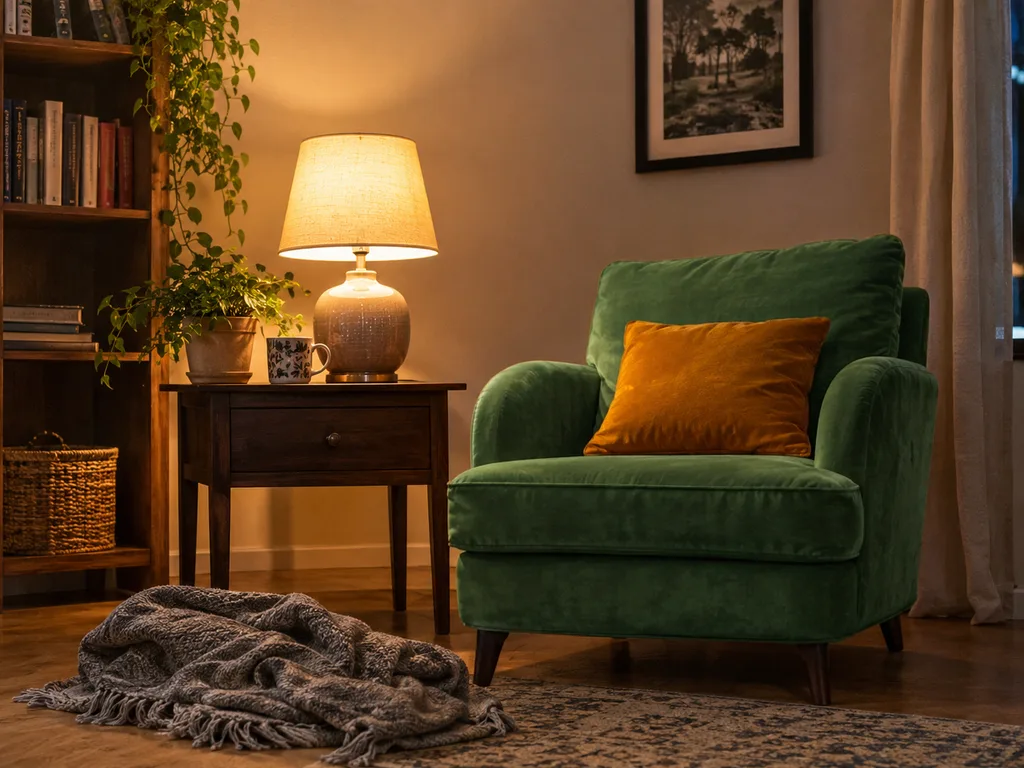
Armchair
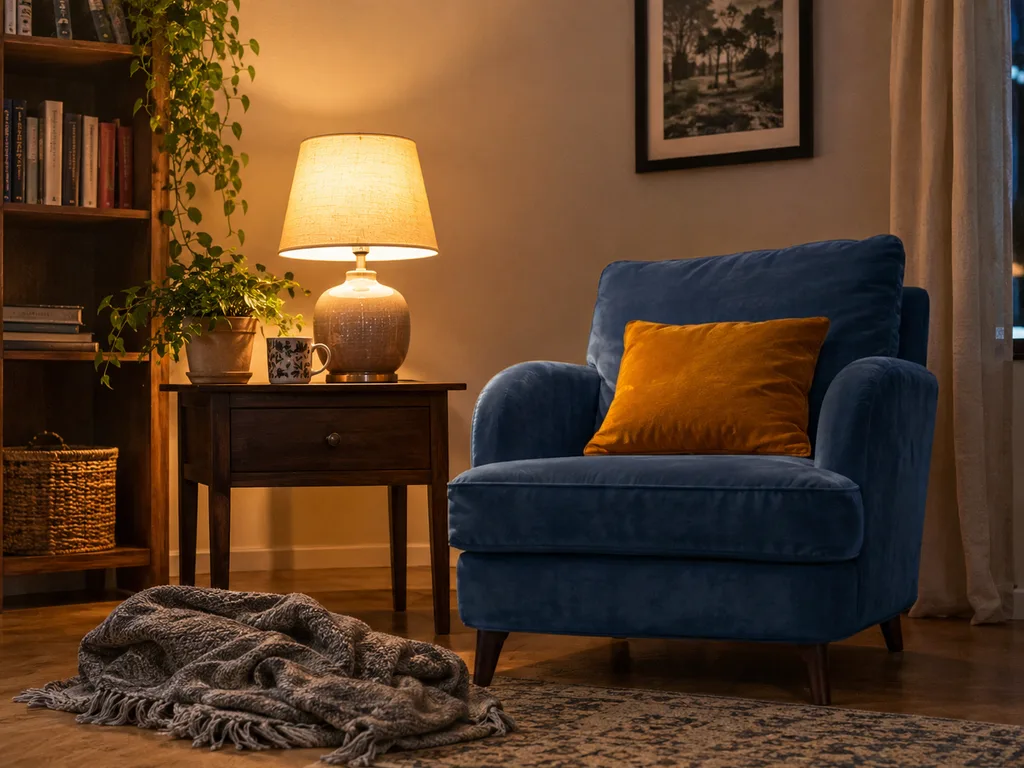
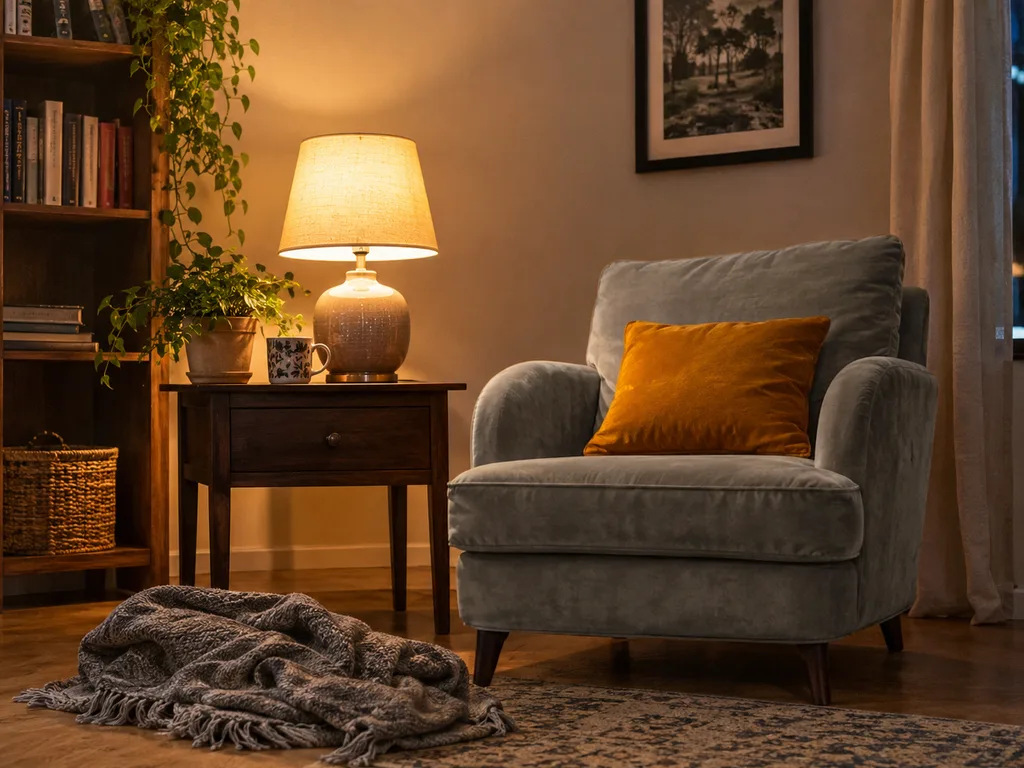
Original
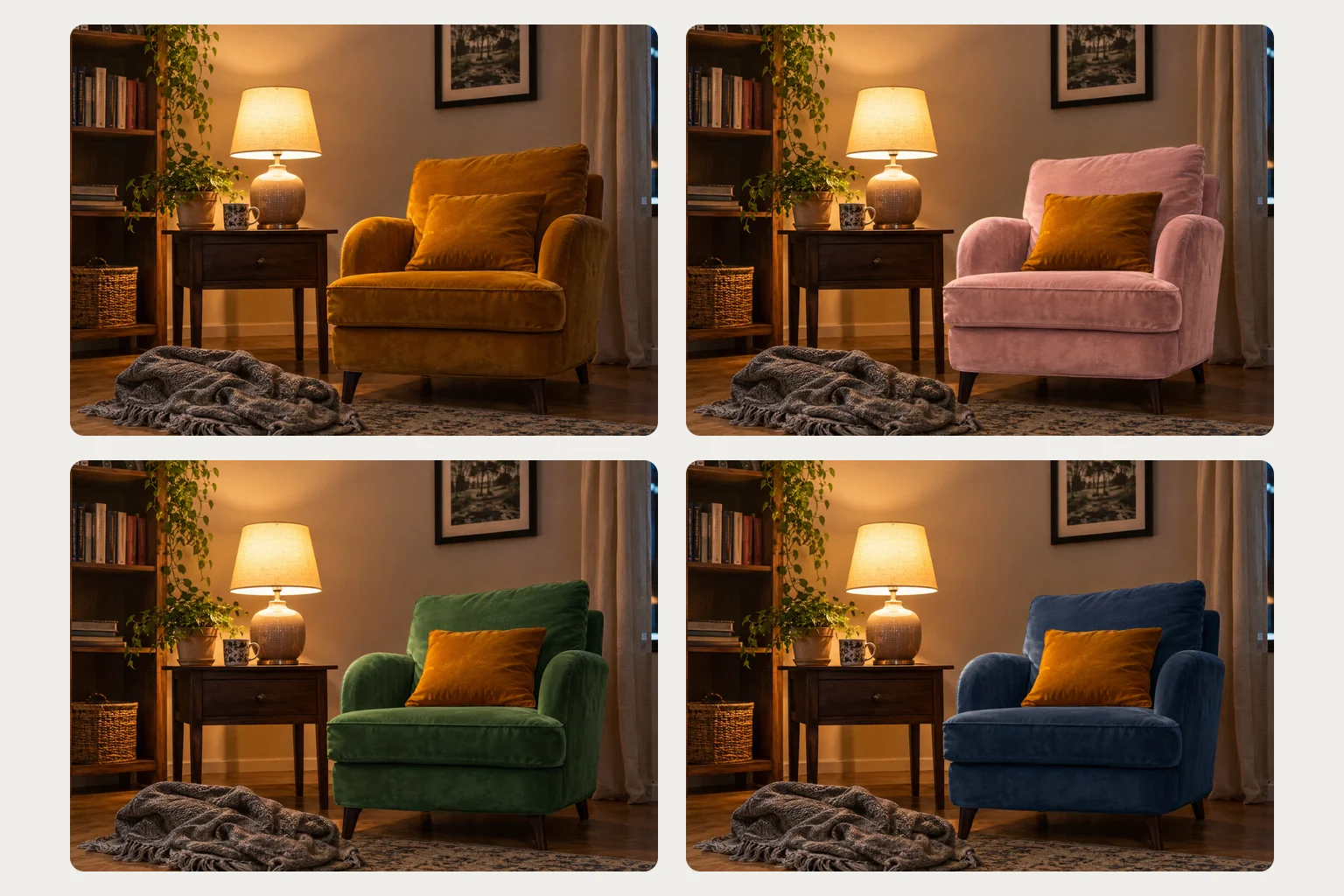
The armchair takes the new color while the pillow on it, the lamp and the wall stay as they were.
Sneakers
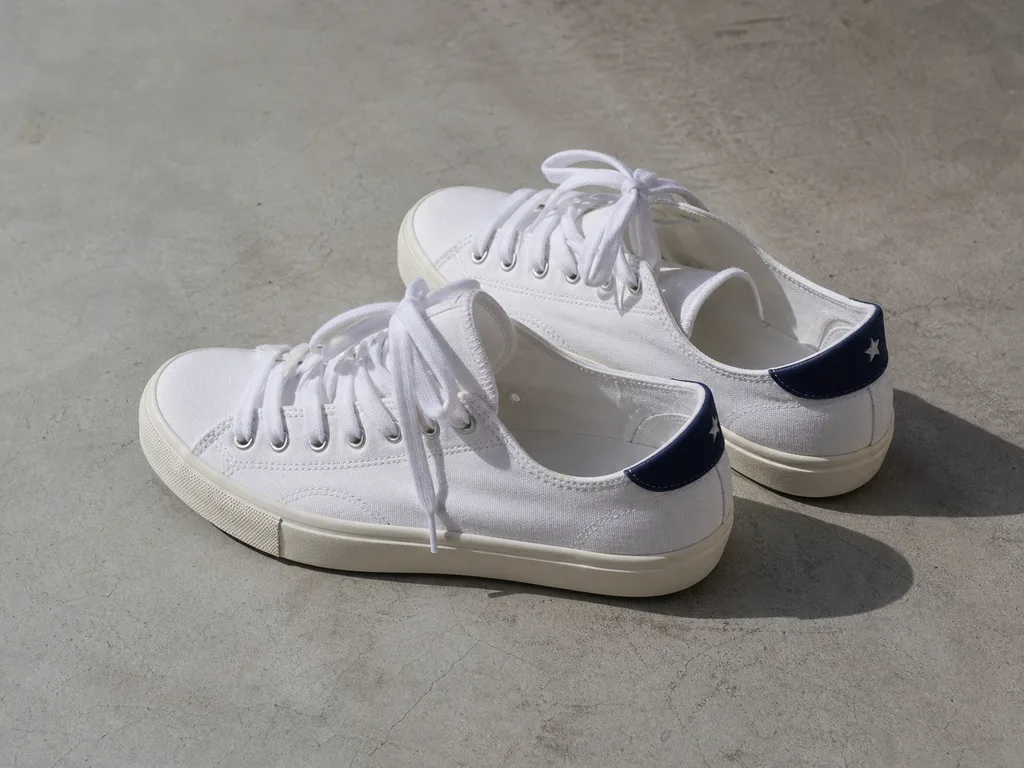
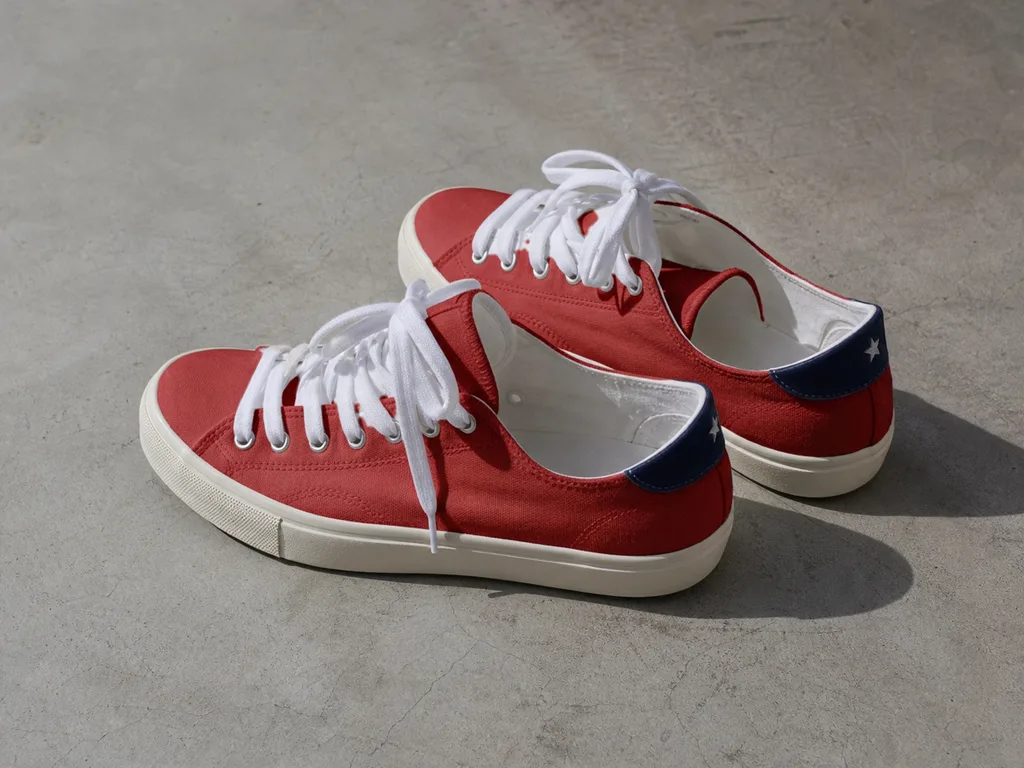
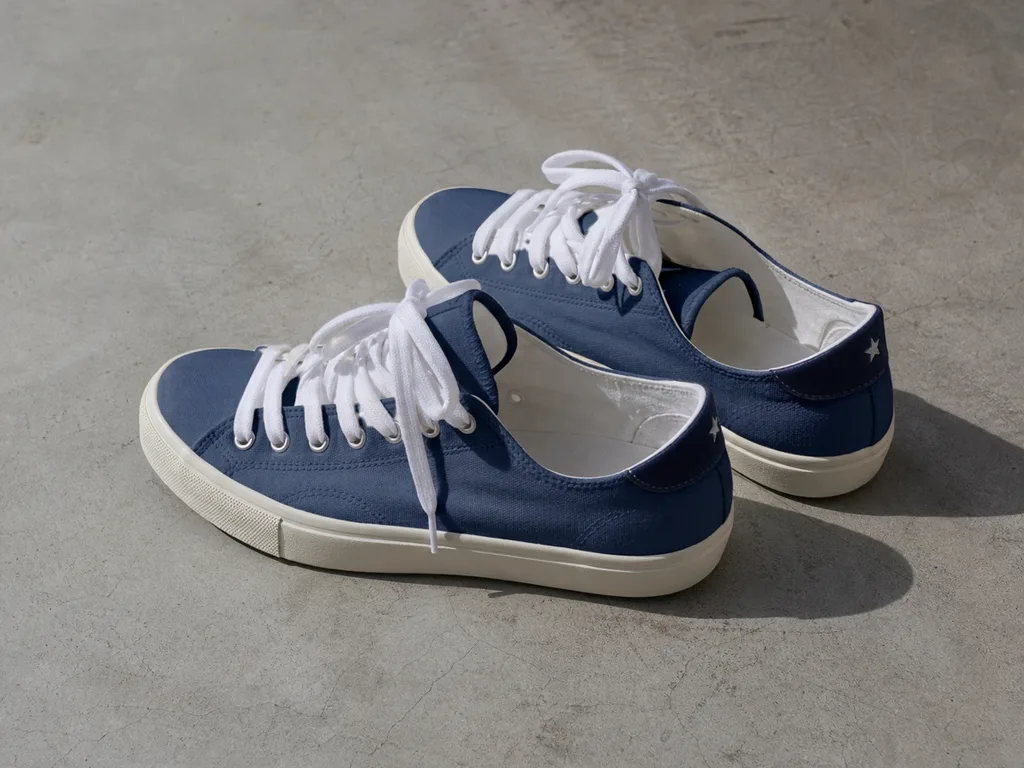
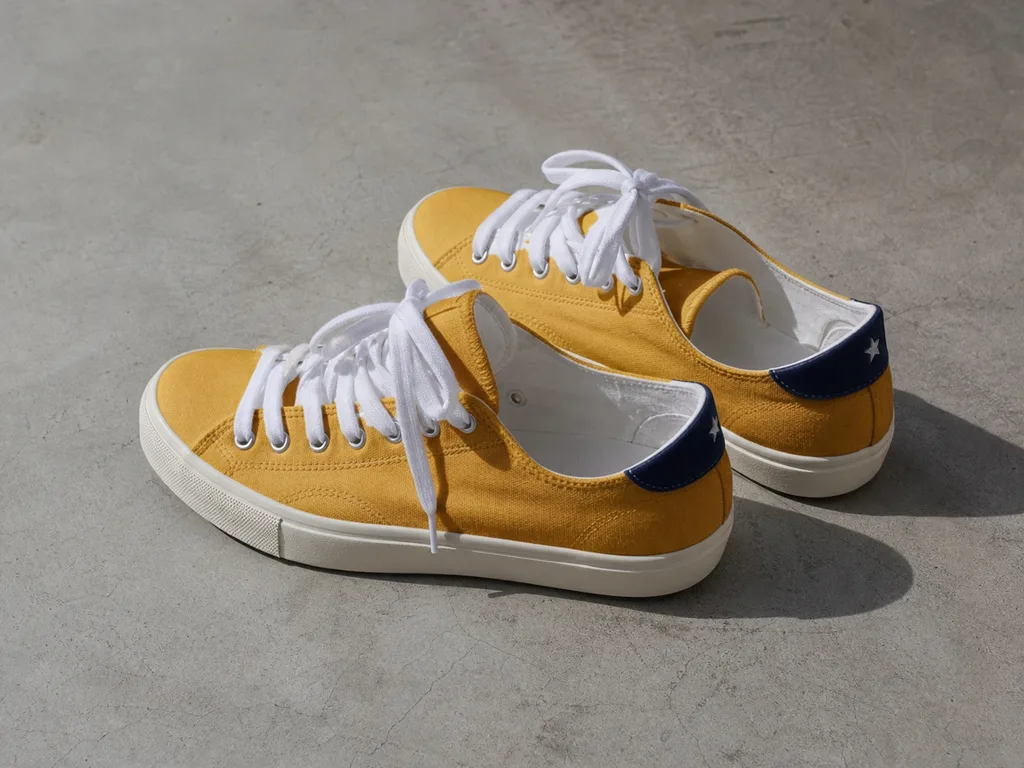
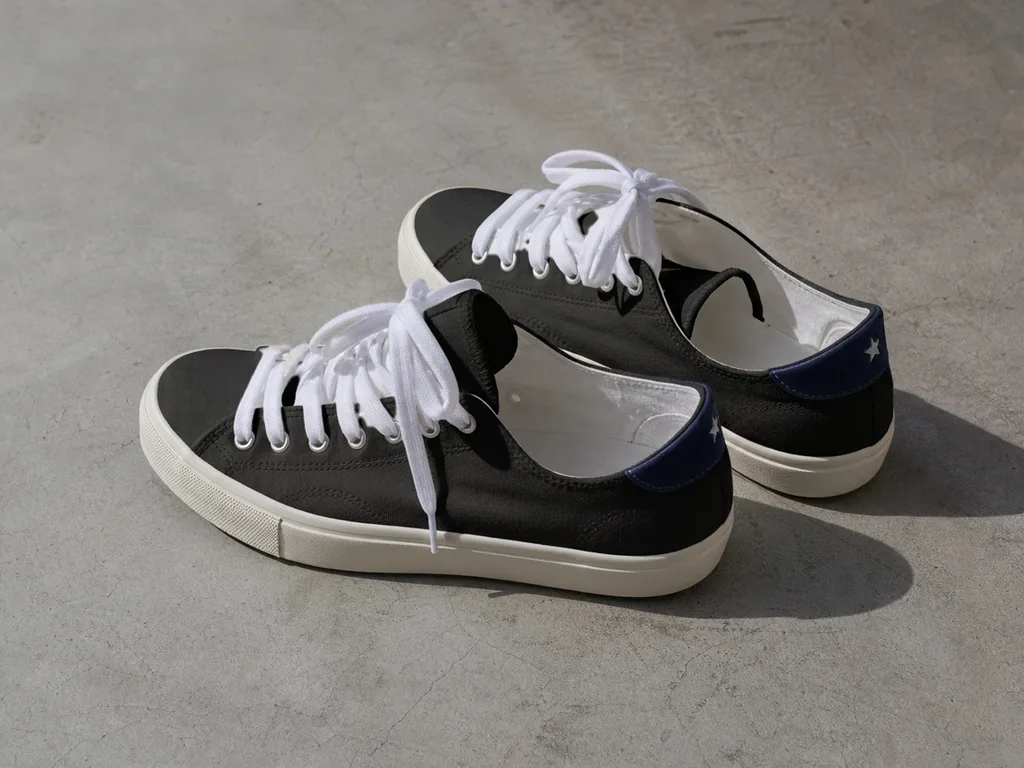
Original
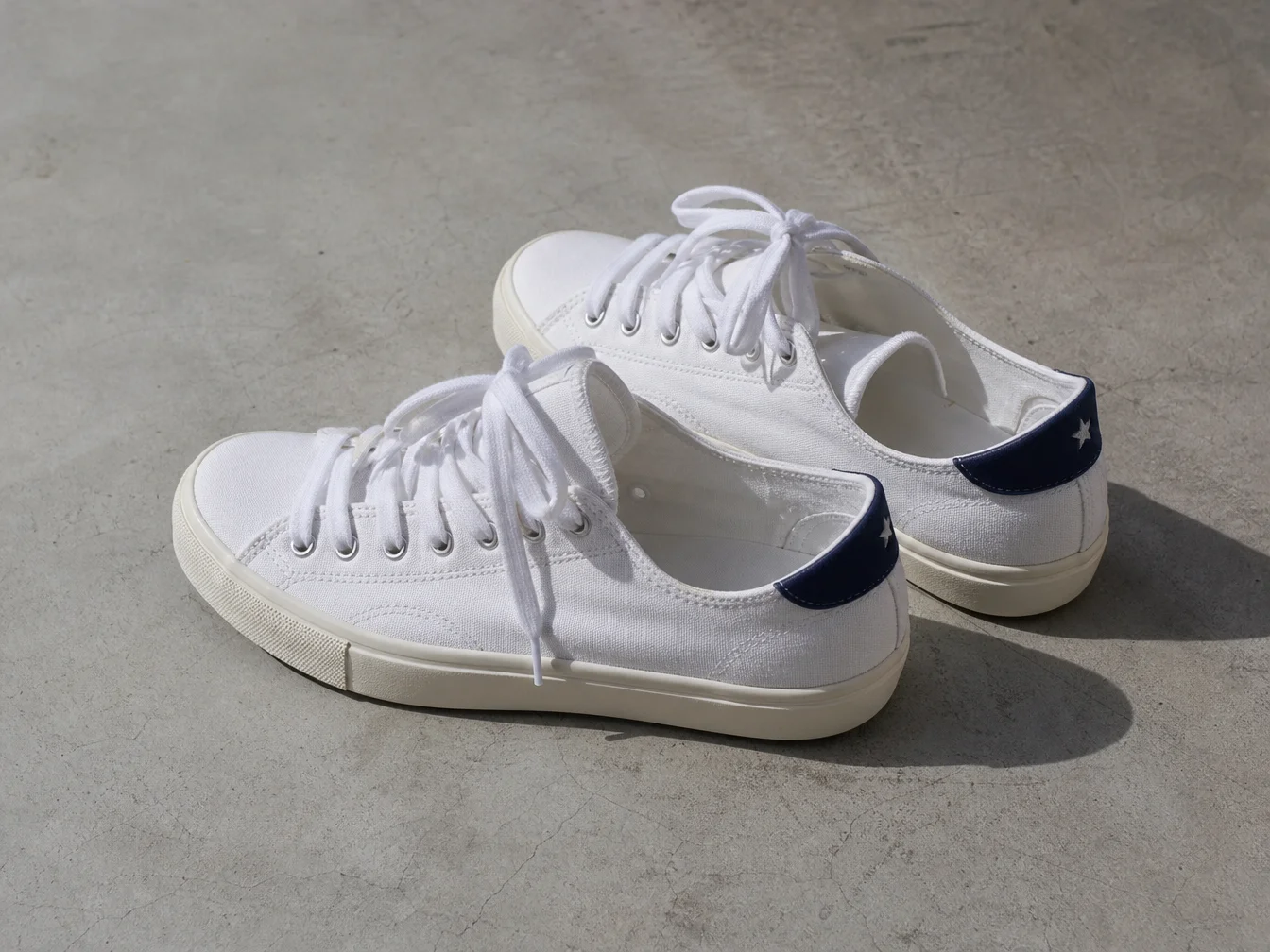
Only the canvas uppers change color. The white laces, the cream soles and the navy heel tabs stay as they were.
Change the Color of an Object in a Photo, Nothing Else
Look closely: only the object changed
Real results from this tool. The amber box marks the spot worth checking; the zoomed views show it before and after.
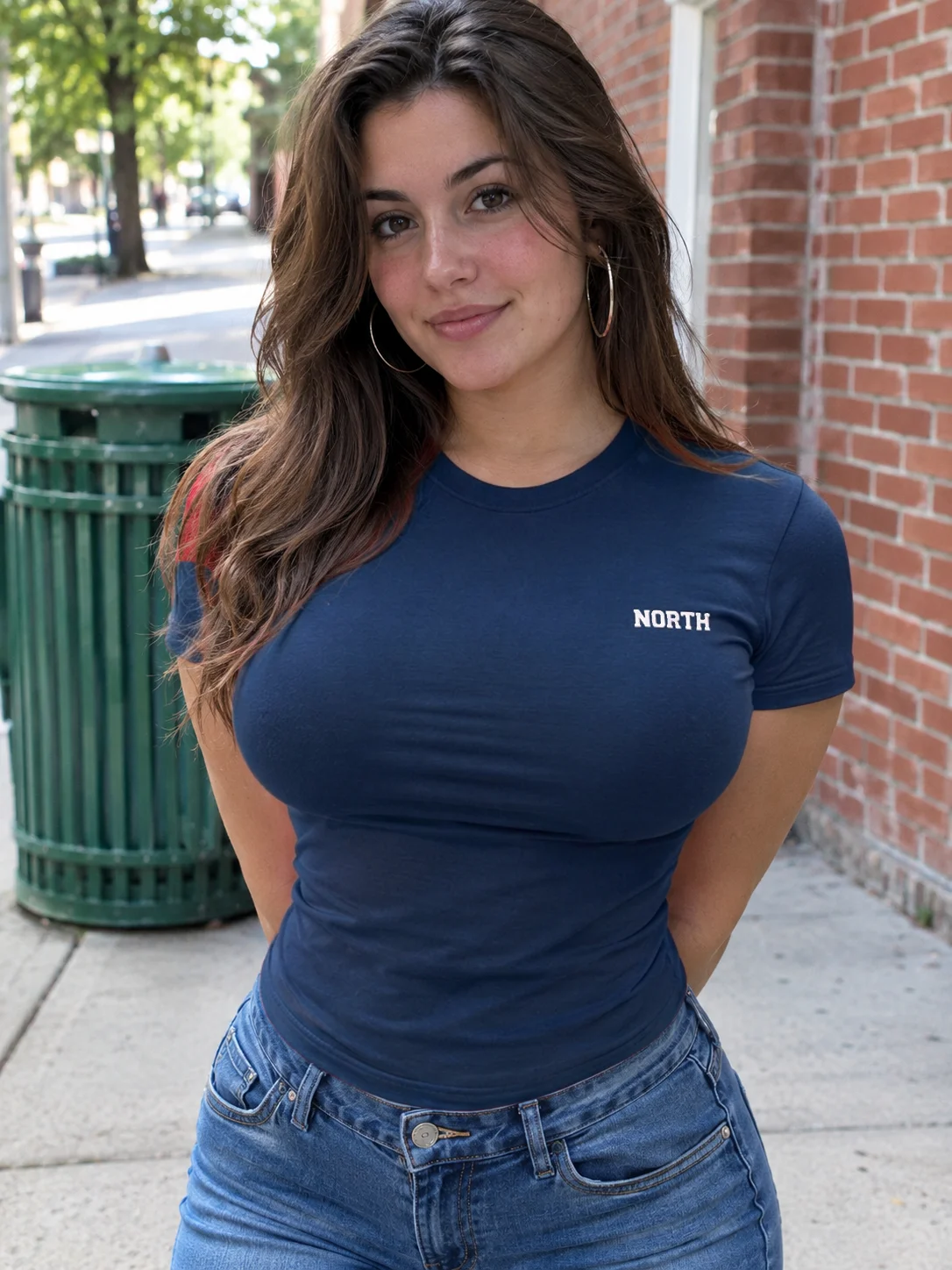
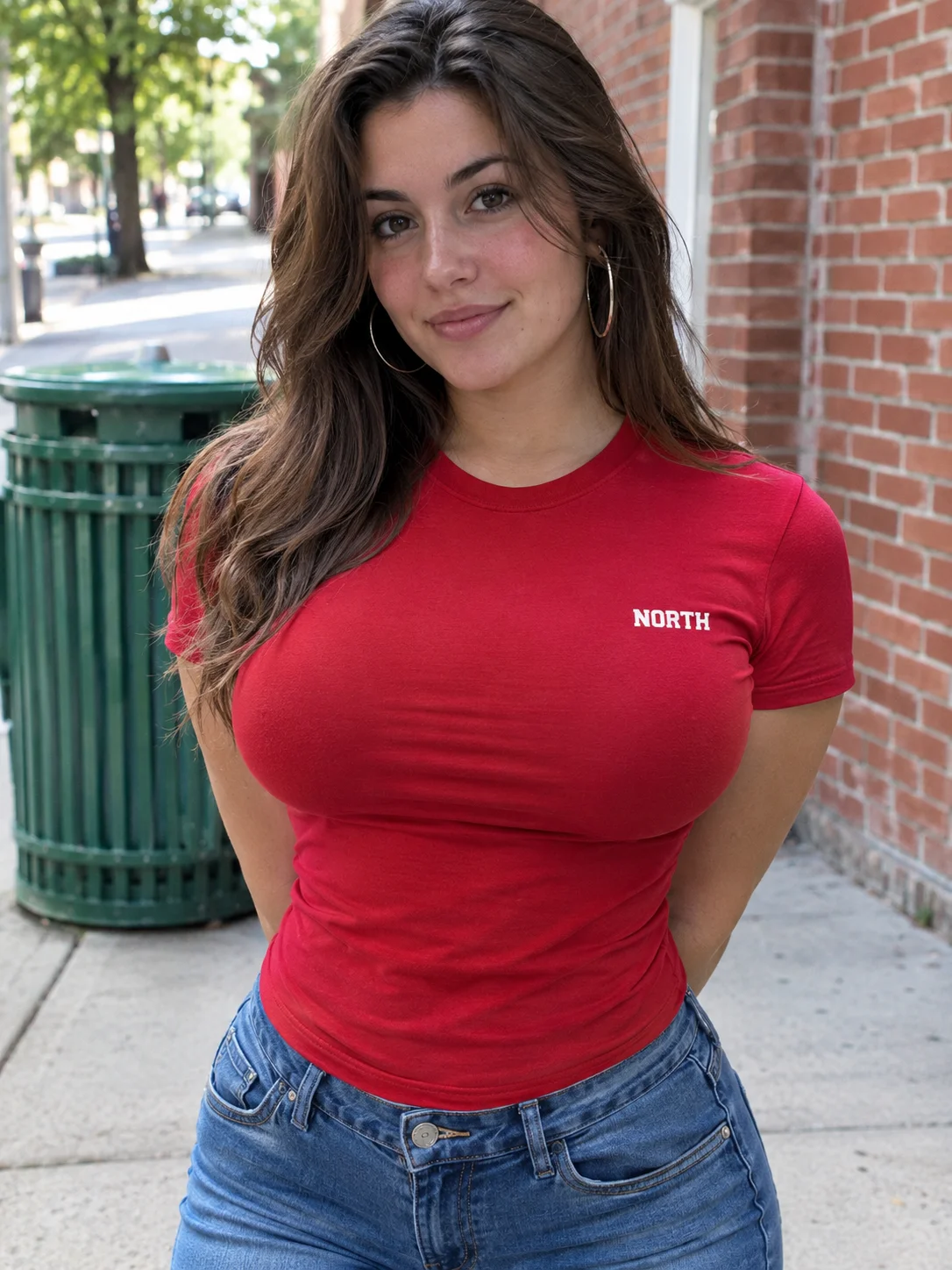
The print stays
 BeforeAfter
Red → Navy blue
The shirt around the NORTH print takes the new color. The white letters stay exactly as they were.
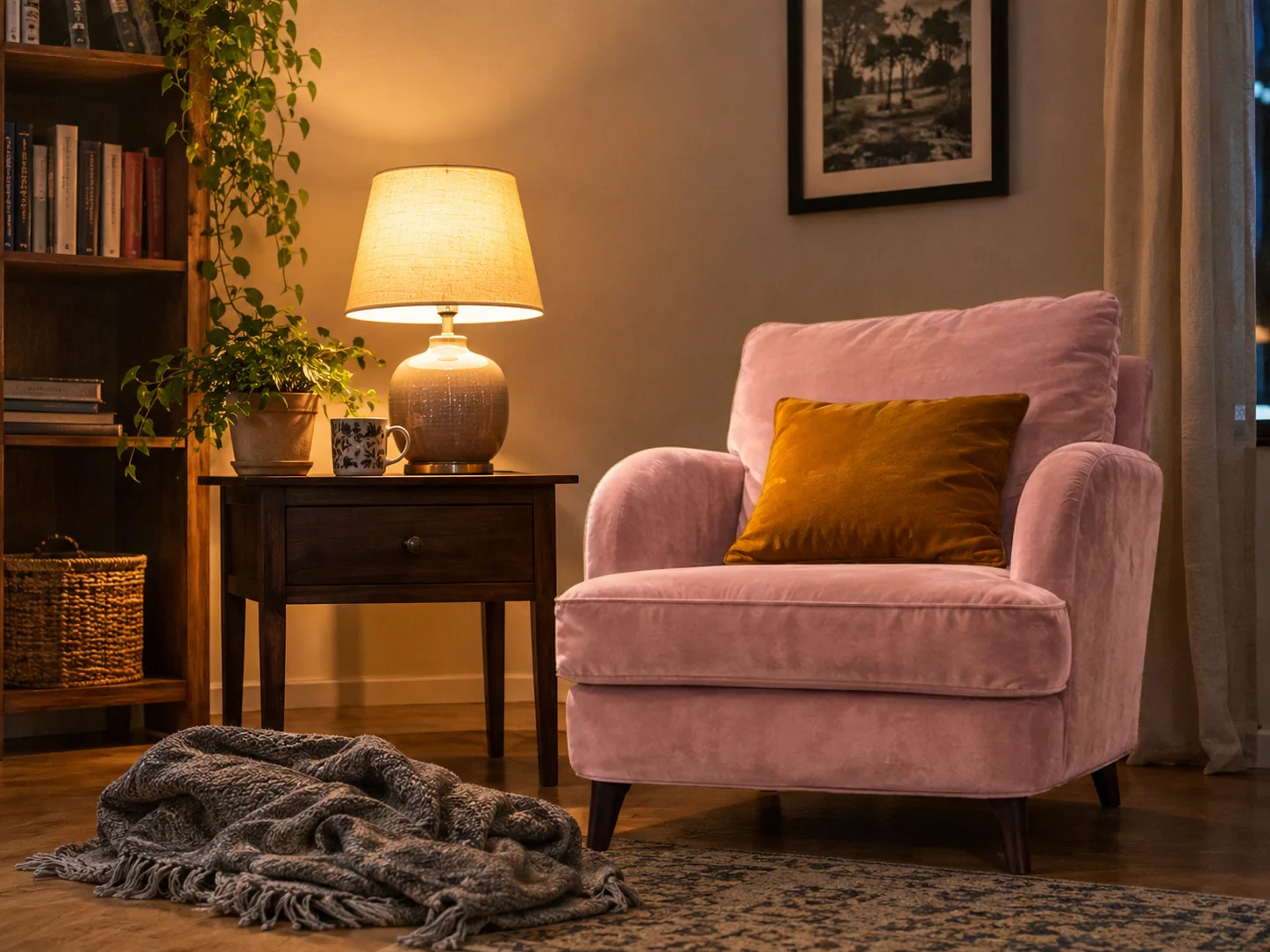
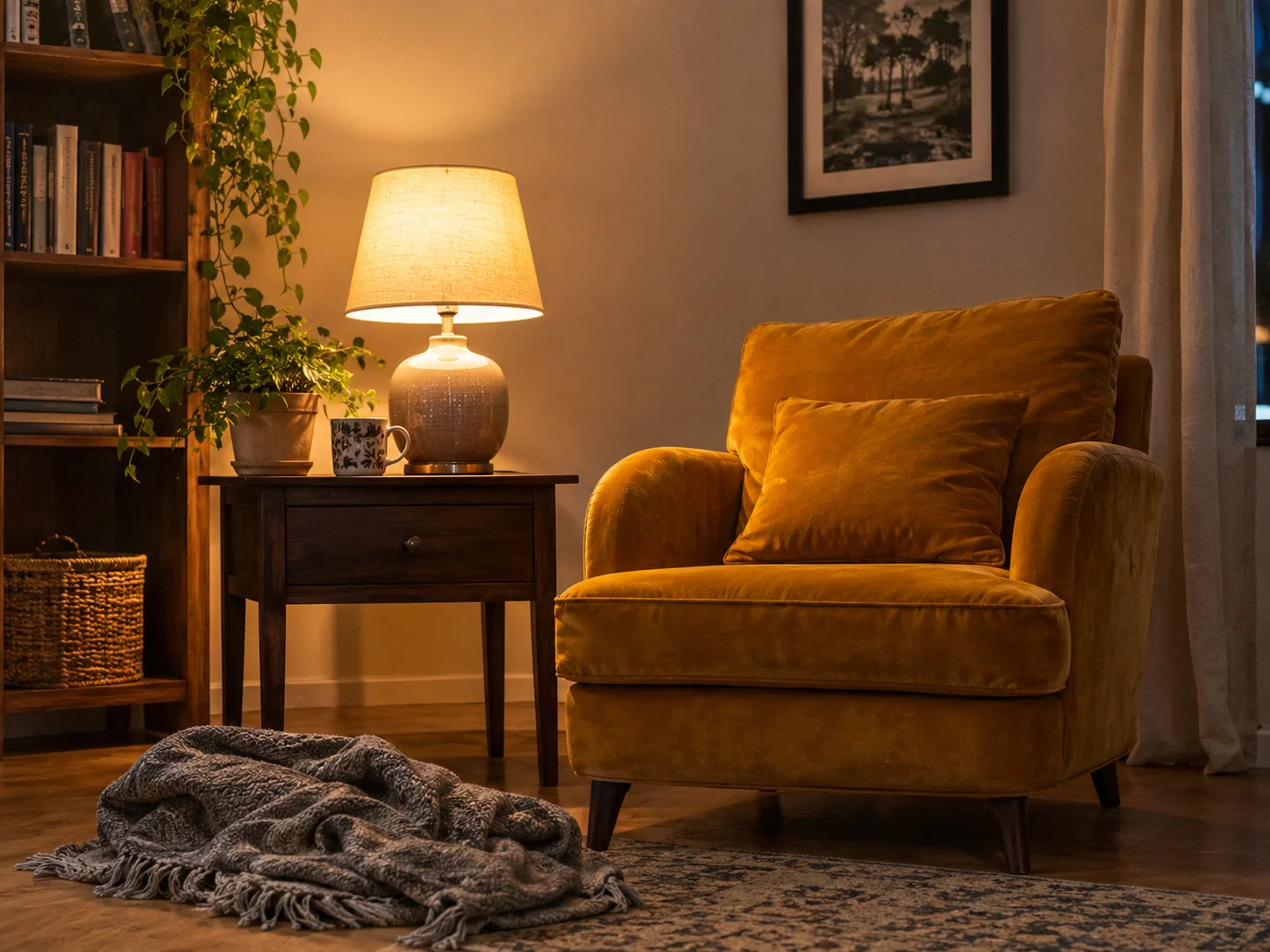
The pillow stays
 BeforeAfter
Mustard → Blush pink
The pillow sits inside the armchair's outline but wasn't selected, so it keeps its color. Select it as well if you want it changed too.
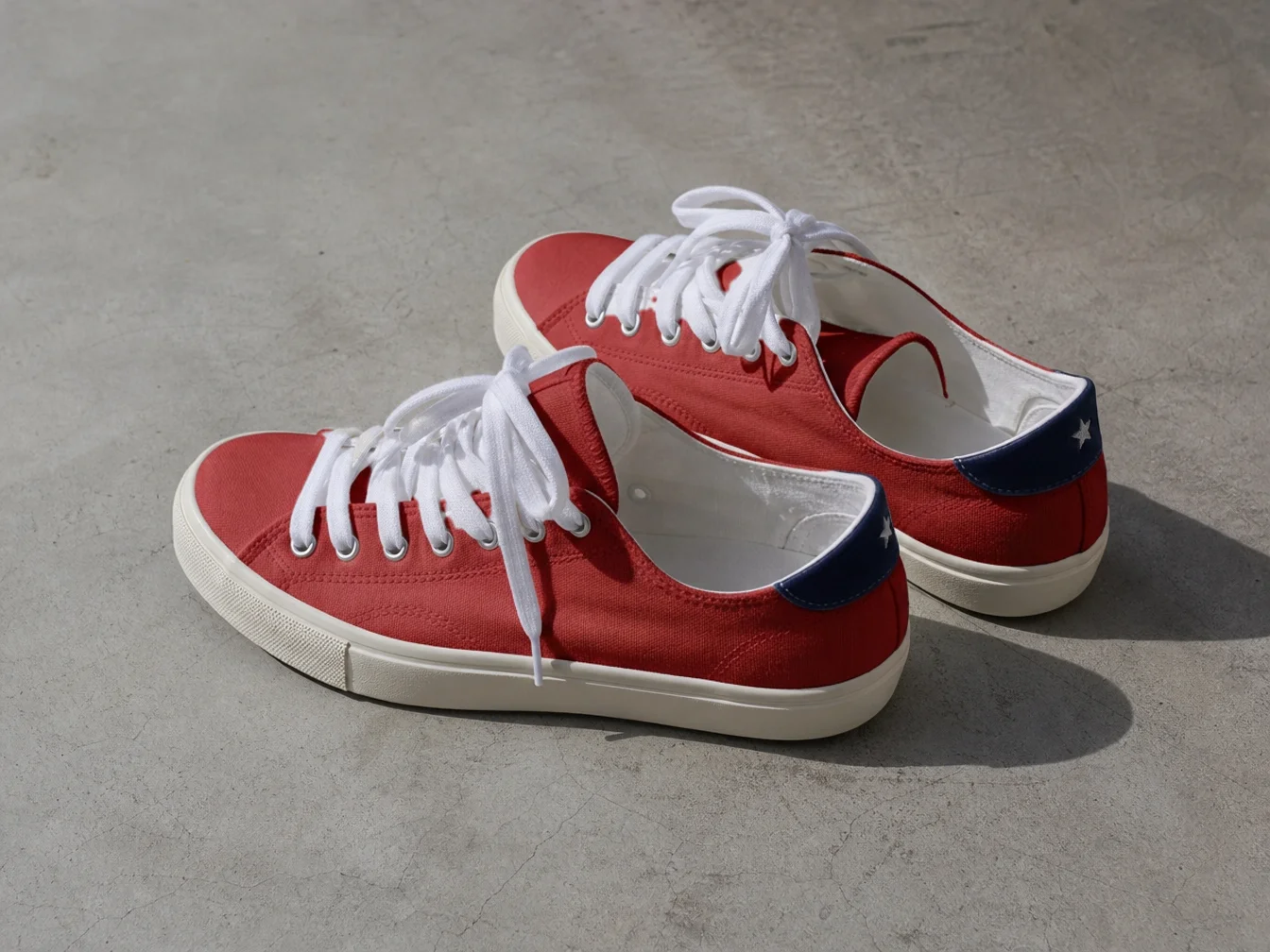
Laces stay white
 BeforeAfter
White → Red
Only the canvas uppers were selected. The laces, eyelets and soles keep their color.
Why Use This AI Color Changer
Recolor one thing, keep the photo you like
Most AI editors redraw the whole picture to change one color. Here the AI only changes the object you click, and everything else is put back from your original photo.
- Objects in your photo are detected for you. Click the sofa, the shirt or the mug and it's selected, edge to edge.
- Choose from 12 common colors, pick one from the color picker, or type a HEX code from your brand or product sheet.
- Folds, fabric weave, stitching, logos and the light falling on the object stay where they were. Only the color is new.
- Outside the object, the result is your original photo pixel for pixel. Faces, backgrounds and other products are not touched.
- Select several parts at once, like a hood, pocket and cuffs, or leave a part inside unselected, like the pillow on a chair, so it keeps its color.
- Nano Banana 2.1 keeps texture best, GPT Image 2 gets closest to an exact HEX. The finished photo keeps your original size.
Which Photos Work Best for Recoloring
Get the color you want on the first try
Each recolor costs credits, so a few seconds choosing the photo and the parts pays off.
Matte, solid objects
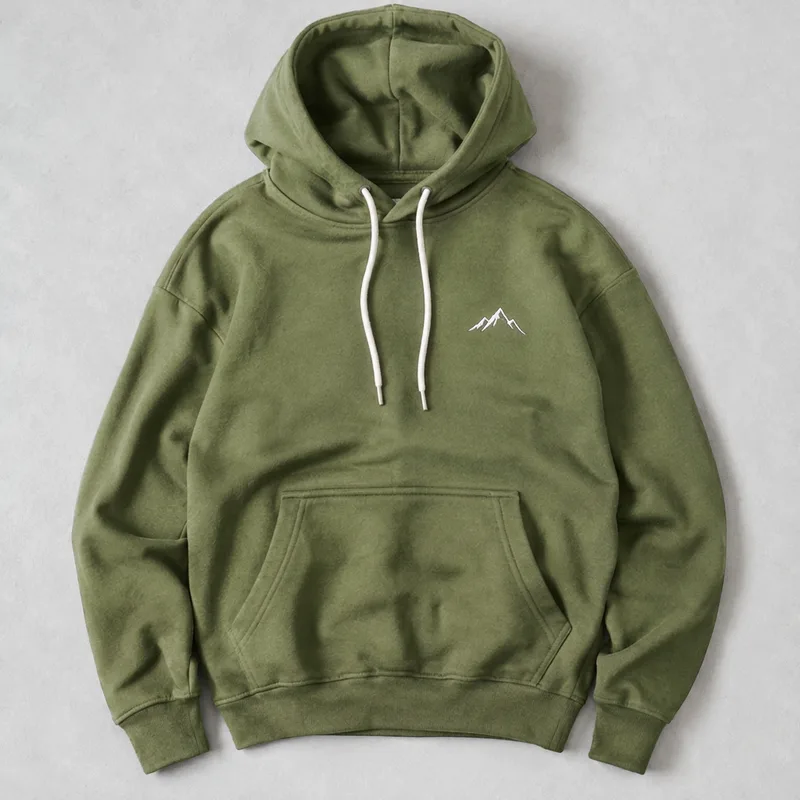 Works well
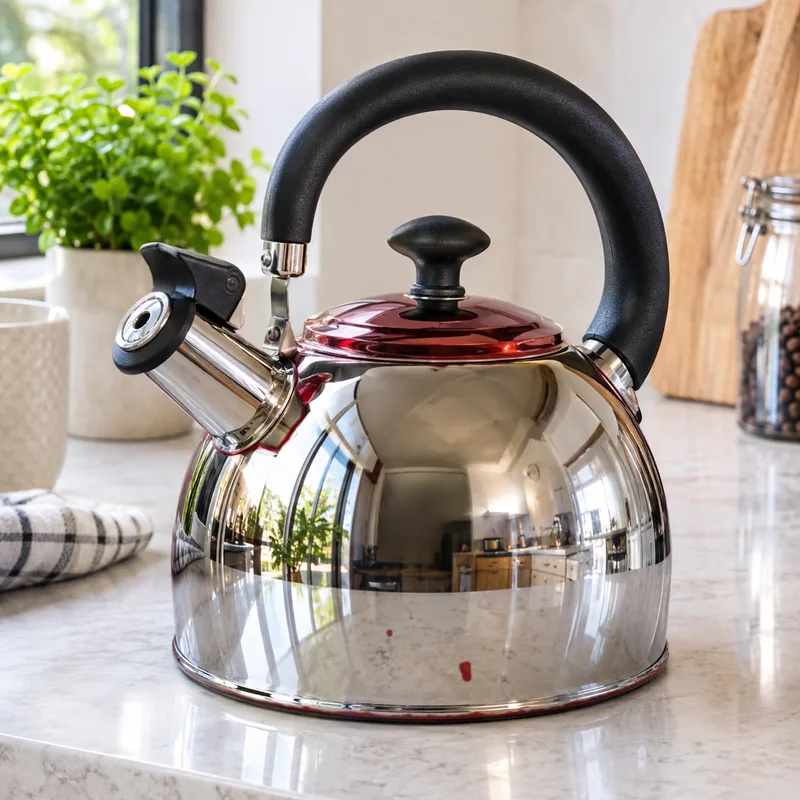 Avoid
Select every part you want changed
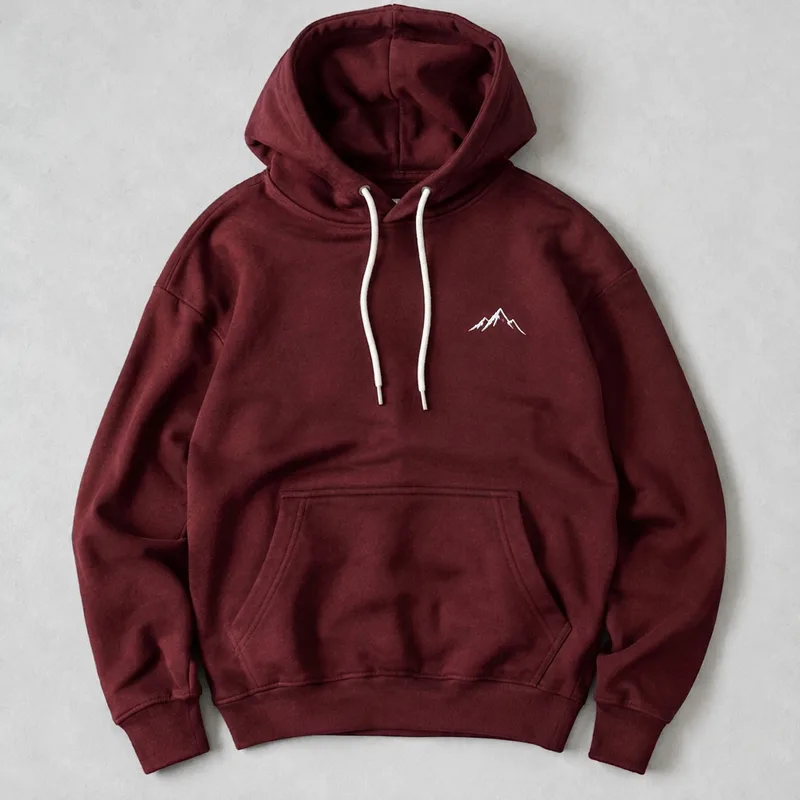 Works well
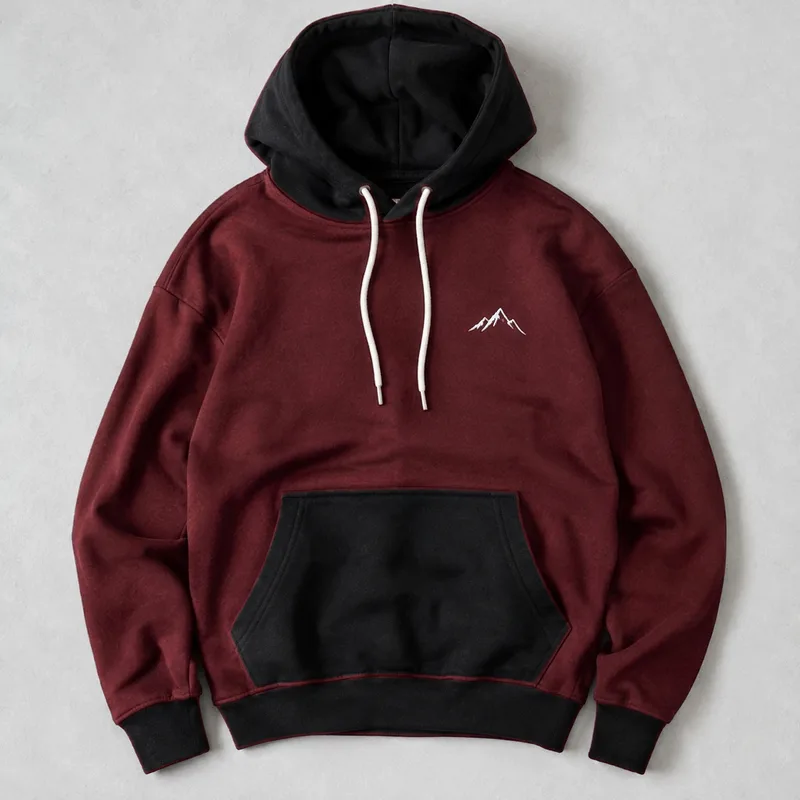 Avoid
More AI Image Generators for Every Creative Idea
Unleash Creativity With Createimg.ai AI Image Generators
Explore a variety of AI image generators tailored to different creative needs. Whether you want to design shirts, make fun emojis, or create unique posters, these tools make it easy to bring every idea to life.
 New
AI Color Changer
 New
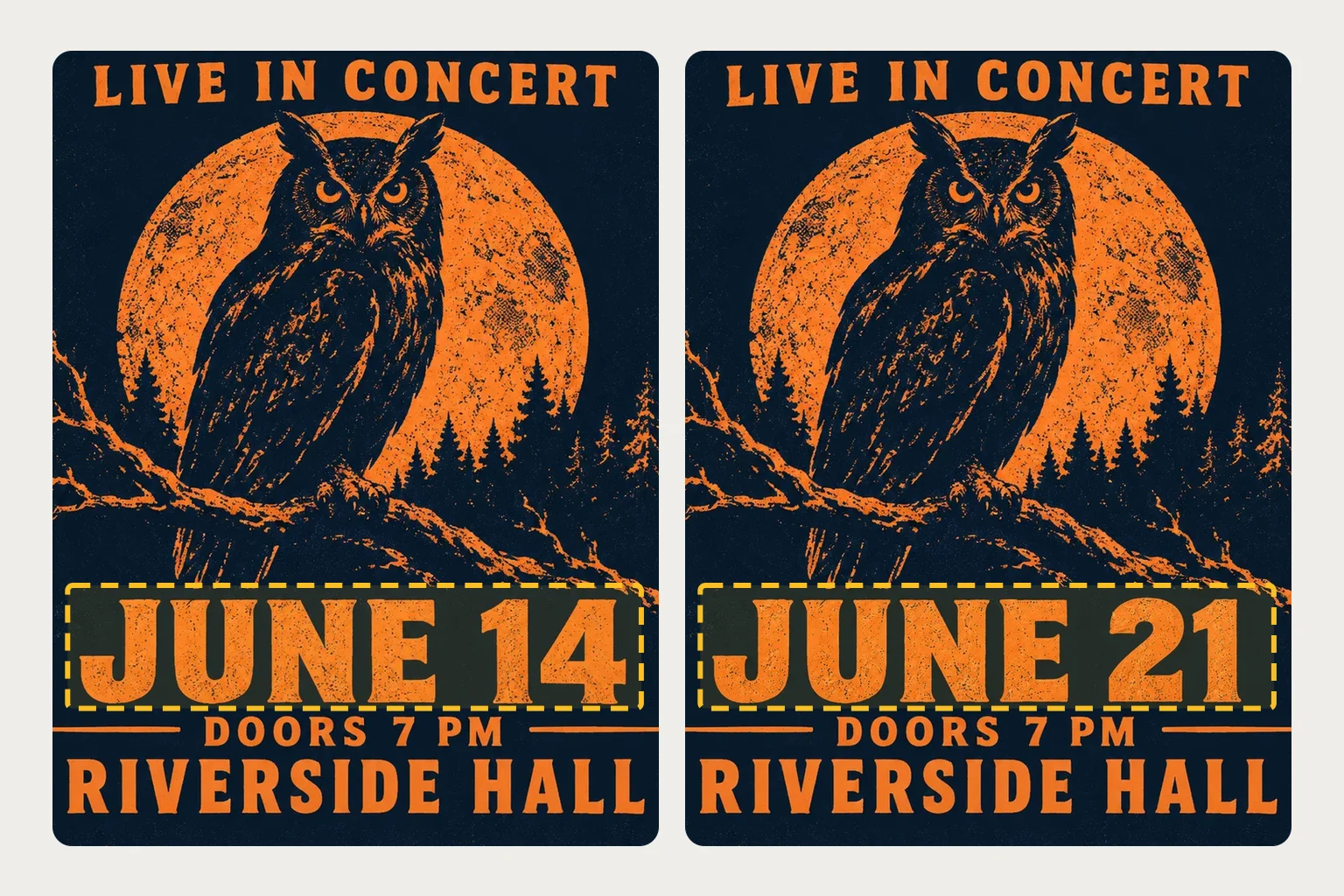
Image Text Editor
 New
Photo to Coloring Page
 New
Image To Prompt
AI Age Progression
AI Sticker Generator
AI Thumbnail Generator
 Hot
Image To Image
 Hot
Text To Image

AI Food Generator
Explore Cutting-Edge AI Models
AI Models — Powerful Image & Video Generation Tools
Explore advanced AI models for high-quality image and video creation. Discover powerful generation and editing technologies that enhance your creative workflow and bring your visual ideas to life with ease.








How to Change the Color of an Object in a Photo
Four steps, about a minute
Works with JPG, PNG and WebP photos up to 20 MB.
Upload your photo
Upload the photo you want to change. The objects in it are detected automatically, which usually takes under a minute.
Click the object
Click or tap the object to recolor. Click more parts to add them, or click a selected one again to remove it.
Pick the color and model
Choose a color, use the color picker or type a HEX code. Then pick Nano Banana 2.1 or GPT Image 2, and 1K or 2K.
Recolor and download
Click Recolor. In 20 to 60 seconds you get your full photo back. Compare it with the original, then download it or try another color.
AI Color Changer FAQ
Questions about changing colors in photos
How it works, what it costs, and what it can't do yet.
How do I change the color of an object in a photo?
Upload the photo, wait a moment while the objects are detected, click the object, pick a color or type a HEX code, and click Recolor. Only the object you clicked changes color.
How much does it cost?
Detecting objects is free. Each recolor costs 40 credits with Nano Banana 2.1 or 30 credits with GPT Image 2 at 1K, and 60 or 50 credits at 2K. The exact price is shown next to the Recolor button. You need at least 30 credits to upload a photo. If a recolor fails for a technical reason, the credits are returned automatically; trying another color is a new recolor.
Will the background or other objects change?
No. Everything outside the object you selected is your original photo, pixel for pixel. Parts that sit inside the object but weren't selected, like a pillow on a chair, keep their color too.
Will the result match my HEX code exactly?
It will be close on screen, but not identical in every pixel: the object keeps its own shading, so lighter and darker areas vary around your color. GPT Image 2 gets closest to an exact HEX. It isn't a print or physical color match, so check real samples before you order.
Can I change the color of clothes?
Yes. Click the shirt, dress, jacket or shoes and pick a color. The style, fit and folds stay the same. If you want a different piece of clothing altogether, use the AI Clothes Changer instead.
What doesn't work well yet?
Chrome and mirror-like metal, clear glass, changing a multi-color pattern color by color, and changing the material or finish, like matte to glossy. Where hair or fur lies over the object, a little of the old color can still show between the strands. For hair color, use the AI Hair Style Generator; to colorize a black-and-white photo, use the AI Image Colorizer.
What if the object I want isn't detected?
Try a photo where the object is bigger, in focus and not covered by other things. Some very small parts, like single eyelets, can be missing from the detected objects, and there's no brush to draw a selection by hand yet.
Where are my recolored photos saved?
Every finished photo is saved in the History panel on this page and in your account's History, at the size of your original photo, so you can download it again later.
Powered By


See your photo in a new color
Upload a photo, click the object and get the recolored version in about a minute.