AI Age Progression Guide: See Yourself Older or Younger
Learn how AI age progression works, what photo to upload, and how to create realistic older, younger, baby, or life-stage portraits.

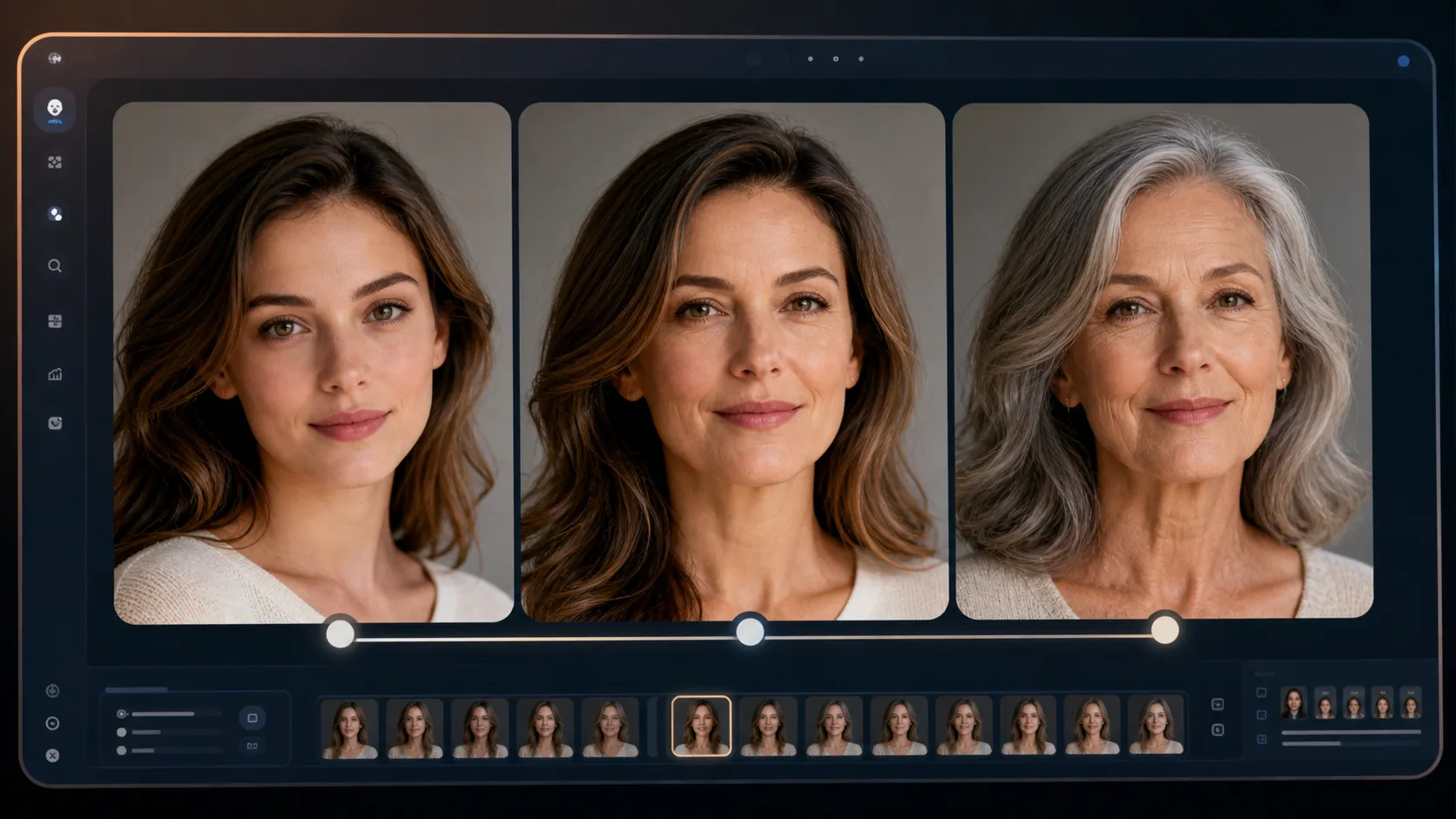
AI age progression turns a single portrait into a realistic image of the same person at another age. You can see yourself older, younger, as a child, or even as a baby version, depending on the prompt and the photo you upload.
The appeal is simple: age progression gives you a visual time machine. It can be fun for social sharing, useful for family storytelling, helpful for character references, and practical when you want a high-quality portrait that explores a future or past version of a face.
If you want to try it now, start with the AI Age Progression tool on Createimg.ai. Upload one clear portrait, optionally describe a target age such as "show me at age 70" or "baby version," choose your resolution, and generate a realistic age-progressed image in your browser.
What is AI age progression?
AI age progression is an image generation process that predicts how a person could look at a different age. Instead of drawing a random older or younger face, a good age progression generator tries to preserve the person's identity: face shape, eye structure, ethnicity, expression style, and other recognizable features.
That identity preservation is the difference between a useful age progression portrait and a generic face filter. The result should still look like the same person, simply changed by age-related features such as skin texture, hair color, facial fullness, bone maturity, or softer facial contours.
The same workflow can move in both directions:
- Age progression: make a person look older
- Age regression: make a person look younger
- Baby version: reconstruct a possible infant or toddler look
- Timeline generation: imagine multiple life stages from one photo
The output is not a medical or scientific prediction. It is an AI-generated visual interpretation. That makes it best for creative projects, social content, family-style visuals, profile concepts, and exploratory image work.
How AI age progression works from one photo
The Createimg.ai workflow starts with a required portrait upload. The photo becomes the identity reference. The AI then applies age-related visual changes while trying to keep the same person recognizable.
For older results, the model may add fine lines, natural wrinkles, graying or thinning hair, mature skin texture, and a softened jawline. For younger results, it may smooth skin, round the face, enlarge youthful proportions, and reduce mature facial structure. For baby or childhood results, it shifts the face toward age-appropriate proportions while keeping the strongest identity cues.
Because this is an image-to-image task, the quality of the uploaded photo matters. If the input is blurry, heavily filtered, hidden by sunglasses, or cut off at the face, the AI has less identity information to preserve. A clear portrait gives the generator more to work with.
For broader editing and reference-photo workflows, Image to Image AI follows a similar idea: start with an image, guide the transformation, and generate a new visual while preserving important source details.
Step-by-step workflow
Use this workflow when you want a realistic AI age progression image instead of a novelty filter.
1. Upload a clear portrait
Choose a well-lit photo where the face is visible. Front-facing or slightly angled portraits usually work best. The eyes should be open, the face should not be blocked by sunglasses, and the image should not have heavy beauty filters.
A strong input photo has:
- clear facial features
- natural lighting
- minimal blur
- no extreme expression
- no heavy occlusion
- enough resolution for details
Use a photo you have permission to upload, especially when the subject is another person.
2. Decide the target age
You can leave the prompt blank for a natural aged-up result, or you can guide the tool with a specific target.
Examples:
Show me at age 70 with natural gray hair and realistic skin texture.
Create a younger teenage version while keeping the same facial identity.
Generate an AI age progression baby version with realistic infant facial proportions.
Specific age prompts help when you want a clear result. A vague prompt such as "make me older" may still work, but "show me at age 65" gives the AI a stronger target.
3. Choose aspect ratio and resolution
For profile portraits, square 1:1 works well. For social posts, 4:5 or 3:4 is often better. For a before-and-after comparison or life-stage timeline, 16:9 gives more horizontal room.
Start at 1K when testing the prompt. Move to 2K or 4K once the direction feels right. Higher resolution is better for close-up viewing, printing, or keeping fine portrait details sharp.
4. Generate, review, and refine
After the first output, check identity first. Does the person still look like themselves? Are the eyes, face shape, and overall expression believable? Then check age details. Older results should not look like theatrical makeup. Younger results should not become a different person.
If the result is too strong, ask for a subtler change:
Make the person look around 55, with subtle aging, natural skin texture, and preserved identity.
If the result is not old enough, make the target clearer:
Show the same person at age 80 with realistic silver hair, fine lines, and a warm studio portrait style.
Prompt examples for AI age progression
Prompts work best when they define the age target and the kind of realism you want.
Older adult portrait
Show the same person at age 70. Preserve facial identity, eye shape, ethnicity, and expression. Add natural wrinkles, silver hair, mature skin texture, and soft studio lighting. Photorealistic portrait.
Younger version
Create a younger version of the same person around age 18. Keep the same identity, eye color, face shape, and natural expression. Smooth skin subtly and make the facial proportions age-appropriate.
Baby version
Create a realistic baby version of the same person. Preserve recognizable family traits where possible, with round cheeks, larger infant eyes, soft baby skin, and a neutral studio background.
Life-stage timeline
Create a realistic life-stage timeline of the same person as baby, child, teenager, adult, and elderly. Keep identity cues consistent across all stages, with natural lighting and a clean portrait layout.
Avoid prompts that ask for impossible precision. Age progression is a visual estimate, not a guaranteed future portrait. The goal is a believable image that keeps identity intact.
What makes an age progression image look realistic?
Realistic age progression is not only about adding wrinkles. Aging affects the whole face in small ways: skin texture, cheek fullness, jawline softness, eye area, hair tone, hair density, and facial proportions.
Good results usually have restraint. A 40-year age jump should show clear change, but the image should still look like a real portrait. If the result looks like a mask, the prompt may be too aggressive.
Lighting also matters. A clean portrait with natural or studio lighting makes age details more believable. Harsh shadows can exaggerate wrinkles. Heavy filters can remove the texture that makes the transformation convincing.
If you want a polished profile-ready portrait after exploring ages, the AI Headshot Generator can help with professional portrait styles, while the AI Image Upscaler is useful when you want sharper final output.
Creative ways to use AI age progression
AI age progression is popular because it creates an instant story around a face. Here are practical use cases:
- See yourself older for a future portrait concept
- Create a younger version for playful social posts
- Generate a baby-style image for family-themed content
- Build a life-stage timeline for storytelling
- Explore character aging for fiction, games, or roleplay
- Make a before-and-after visual for creative projects
- Create avatar ideas based on different ages
For profile-focused variations, the AI Avatar Generator can help turn a strong portrait direction into a more stylized identity image.
Common mistakes to avoid
The first mistake is uploading a poor photo. If the face is tiny, dark, heavily filtered, or partially hidden, the AI may lose identity details.
The second mistake is asking for too many changes at once. If you request a new hairstyle, new outfit, new background, new expression, and a new age in one prompt, it becomes harder to preserve identity. Start with age first. Add style changes only after the age result works.
The third mistake is treating one generation as final. Age progression often benefits from two or three iterations. Try a gentler prompt, a stronger prompt, and a different target age. Compare which one keeps the face most recognizable.
Finally, use age progression respectfully. Upload photos you have rights or permission to use. Avoid presenting AI-generated age results as factual predictions, especially in sensitive contexts.
Best photo checklist
Before uploading, check the image:
- Is the face clearly visible?
- Are the eyes open?
- Is the lighting even?
- Is the photo sharp enough?
- Is the face not covered by sunglasses, hands, or heavy hair?
- Is the expression natural?
- Do you have permission to use the photo?
If the answer is yes, the AI age progression generator has a much better chance of producing a realistic, identity-preserving image.
FAQ
Can AI age progression show me older?
Yes. Upload a clear portrait and the AI can generate an older version with realistic age details such as wrinkles, gray hair, and mature skin texture while preserving identity.
Can AI age progression make me look younger?
Yes. The same tool can age-regress a portrait into a younger version, including teenage, childhood, toddler, or baby-style outputs depending on your prompt.
Can I choose a specific age?
Yes. Add a target age in the prompt, such as "show me at age 70" or "make a 5-year-old version." Clear targets usually produce more controlled results.
What photo works best?
A clear, well-lit, front-facing portrait works best. Avoid heavy filters, sunglasses, motion blur, or photos where the face is too small.
Is AI age progression a real prediction?
No. It is an AI-generated visual interpretation based on facial features and age-related patterns. Use it for creative exploration, not as a guaranteed prediction.
Where should I start?
Start with AI Age Progression. Upload a portrait, choose a target age or leave the prompt blank, generate a first version, then refine the prompt until the identity and age change feel natural.
Try it
Run your own prompt in the generator
Pick a model, run one prompt, and compare the results side by side. New accounts start with free credits.
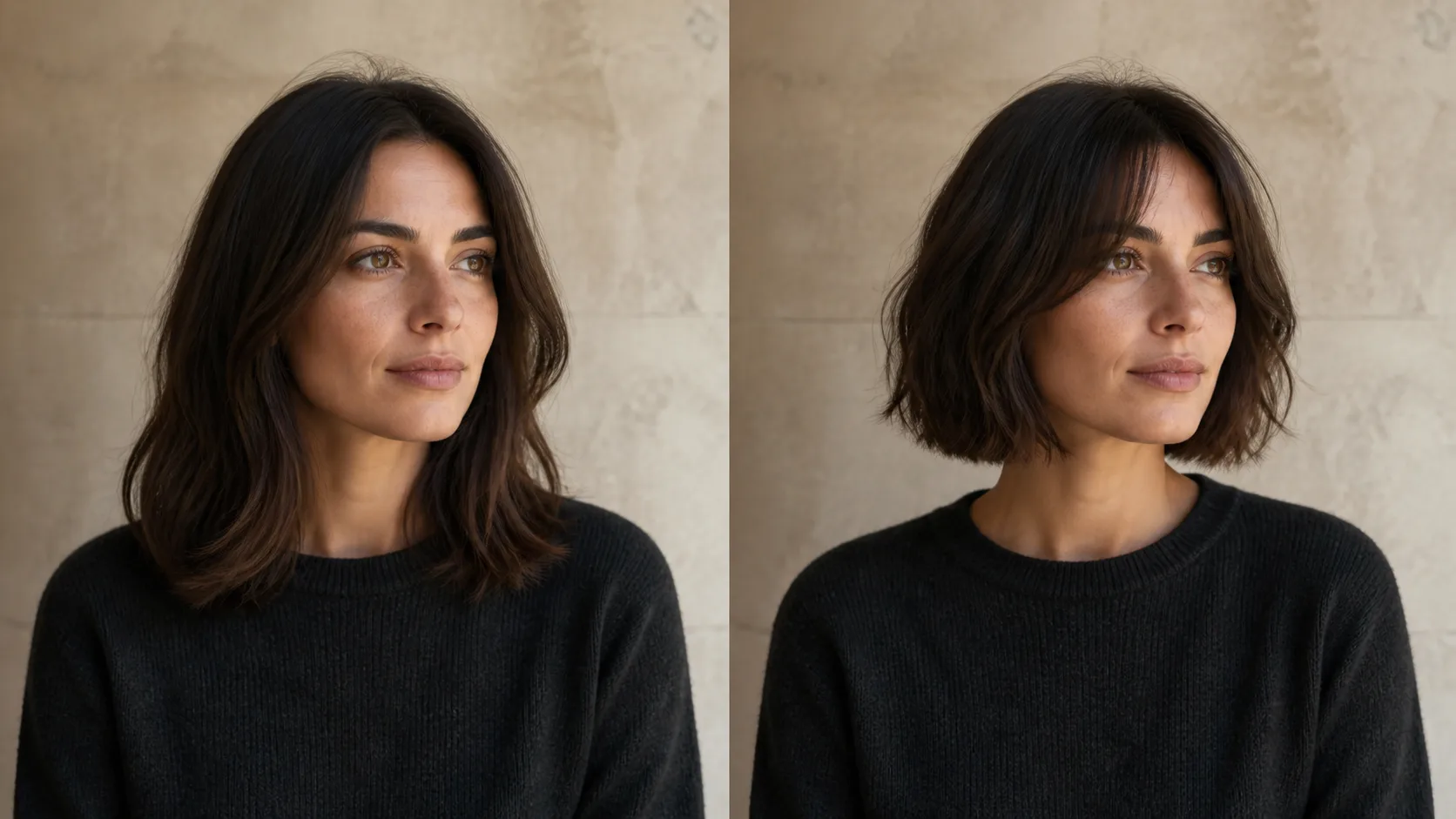
How to Preview a Haircut With AI Before You Commit
Learn how to preview a haircut with AI using better photos, precise prompts, reference images, and a realism check before visiting the salon.
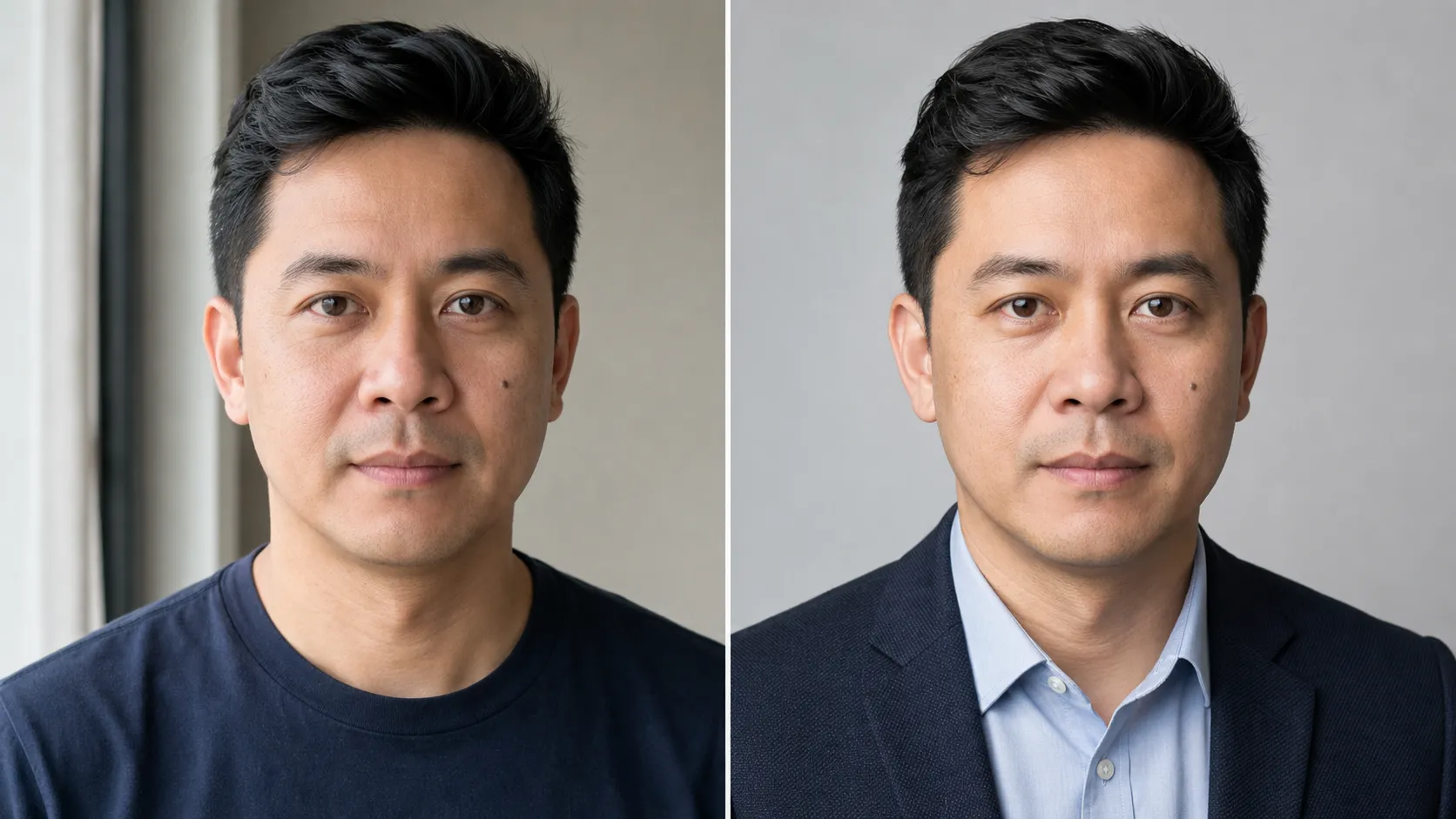
AI Headshot Generator From Photo: A Realistic Workflow
Choose the right source photo, style, crop, and identity checks to create an AI headshot that looks polished without looking like someone else.