
AI Photo Glare Remover
Upload a photo and this photo glare remover finds every glare for you: each eyeglass lens, glass over a picture, a window or a screen. Remove glare from the whole photo or only some areas; everything else stays as it was.
Finding the glare is free. You need at least 30 credits; you only pay when you create the fixed photo.
Result


Remove glare from your photo
Upload a photo with glare on glasses, glass or a screen. The glare is found for you, and only those areas change.
Photo Glare Remover Examples
Look closely: only the glare is gone
Real results from this photo glare remover. The amber box marks the area that was fixed; the zoomed views show it before and after. The example photos were made with AI.
White ring light glare on glasses
BeforeAfterBoth lenses were fixed. Her eye color, lashes and the thin gold frame are as they were, and the rest of the headshot is the original photo.

Blue-purple coating reflections
 BeforeAfter
The colored reflections of the hall lights are gone from both lenses, so his eyes show clearly. The black frames and the event background did not change.
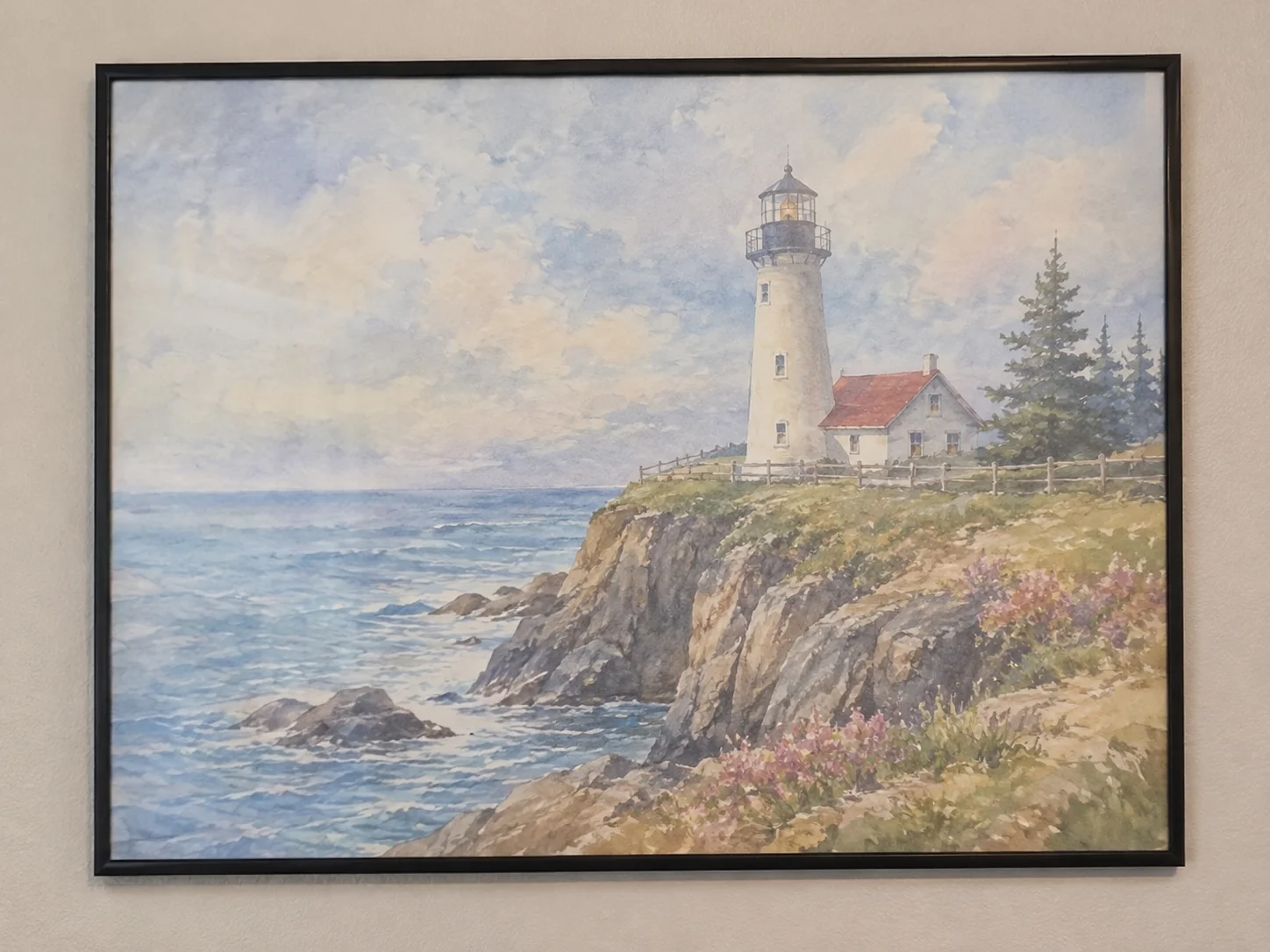
Lamp glare on a framed picture
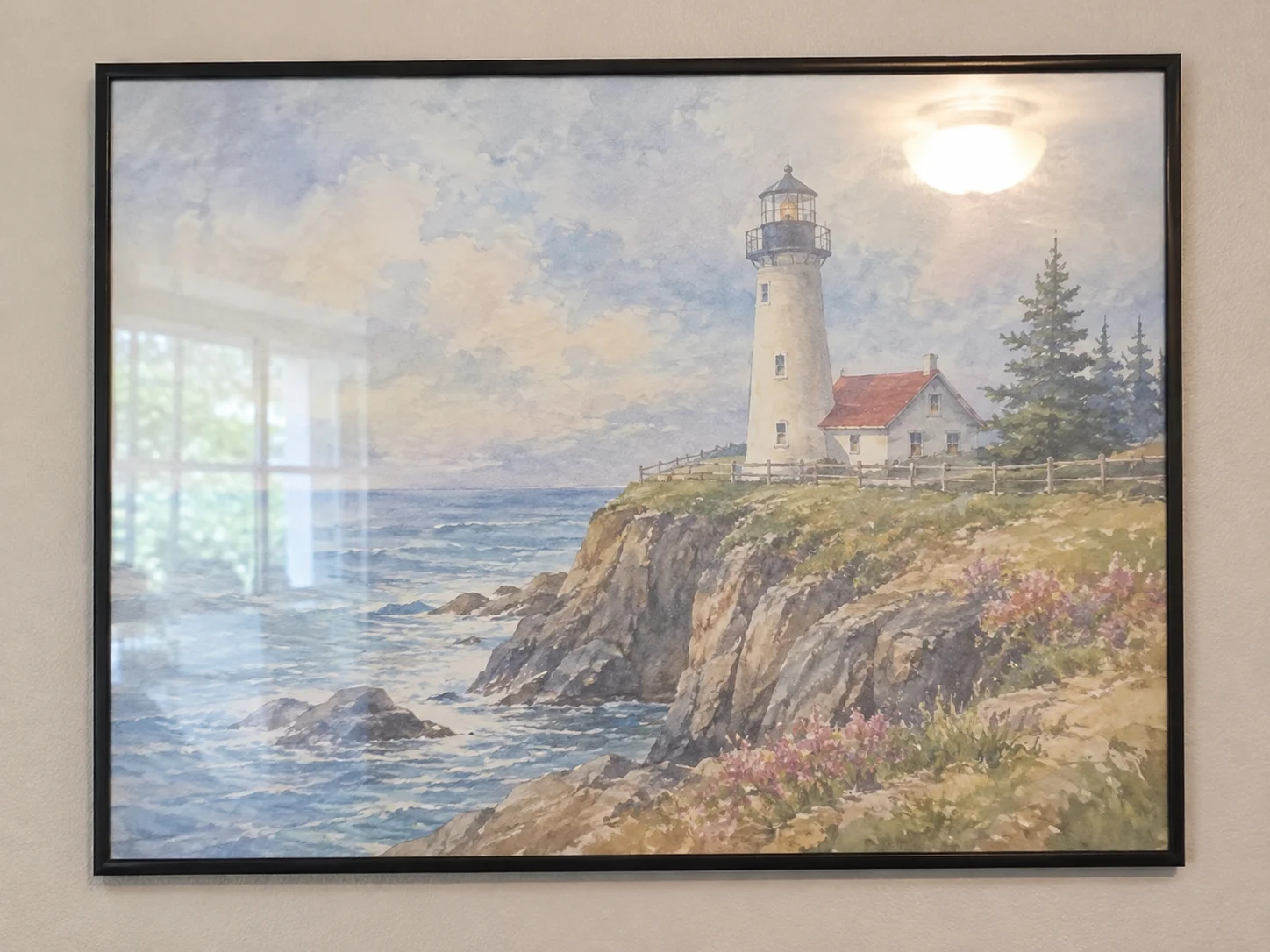 BeforeAfter
The ceiling lamp and the window reflected in the glass are removed, and the colors of the painting under them come back. The frame and the wall are the original photo.
Remove Glare from Photos, Keep Everything Else
What makes it different
A glare remover for photos you already like and can't retake: headshots, family photos, event pictures and photos of framed art.
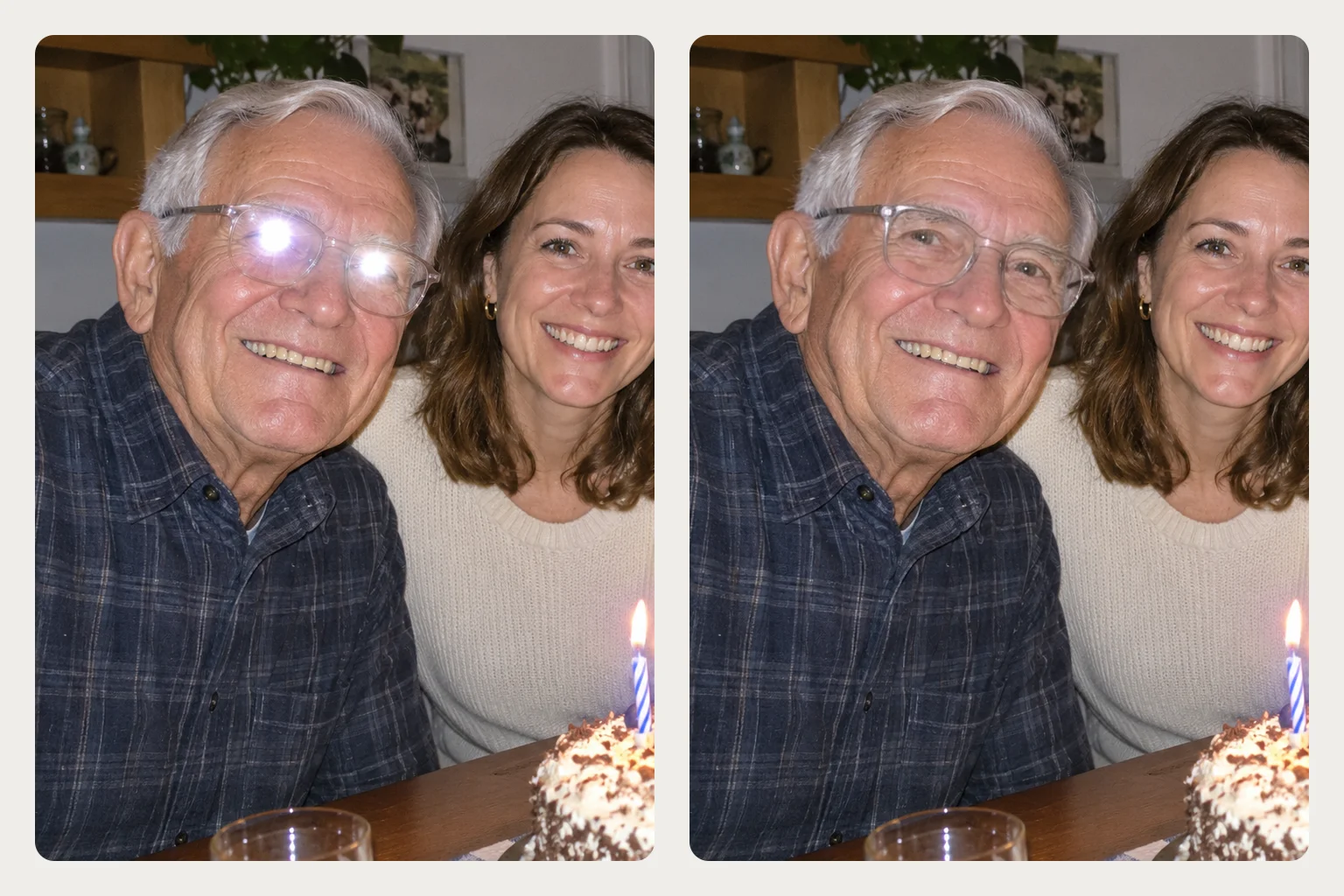
- Each eyeglass lens gets its own box, and so does glass over a picture, a window or a screen. If it's right, just click Remove glare.
- Untick a lens or an area to keep it as it is. In a group photo, only the person you choose is changed.
- Only the area around the boxes changes. The rest of the photo is taken from your original, so faces, hair and the background stay as they were.
- Remove glare from glasses, and also from the glass over a framed photo or painting, from windows, screens and shiny products.
- The finished photo has the same size as the one you uploaded, ready to download.
- Drag a box over any glare that wasn't found, or adjust a box that is too small. Boxes you draw can be removed again.
Which Photos Work Best for Glare Removal
The AI can only keep what it can see
These four checks make the biggest difference when you remove glare from glasses in a photo.
The eyes still show through
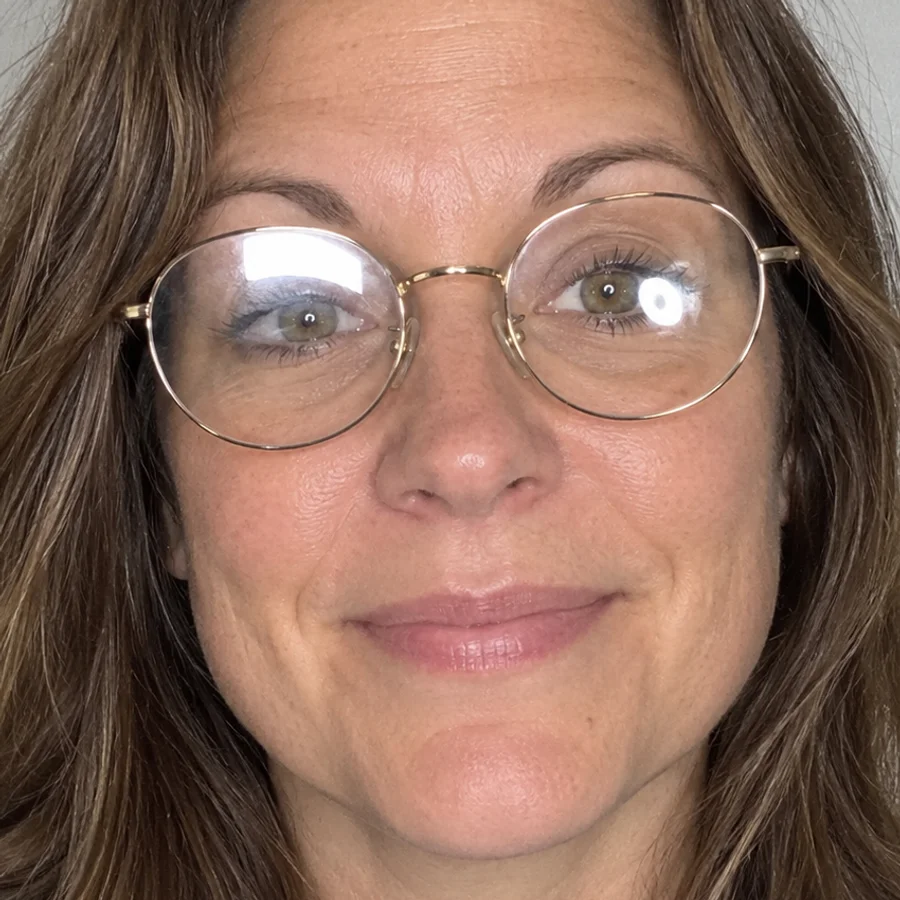 Works well
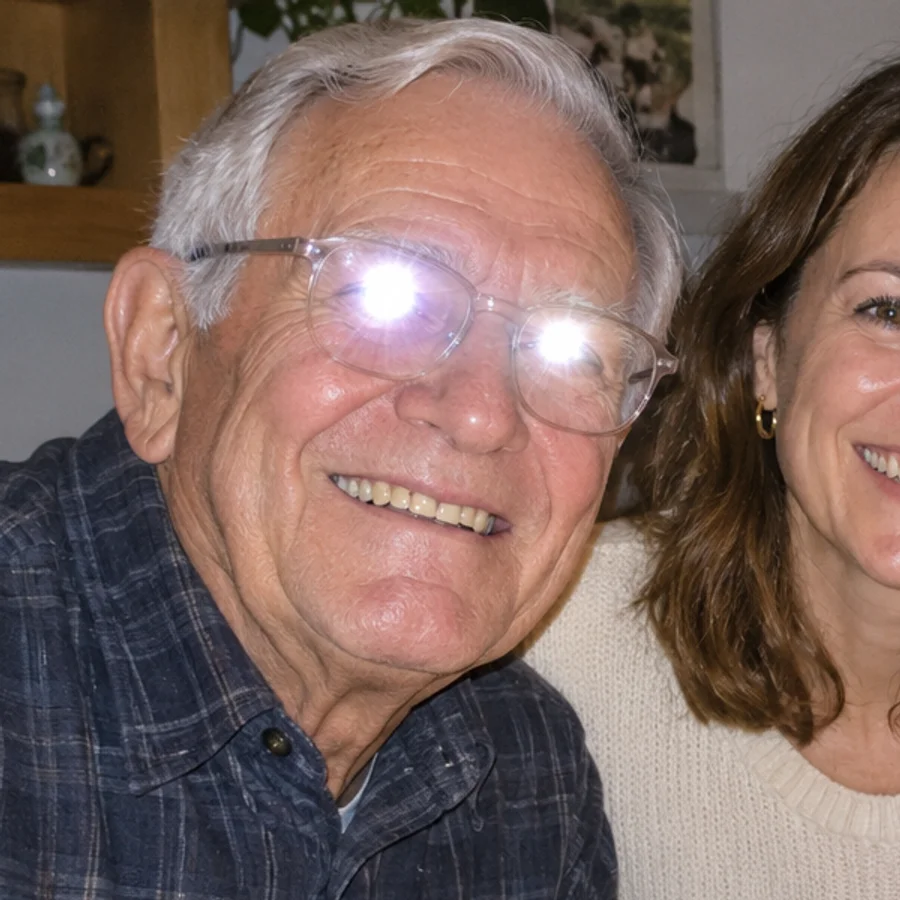 Harder
The face is big enough
 Works well
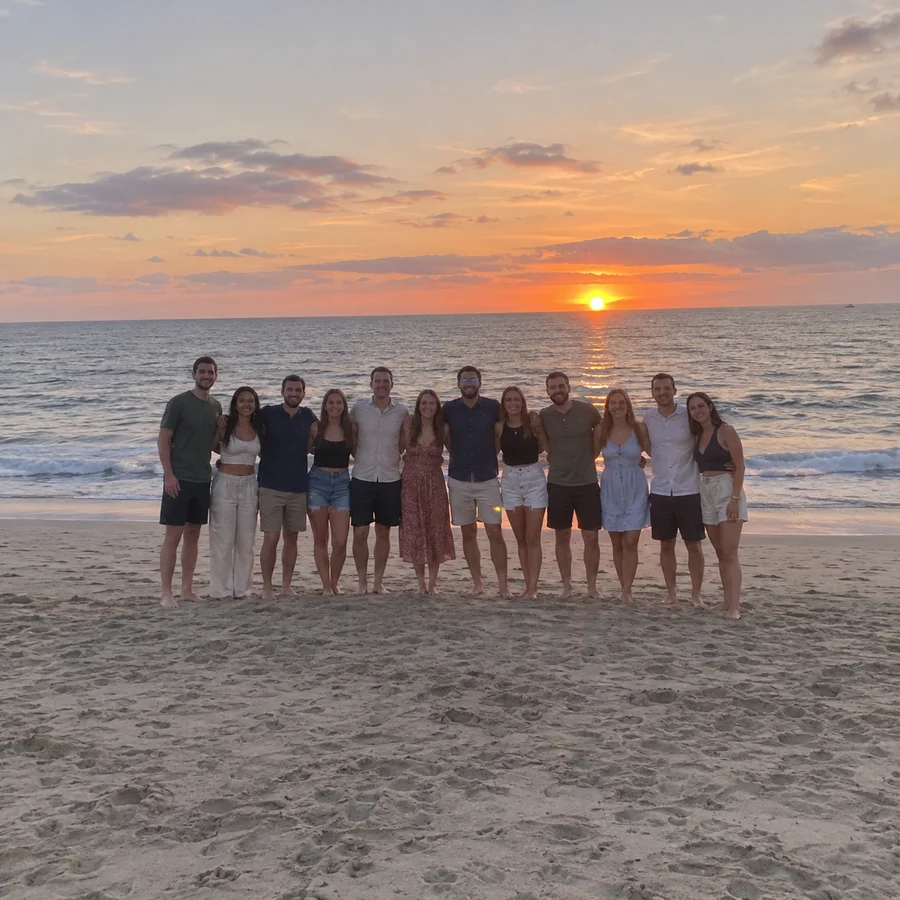 Harder
Sharp, not blurry
 Works well
 Harder
Glare on part of the glass
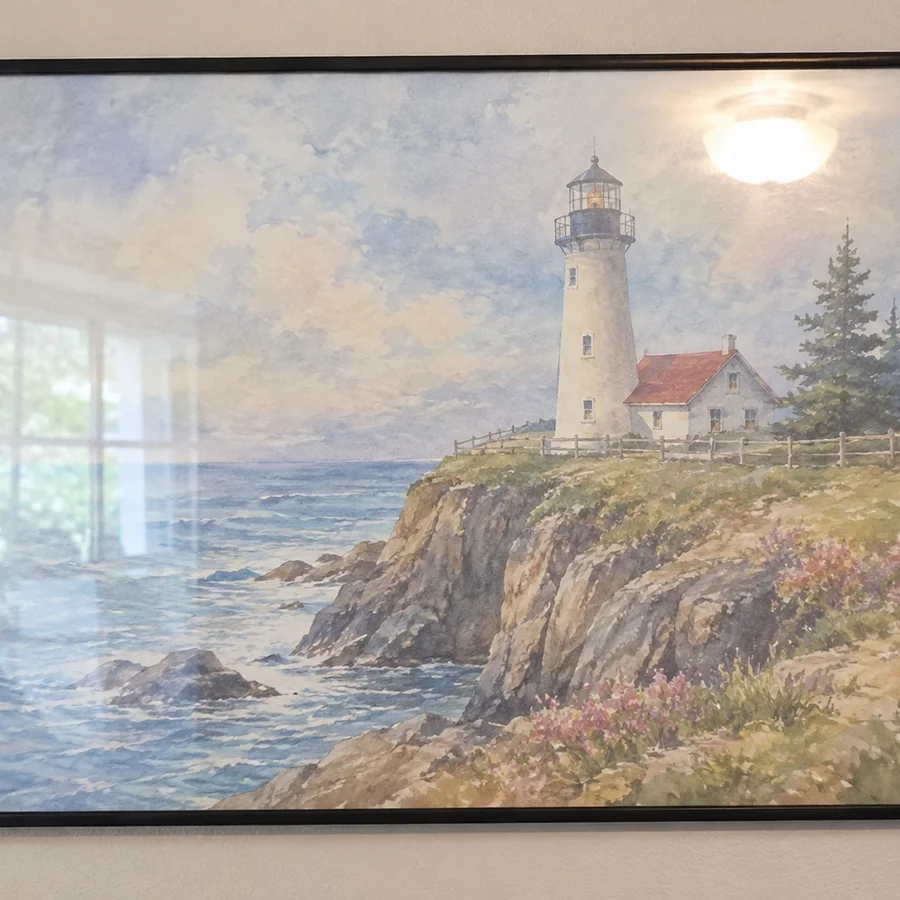 Works well
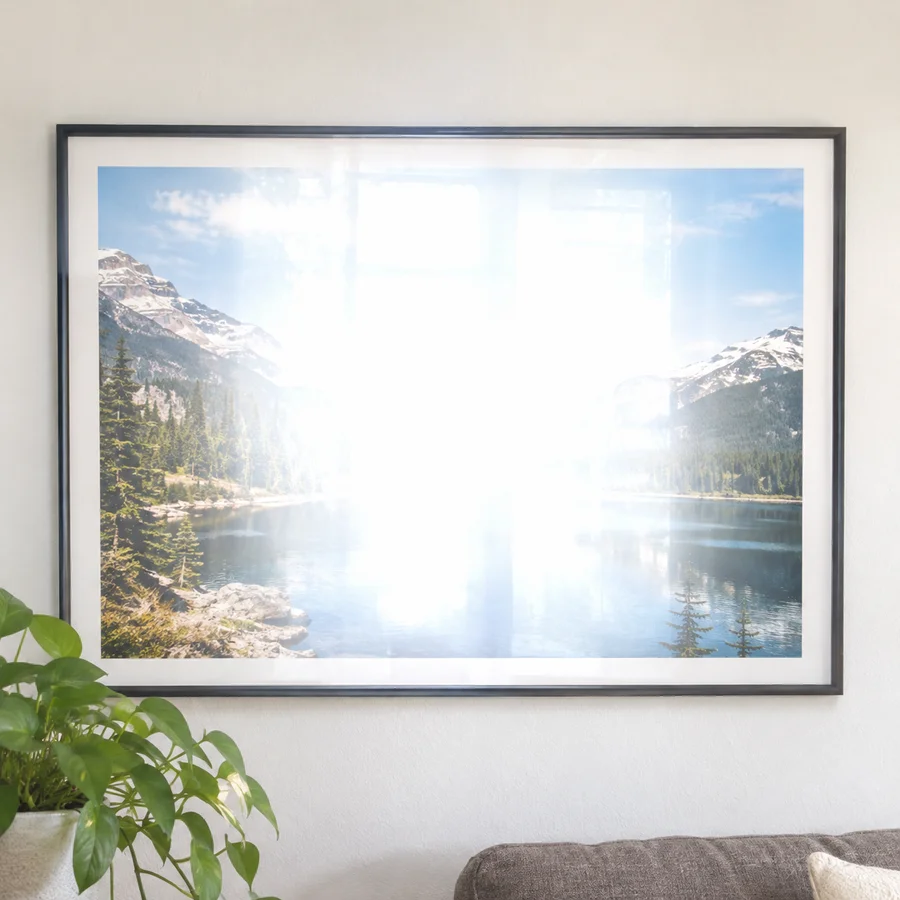 Harder
More AI Image Generators for Every Creative Idea
Unleash Creativity With Createimg.ai AI Image Generators
Explore a variety of AI image generators tailored to different creative needs. Whether you want to design shirts, make fun emojis, or create unique posters, these tools make it easy to bring every idea to life.
 New
Photo Glare Remover
 New
Image Translator
 New
AI Color Changer
 New
Image Text Editor
 New
Photo to Coloring Page
 New
Image To Prompt
AI Age Progression
AI Sticker Generator
AI Thumbnail Generator
 Hot
Image To Image
Explore Cutting-Edge AI Models
AI Models — Powerful Image & Video Generation Tools
Explore advanced AI models for high-quality image and video creation. Discover powerful generation and editing technologies that enhance your creative workflow and bring your visual ideas to life with ease.










How to Remove Glare from a Photo
Three steps
Remove glare from a photo in three steps, from upload to a finished picture you can download.
Upload your photo
Use a PNG, JPG, WebP or HEIC up to 20 MB. The glare is found on its own in about 20 seconds, for free.
Check the boxes
Every glare has a numbered box. Untick what should stay, adjust a box, or drag a new one over glare that was missed.
Remove glare and download
Pick a model and click Remove glare. Compare before and after, zoom in on the eyes, and download the photo at its original size.
Photo Glare Remover FAQ
Questions people ask
How do I remove glare from glasses in a photo?
Upload the photo. Each lens with glare gets a box; keep the ones you want fixed and click Remove glare. The AI removes the glare on those lenses and keeps the eyes, the frame and the rest of the photo. To remove glasses glare from a photo of a group, untick everyone except the person you want to fix.
Can I remove glare from a photo online for free?
Finding the glare is free, and you can check and adjust the boxes as often as you like. Removing it costs 30 to 60 credits per photo, depending on the model and the photo's size; the exact number is shown before you start. If the job fails, the credits come back.
Will it change my face or eyes?
Only the area around the boxes is redrawn; everything else comes from your original photo. Inside the lenses the AI keeps the eyes it can see. Always zoom in on the result: if something looks off, adjust the boxes and run it again.
What if the glare hides the eyes completely?
Then there is nothing left to keep, so the AI draws natural-looking eyes that match the other eye and the face. They may not look exactly like the real ones. The page tells you when this happens; a photo where the eyes still show through gives a better result.
Can it remove reflections from windows, picture frames or screens?
Yes. You can remove reflection from photo glass too: the glass over a framed photo or painting, windows, phone or TV screens and shiny products. Glare that washes out the whole glass leaves little to restore, so results are best when the glare covers only part of it.
Does it keep the original resolution?
Yes. The finished photo has the same size as your upload. Photos over 1.6 megapixels are processed at 2K for more detail around the fixed areas.
How is this different from the AI Object Remover?
The AI Object Remover deletes whole things from a photo, such as people, text or objects. This glare remover keeps everything in place and only removes the light on glasses and glass, so the person still wears their glasses.
Which model should I pick?
Nano Banana 2.1 is the default: it's fast and kept the eyes closest to the original in our tests. GPT Image 2 is slower; try it if a result isn't right.
Powered By


Remove the glare from your photo
Try the photo glare remover on your own photo: upload it, check the boxes, and download it at full size.