
Ghost Mannequin AI
Upload a front photo of a top on a mannequin. Add a photo of the inside of the back neckline to keep your real label. You get a hollow, white-background product photo at your photo's full size.
No neck photo: the inside of the collar is drawn as plain fabric with no label. To keep your real label, add a photo of the inside of the back neckline.
Checking your photos is free. You need at least 40 credits; you only pay when you create the product photo.
Your photo keeps its original size. Photos over 1.6 MP use 2K.
Result
Make a ghost mannequin photo
Upload a top on a mannequin. The mannequin disappears, the garment keeps its print, shape and label, on a white background.
Ghost Mannequin AI Examples
Two photos in, one product photo out
Each result below was made with this tool from the two photos shown with it. The front photo gives the garment; the inside-collar photo gives the real neck label. The example garments and their labels were made up for this page.
Tap a photo to see which part of the result it gives.
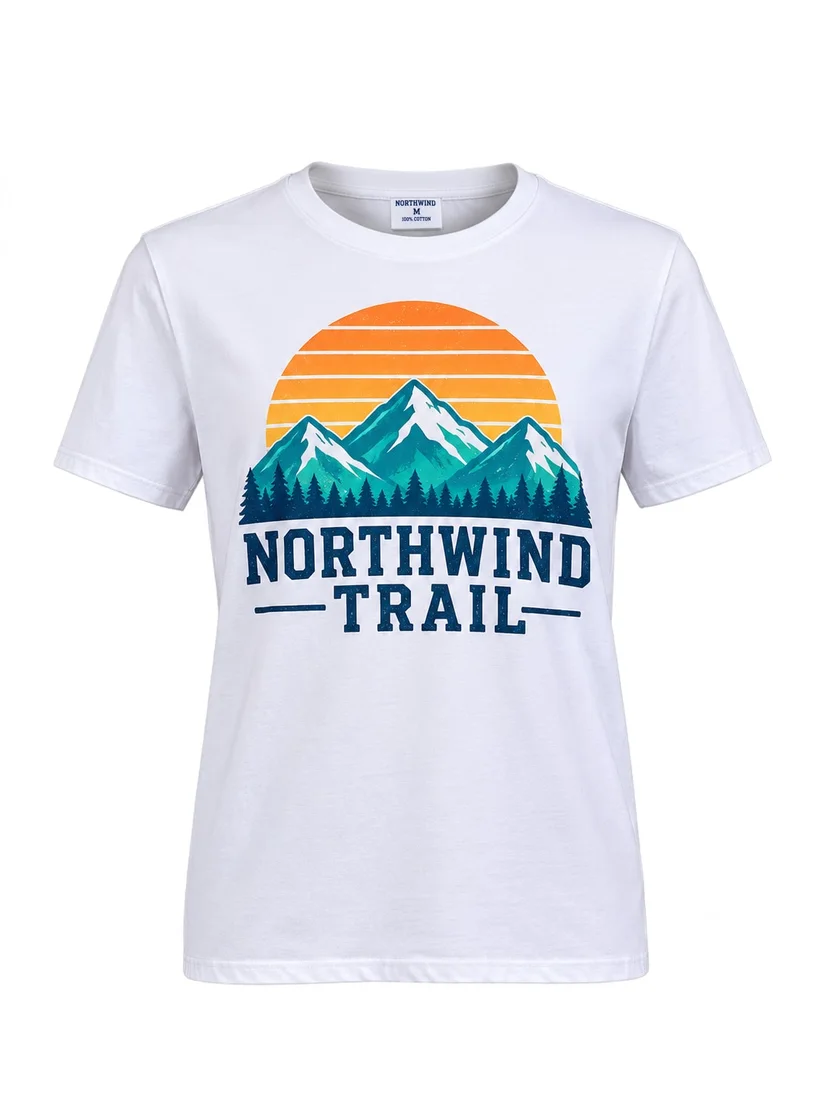
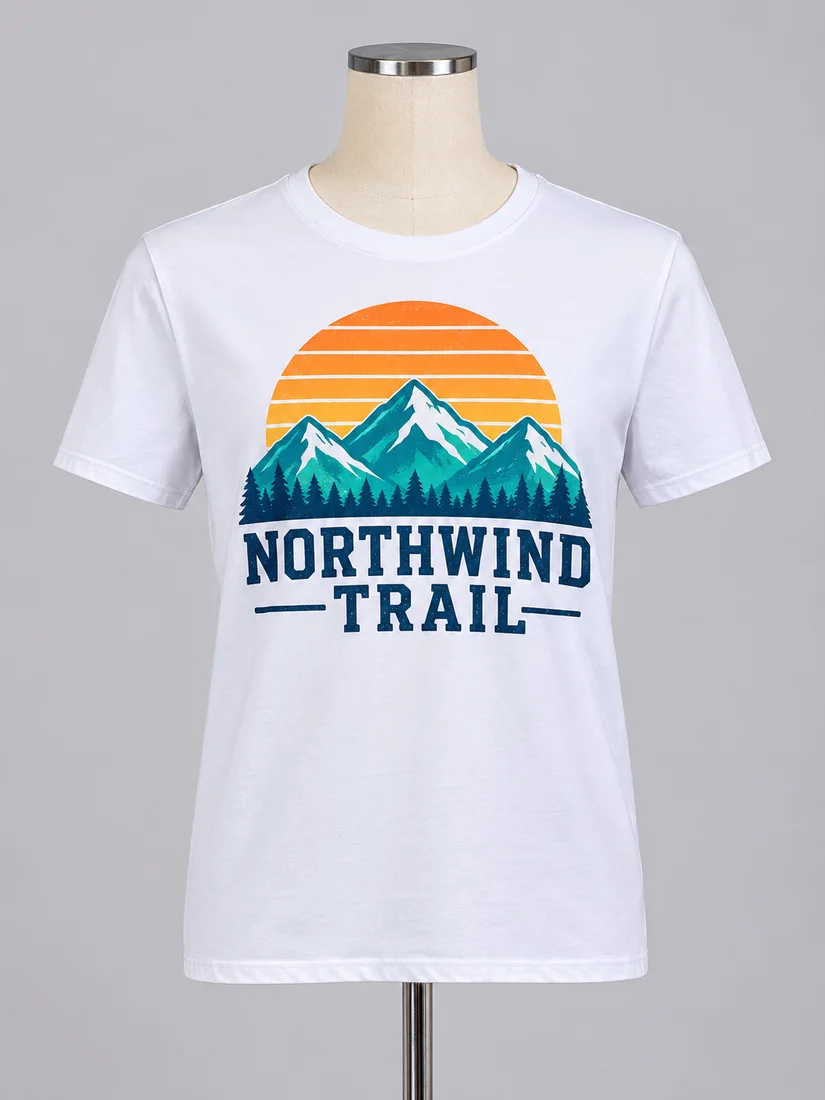
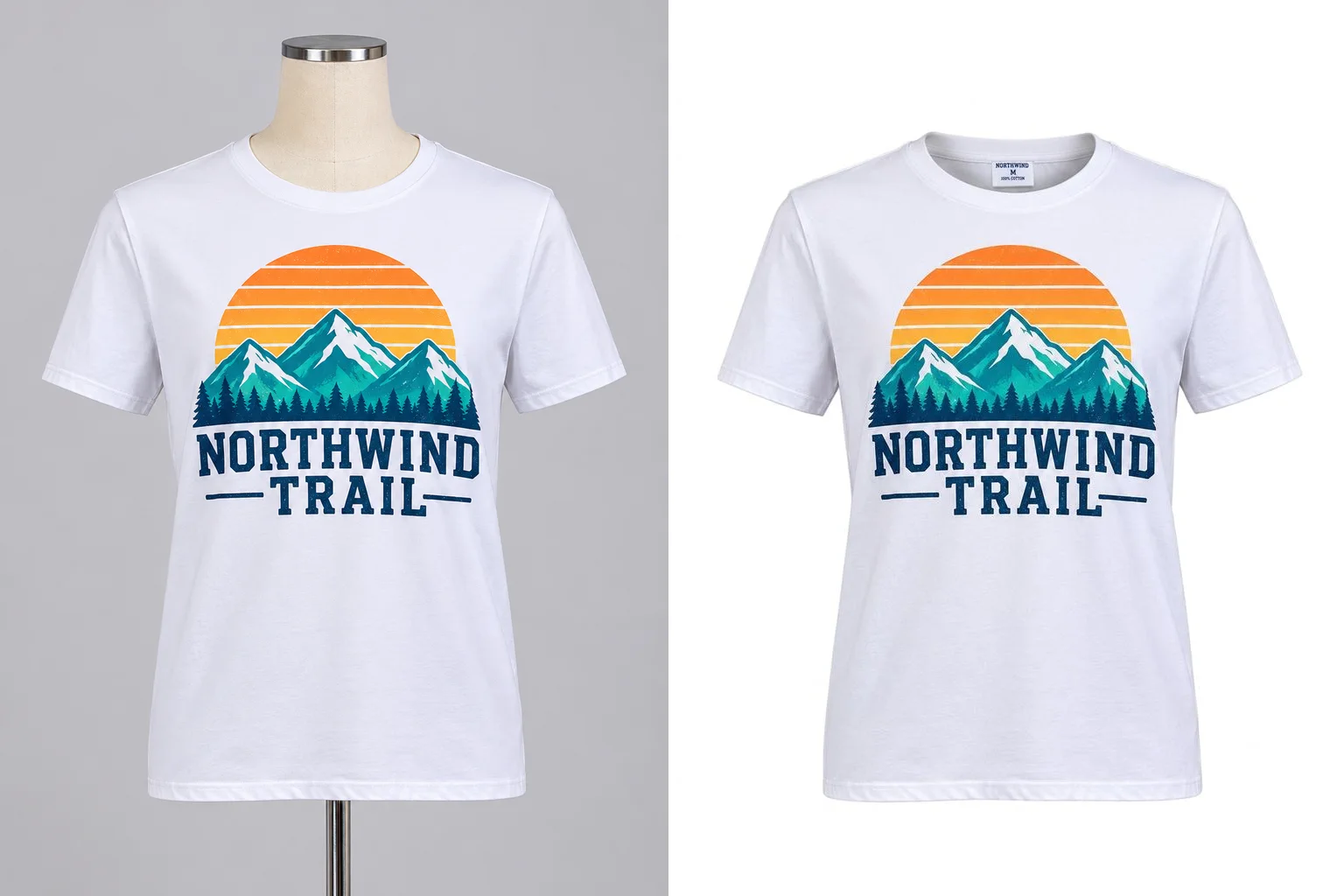
The mountain print and the lettering are the original photo's pixels, and the label reads exactly NORTHWIND, M, 100% COTTON.
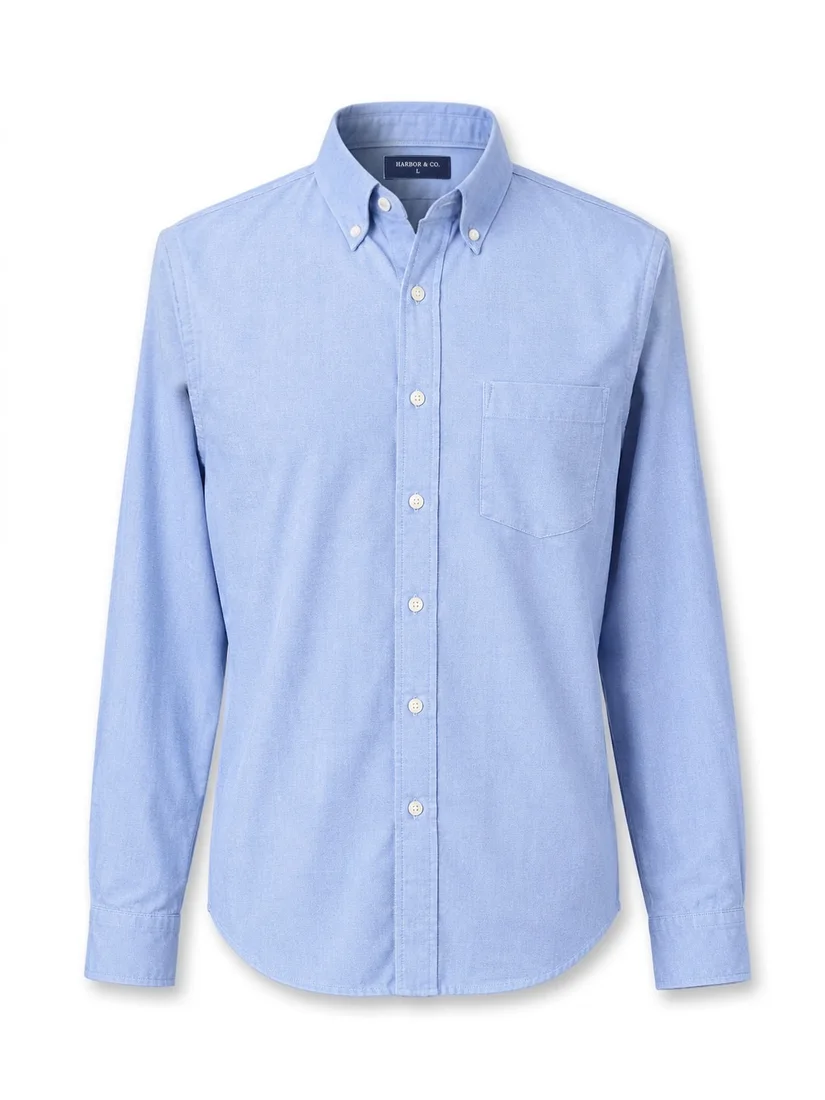
The shirt keeps its button-down collar, chest pocket and fabric texture; the mannequin neck becomes the inside of the collar.
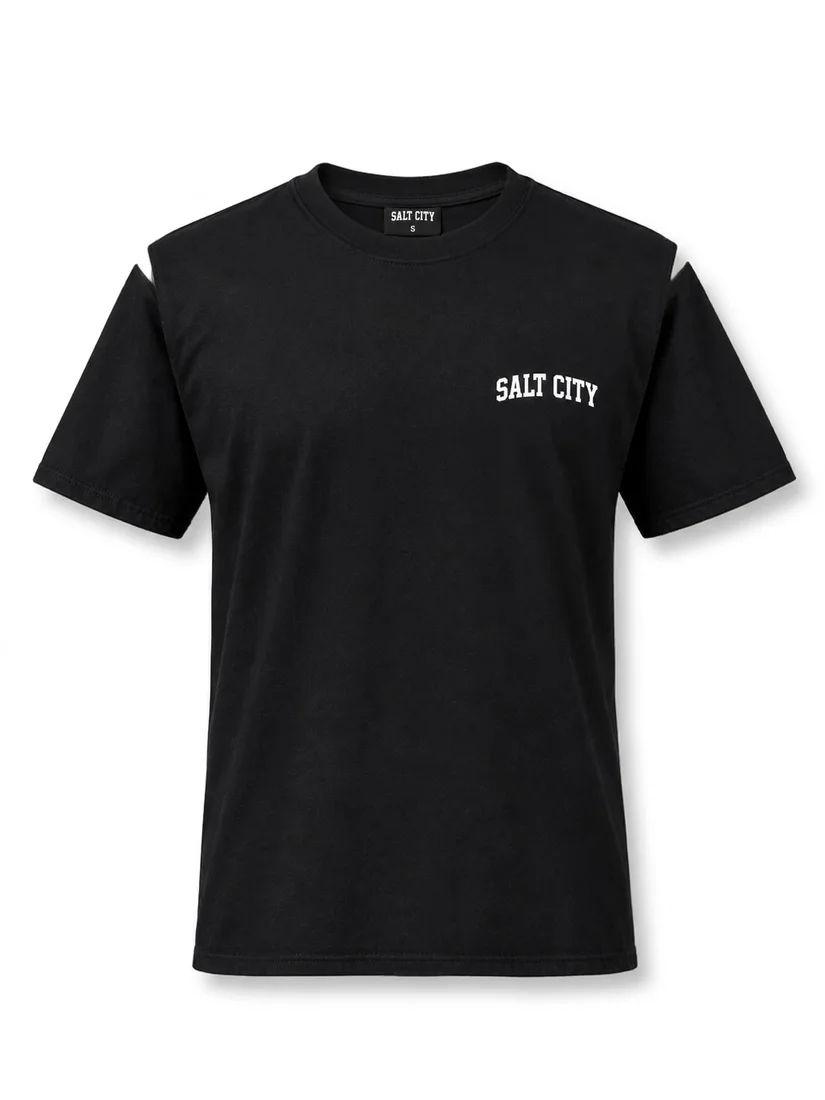
The mannequin's shoulders showing through the sleeves are gone too, and the SALT CITY logo is unchanged.
Ghost Mannequin Photo Details
Look closely: the label and the print are yours
The amber box marks the area shown zoomed in, before and after.
The real neck label
BeforeAfterWhere the mannequin's neck was, you now see the inside of the collar with the label from your second photo, every letter as printed.
The print, untouched
BeforeAfterAI image models tend to redraw prints and lettering slightly. Here the garment is put back from your original photo, so the print stays exactly as it was.
Ghost Mannequin AI vs. Other Ways
How it compares
Three ways to get a ghost mannequin photo from a photo of a top on a mannequin.
| This toolFront + inside-collar photo | Manual retouchingA retoucher in Photoshop | Single-photo AI appsFront photo only | |
|---|---|---|---|
| Your real neck label | Yes: Placed from your photo | Yes: Combined by hand | No: Drawn by the AI, often misspelled |
| Print and logo | Yes: Your original pixels | Yes: Your original pixels | Partly: Redrawn, small text can change |
| Hollow neckline | Yes: Yes | Yes: Yes | Yes: Yes |
| Time per photo | About 1–2 minutes | Usually 12–24 hours | About a minute |
| Cost per photo | 40–60 credits | About $1.20 | Varies |
| What you get | JPG on white, same size as your photo | As agreed | Often resized |
Manual retouching: a retouching service's listed price and turnaround, November 2026.
How to Shoot for Ghost Mannequin Photos
Two quick photos make the difference
Take the front photo on the mannequin, then fold the front down and photograph the inside of the back collar. These four checks matter most.
Shoot the front straight on
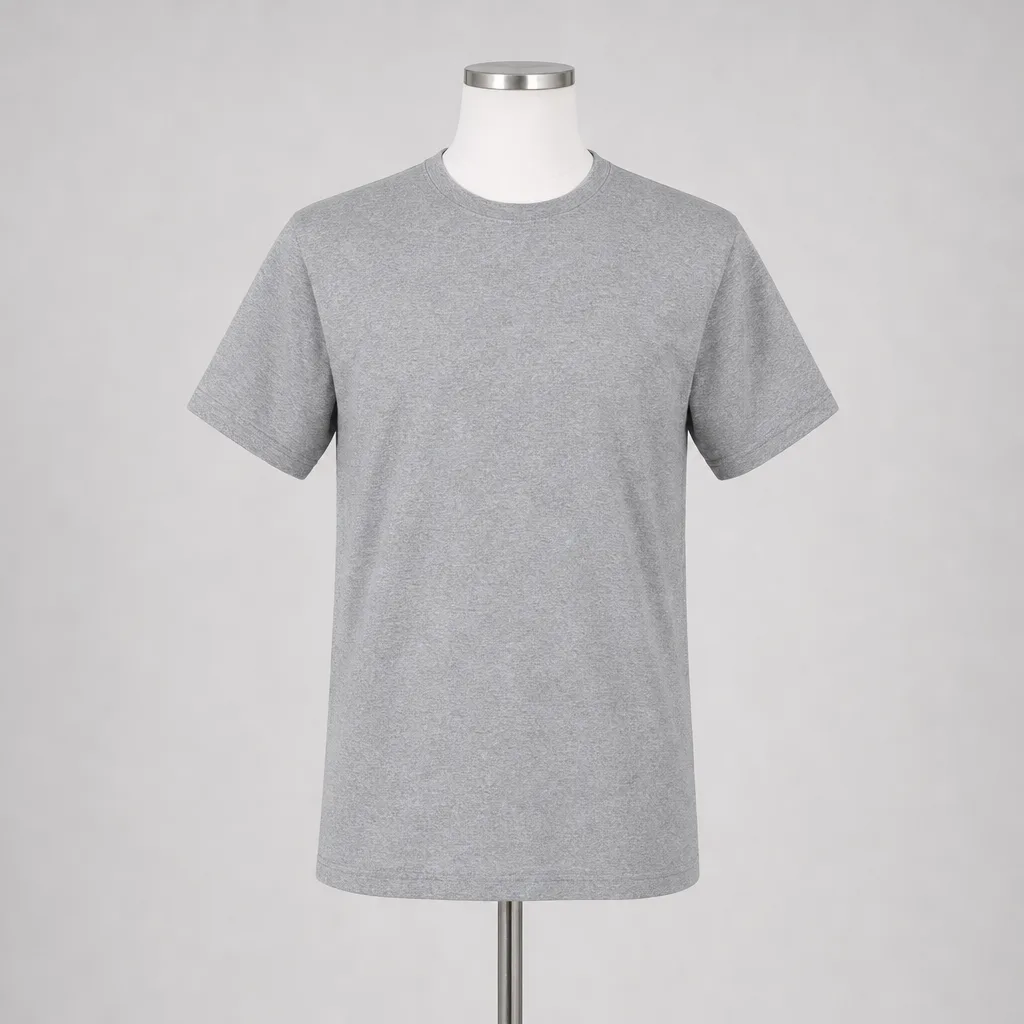 Works well
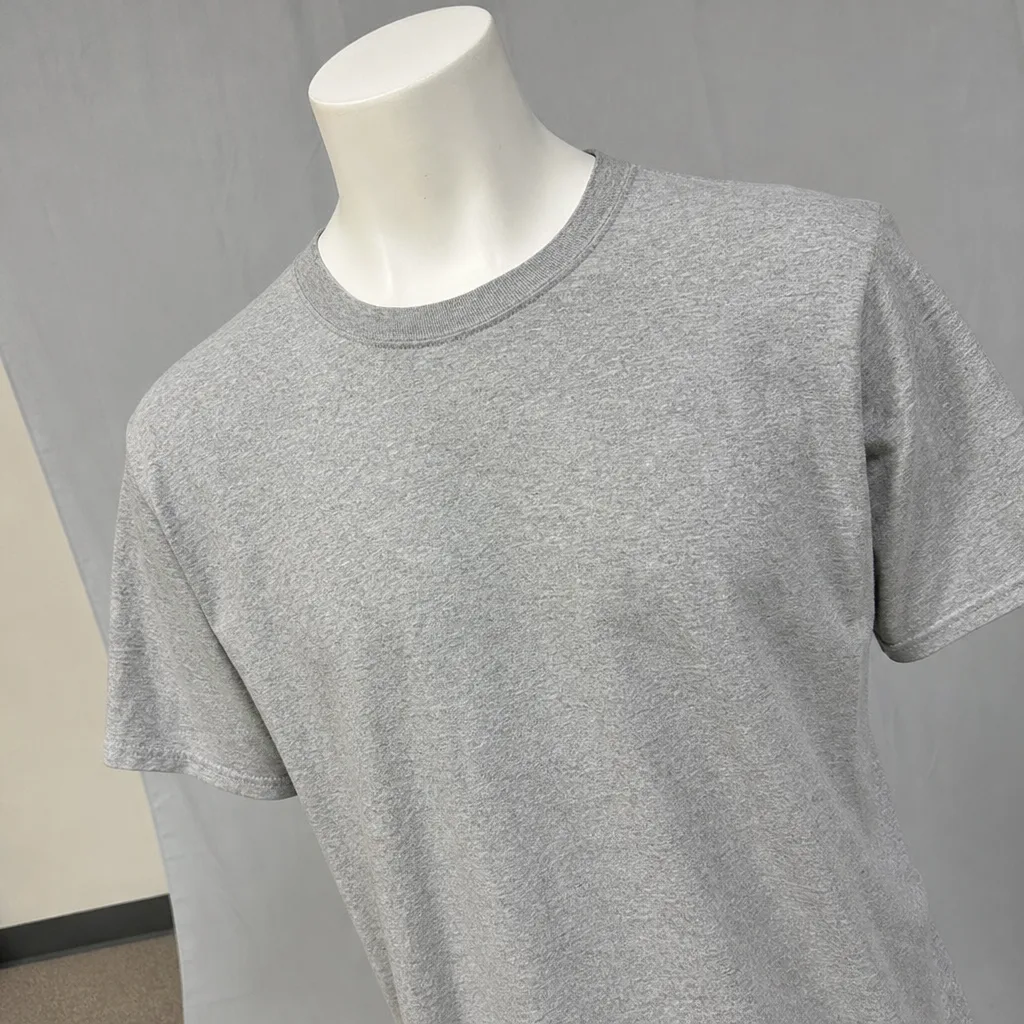 Harder
Get the label sharp
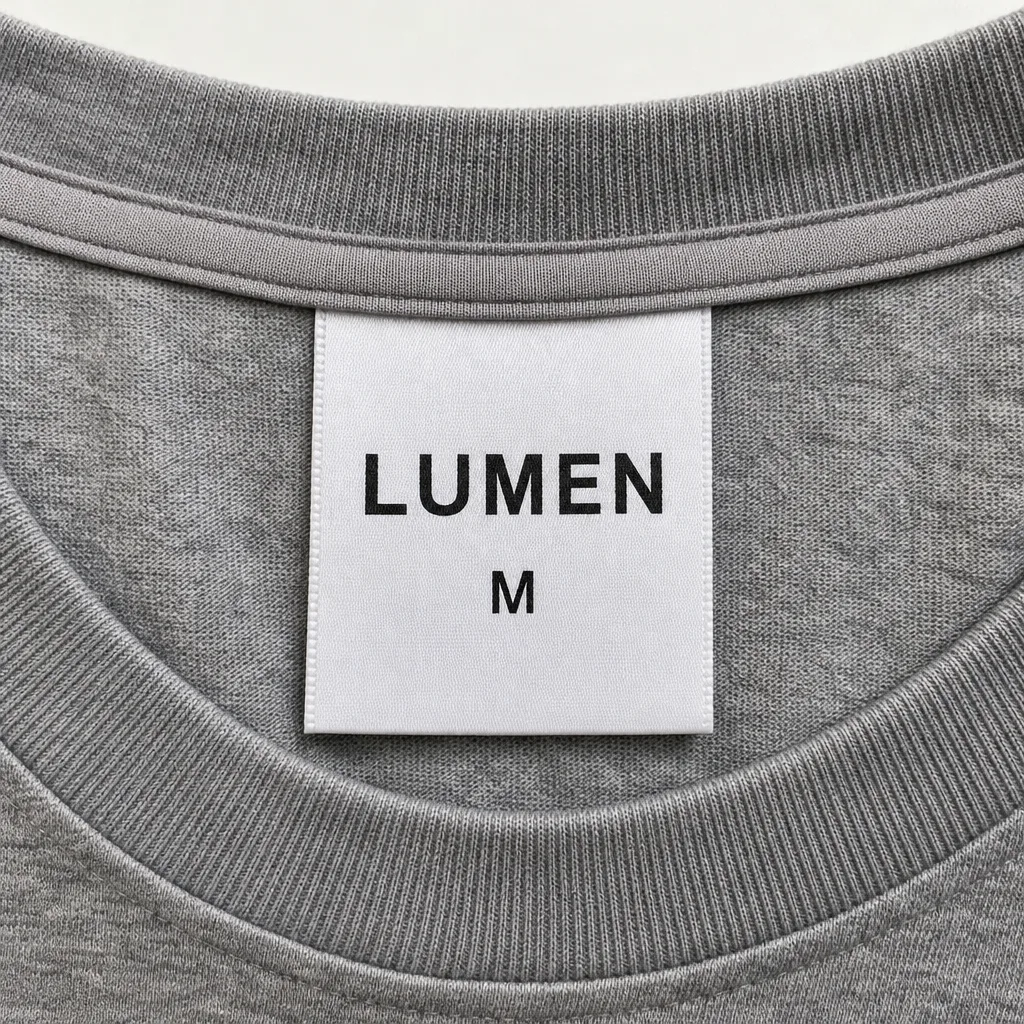 Works well
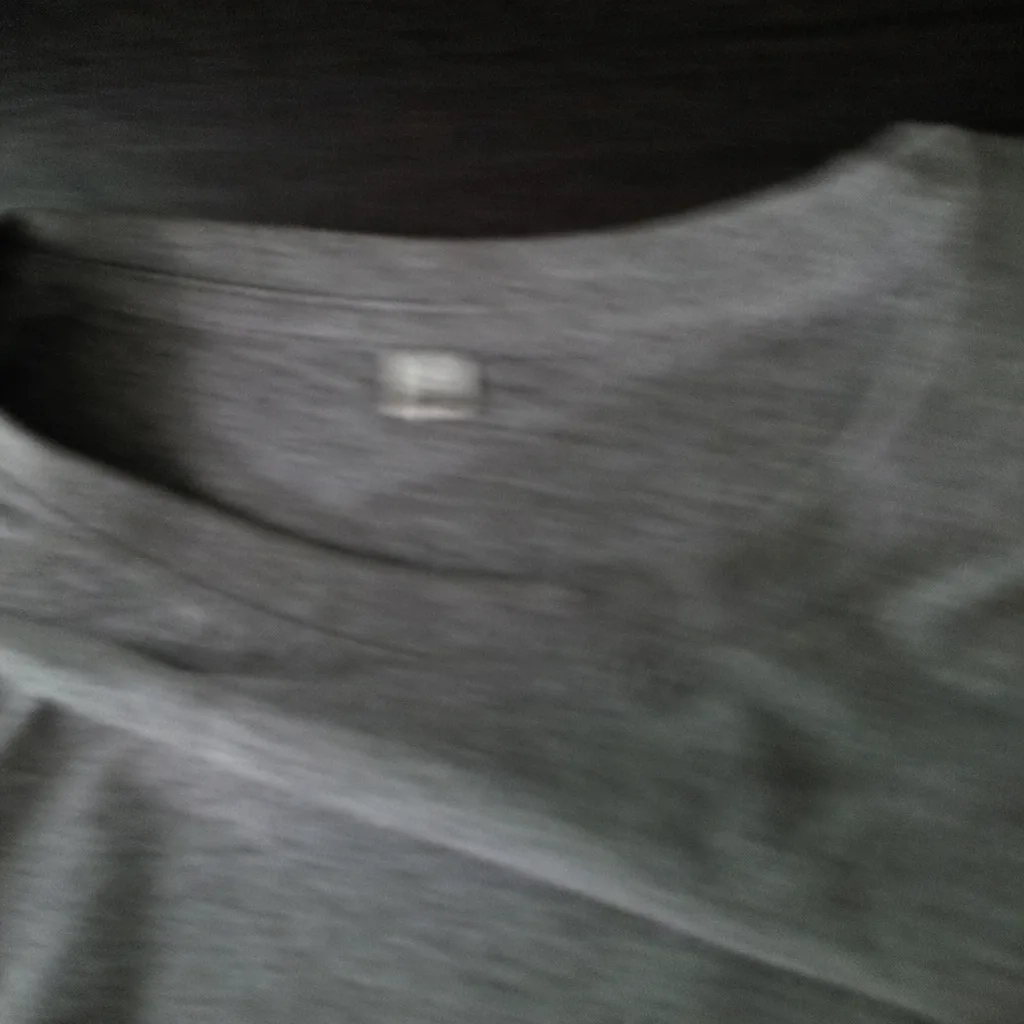 Harder
Same garment, same light
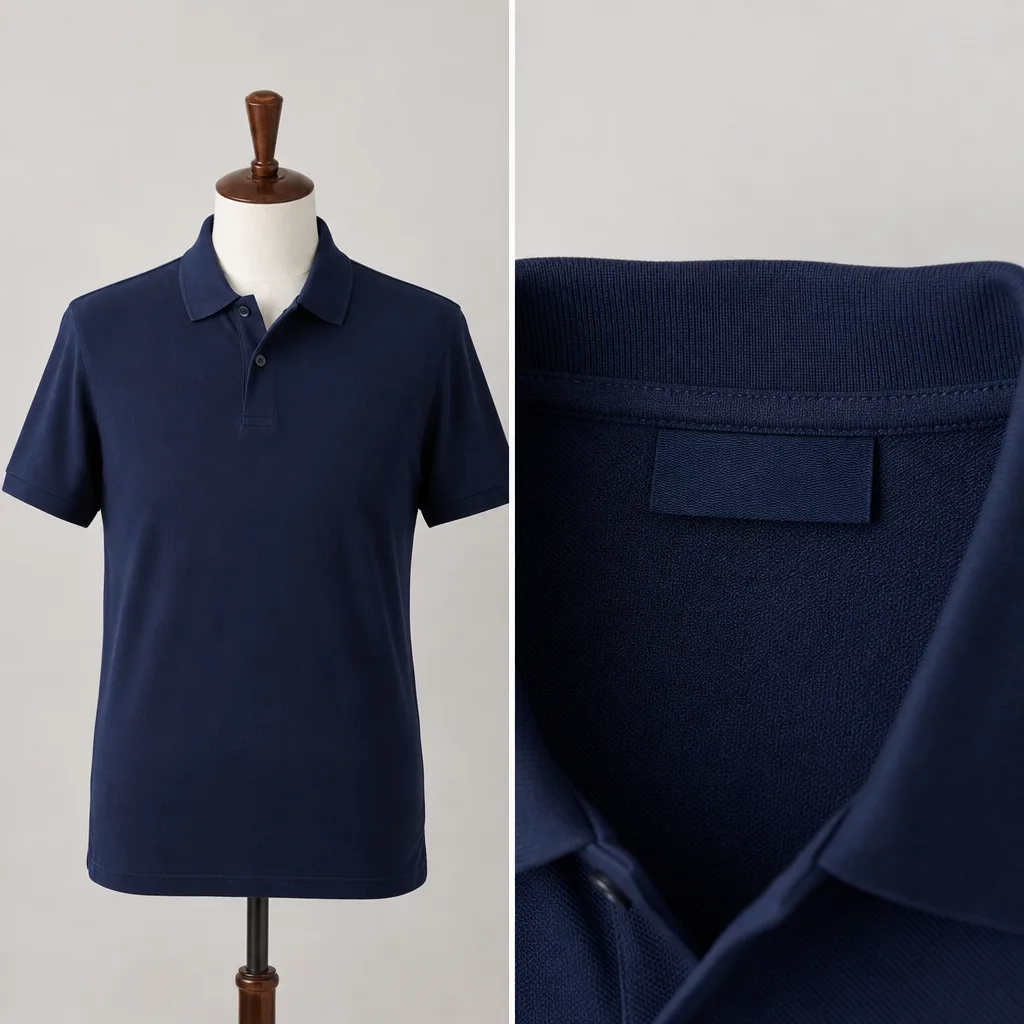 Works well
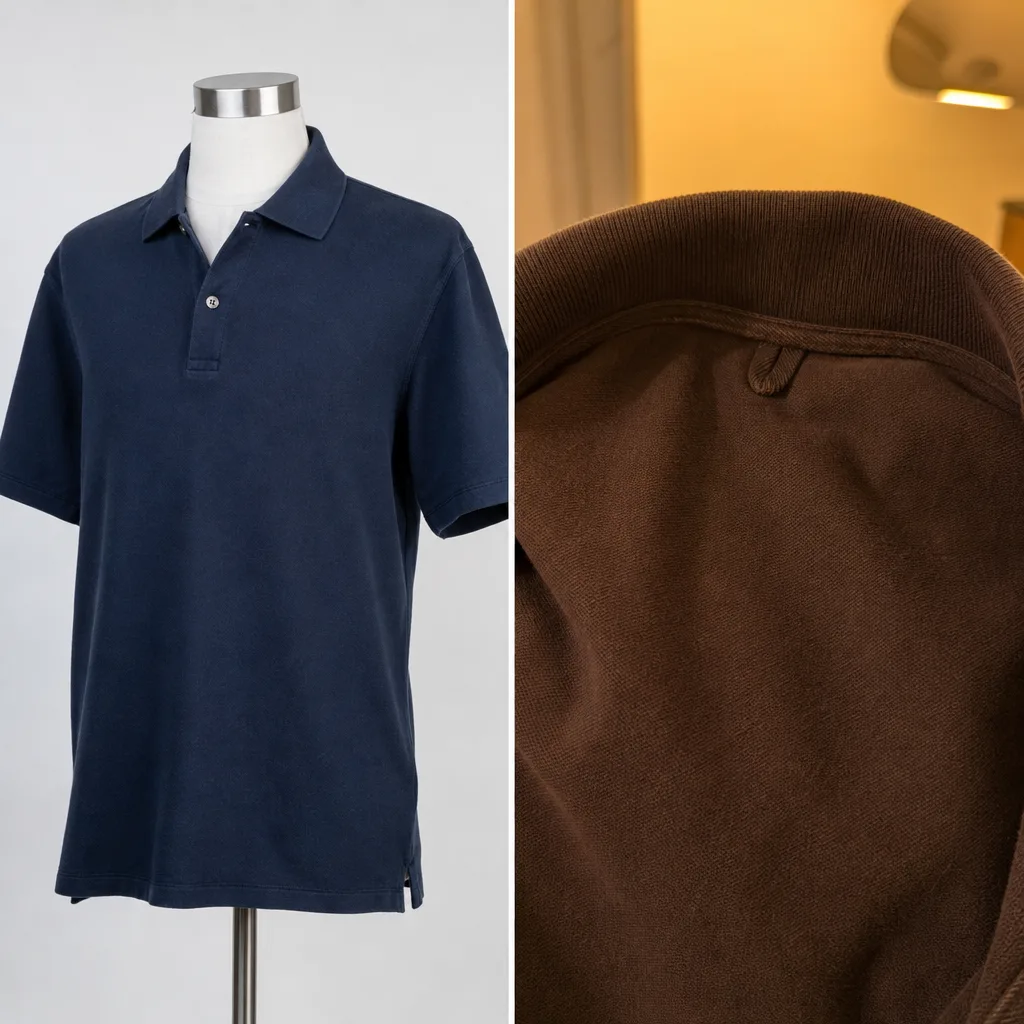 Harder
Keep the collar clear
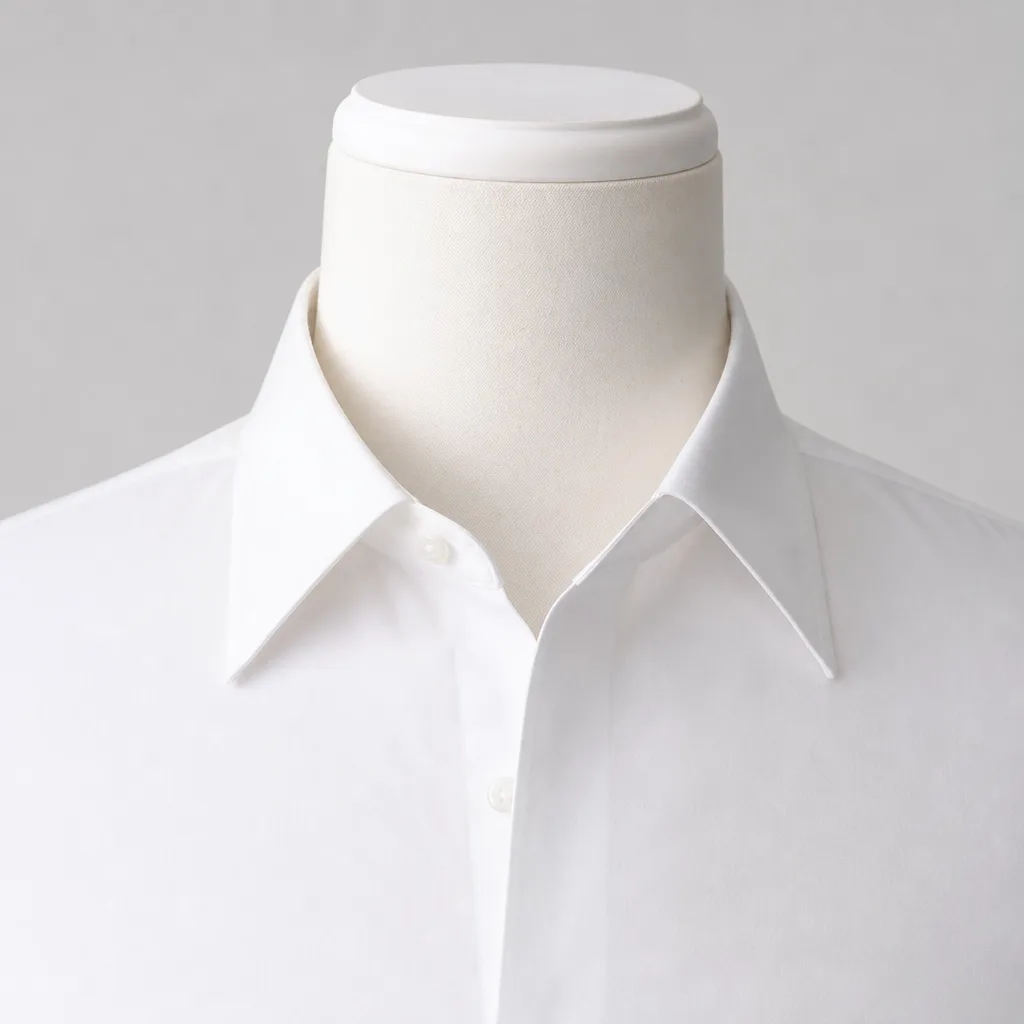 Works well
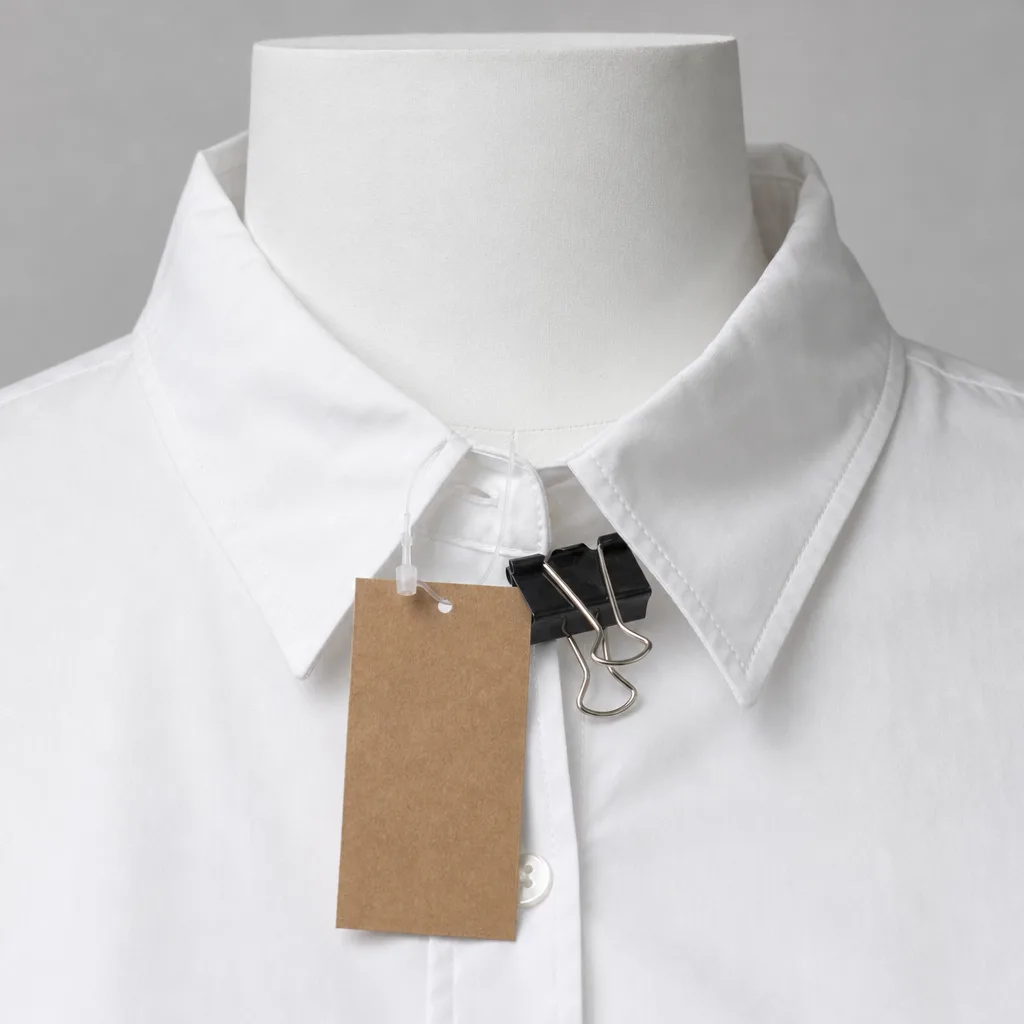 Harder
Ghost Mannequin AI for Clothing Photos
Built for product photos you sell with
For shops and photographers who shoot tops on a mannequin and need clean, hollow product photos without hours of retouching.
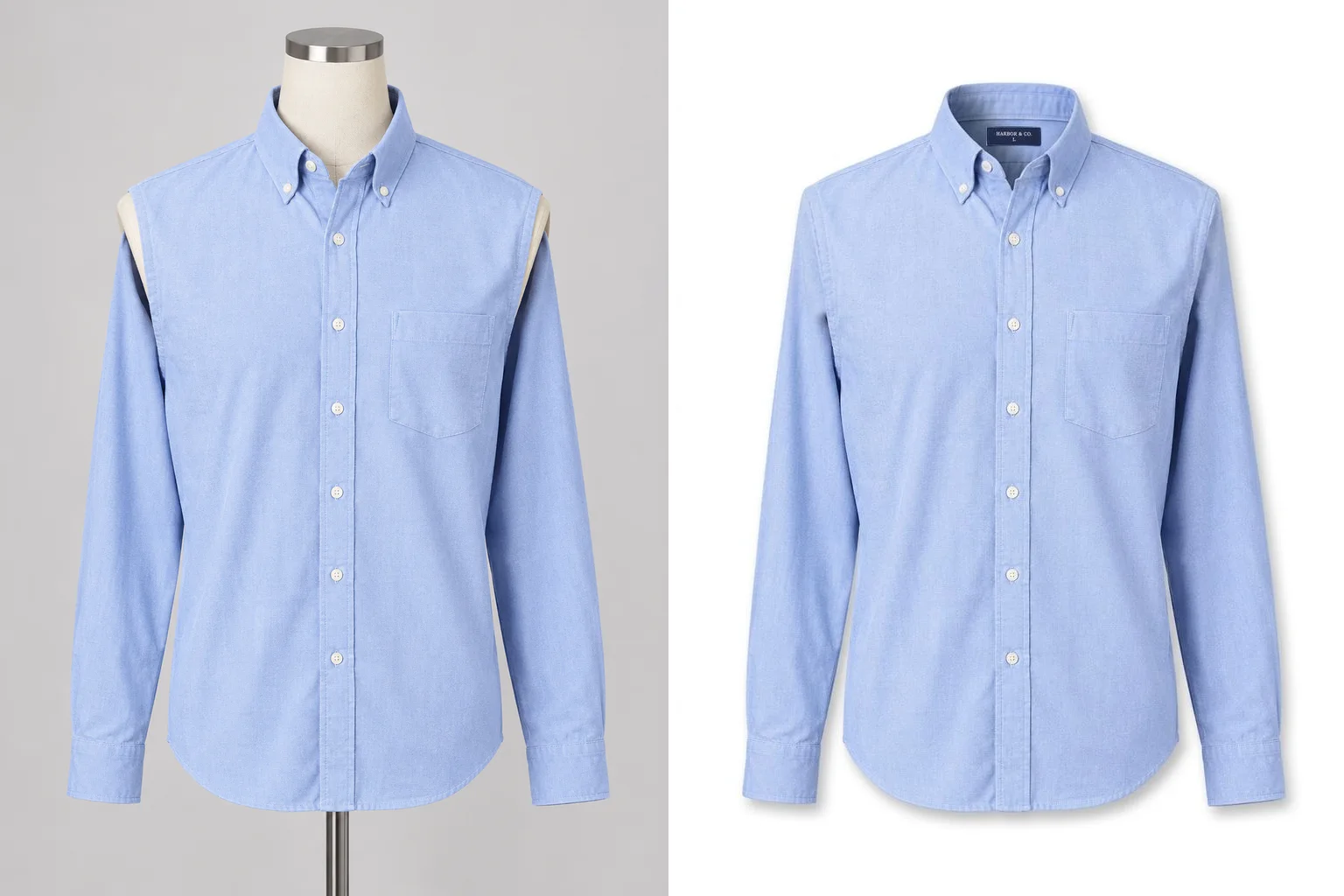
- Add a photo of the inside of the back collar and the label in it is placed into the result as it is. No made-up brand names or wrong sizes.
- The print, logo, buttons, seams and fabric texture are put back from your original photo, so the product looks exactly like what you sell.
- The mannequin's neck, shoulders and stand disappear, and the neckline shows the inside of the collar, as if worn by an invisible body.
- You get a JPG on a pure white background at the same size as your front photo, ready for a product page.
- Both photos are checked for free first: you see the label that was found and a warning if something looks off, before any credits are used.
- Every finished photo is kept in your History, so you can download it again later.
More AI Image Generators for Every Creative Idea
Unleash Creativity With Createimg.ai AI Image Generators
Explore a variety of AI image generators tailored to different creative needs. Whether you want to design shirts, make fun emojis, or create unique posters, these tools make it easy to bring every idea to life.
 New
Ghost Mannequin AI
 New
Photo Glare Remover
 New
Image Translator
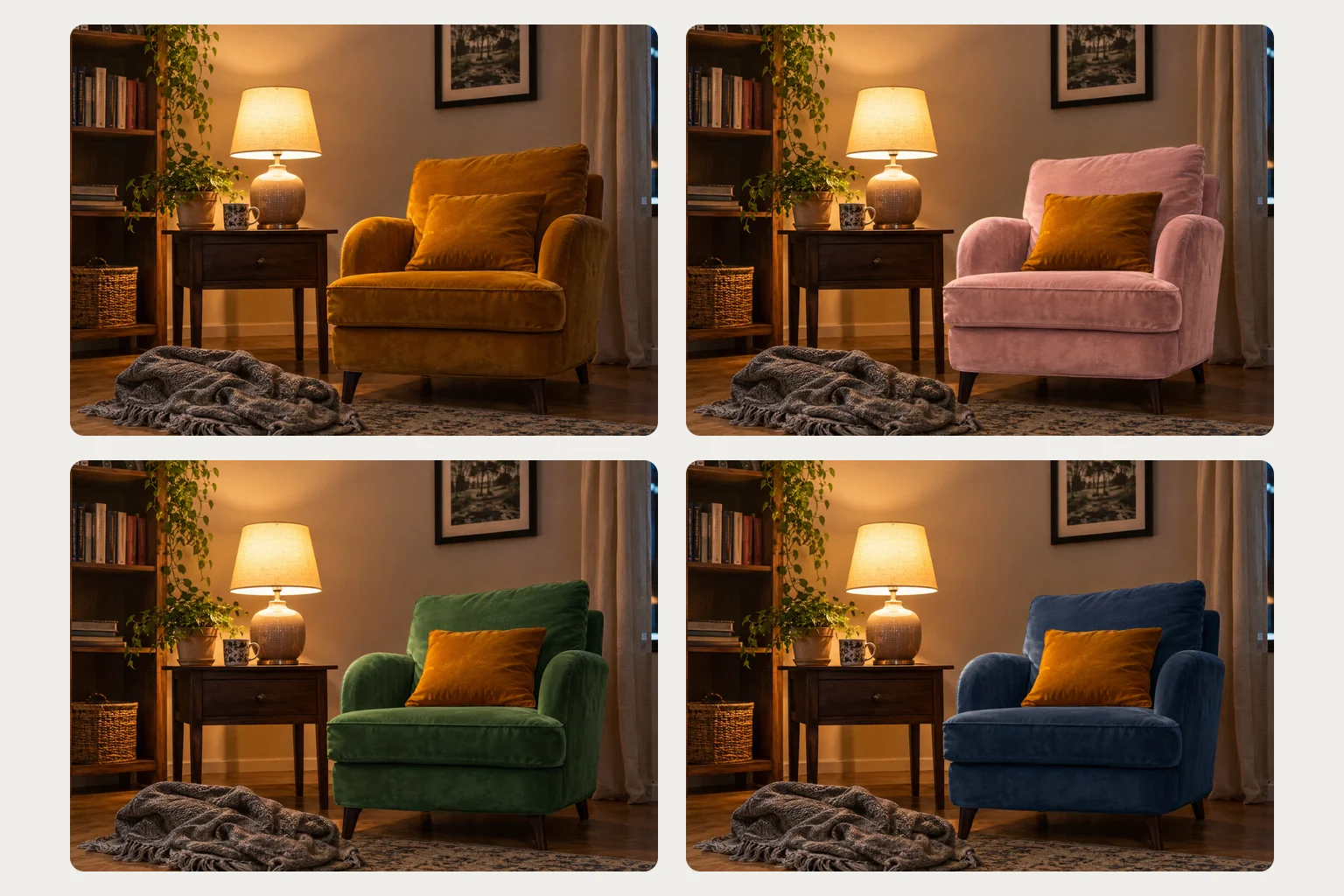 New
AI Color Changer
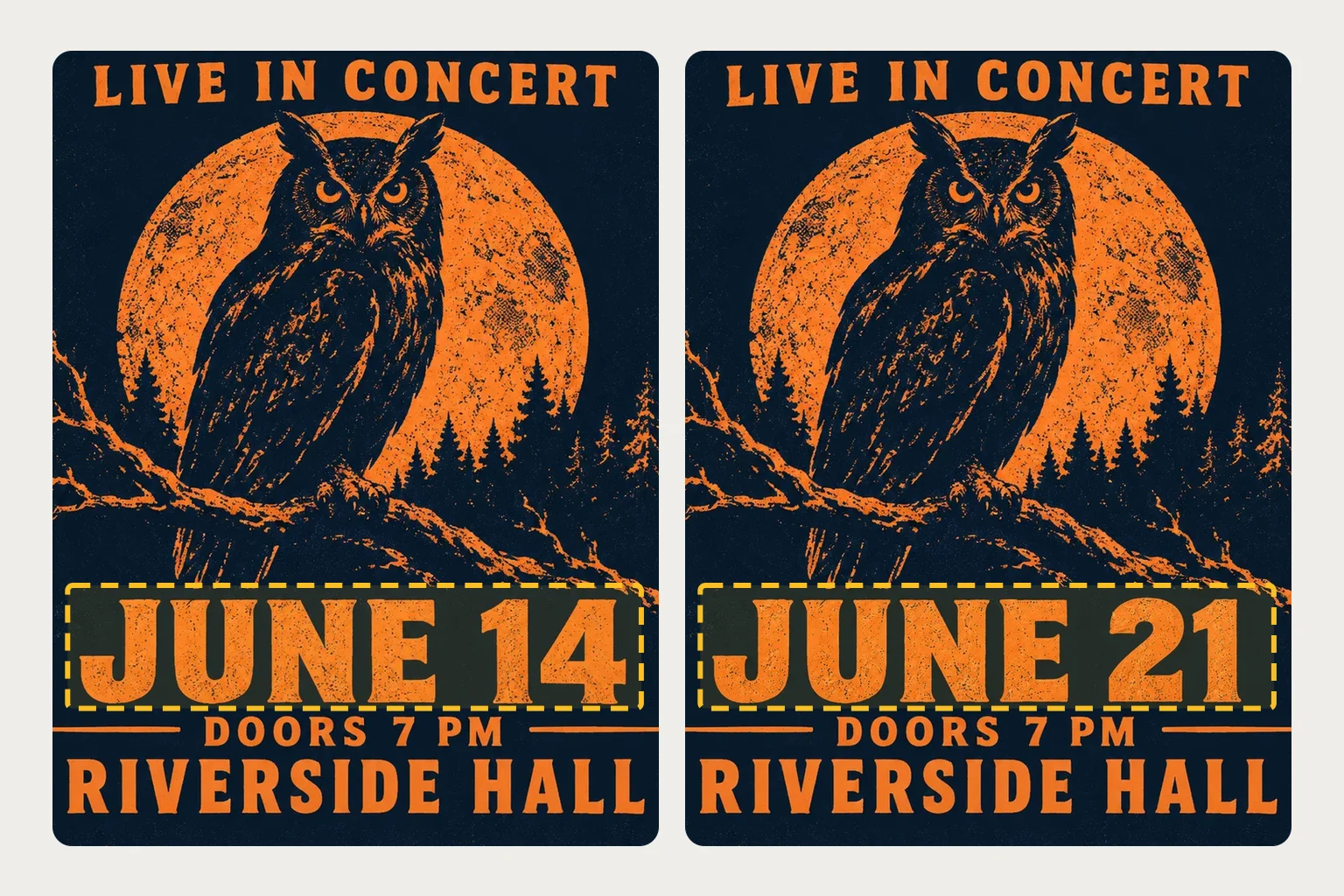 New
Image Text Editor
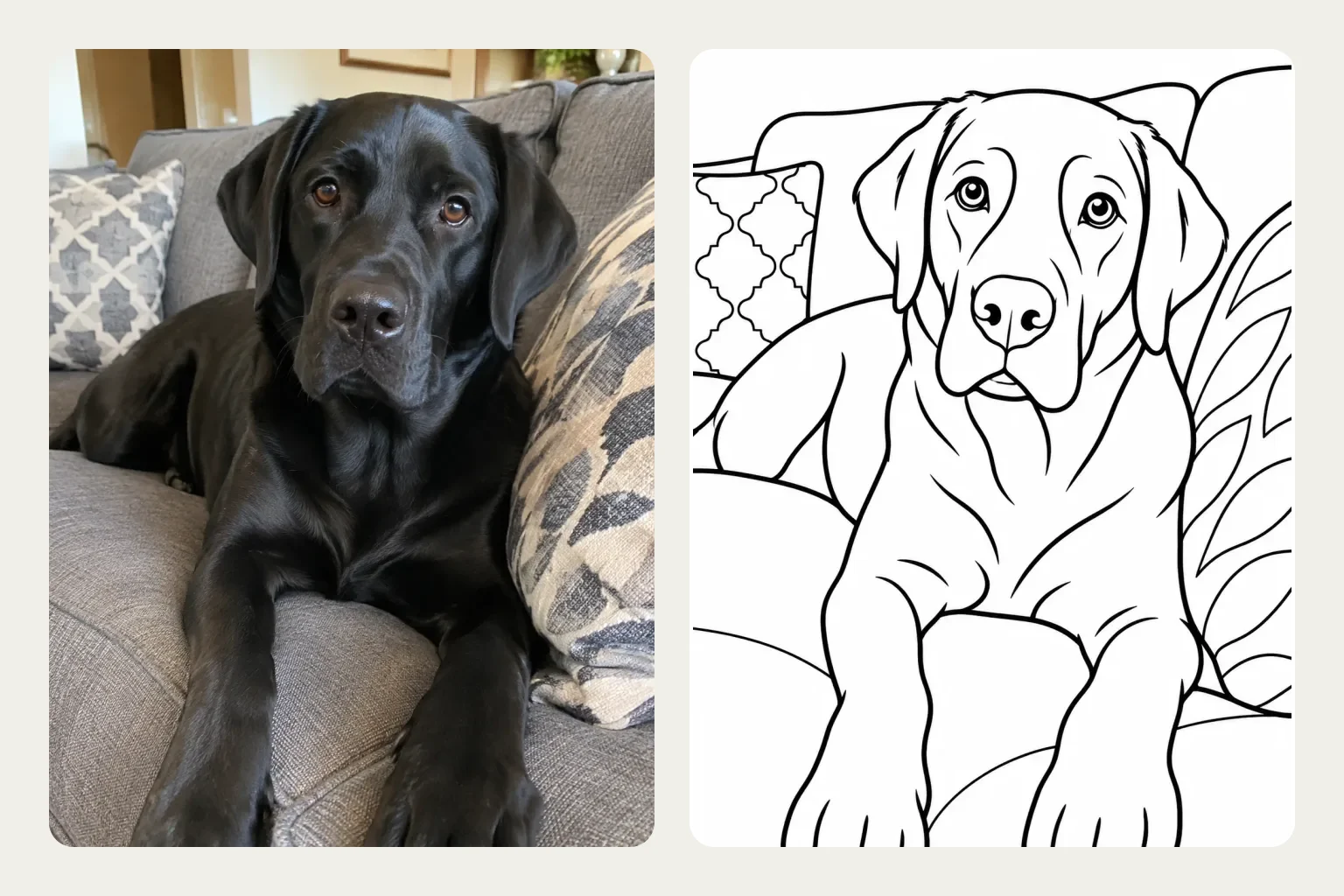 New
Photo to Coloring Page
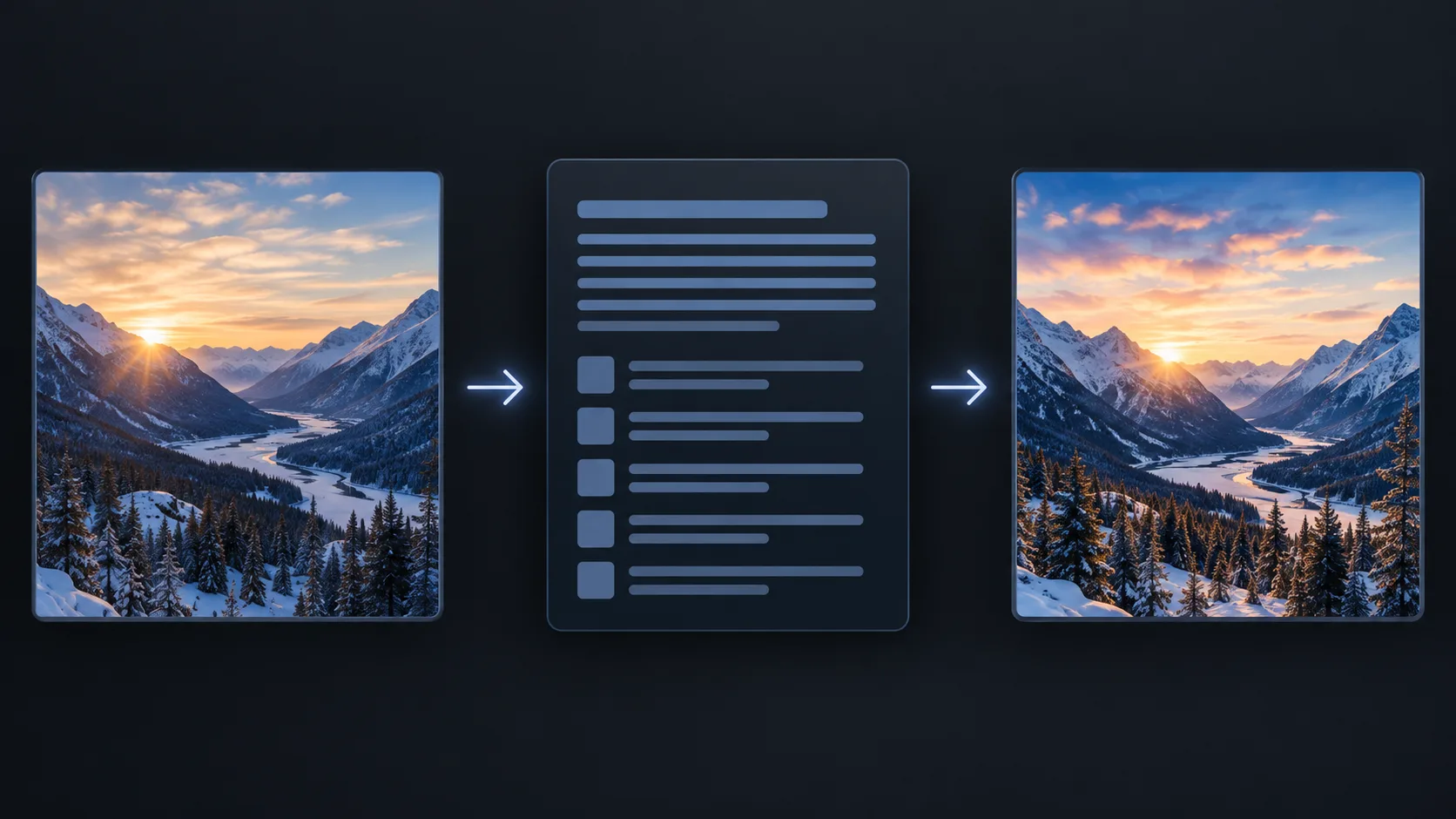 New
Image To Prompt
AI Age Progression
AI Sticker Generator
AI Thumbnail Generator
Explore Cutting-Edge AI Models
AI Models — Powerful Image & Video Generation Tools
Explore advanced AI models for high-quality image and video creation. Discover powerful generation and editing technologies that enhance your creative workflow and bring your visual ideas to life with ease.








How to Make a Ghost Mannequin Photo
Three steps
From two photos to a ghost mannequin product photo you can download.
Upload the front photo
The top on a mannequin, straight on. PNG, JPG, WebP or HEIC up to 20 MB. It is checked for free in about 20 seconds.
Add the inside-collar photo
Optional, but it keeps your real label: fold the front down and photograph the inside of the back collar. You'll see the label that was found.
Create and download
Click Create ghost mannequin photo. Compare before and after, then download the JPG at your photo's full size.
Ghost Mannequin AI FAQ
Questions people ask
What is a ghost mannequin photo?
A product photo where the garment looks worn by an invisible body: the mannequin is removed and the neckline shows the inside of the collar, so the top looks hollow and three-dimensional. It's also called the invisible mannequin effect. This ghost mannequin AI makes one from a photo of the top on a mannequin.
Do I need the inside-collar photo?
No, but it's the only way to keep your real label. With it, the label from that photo is placed into the collar as it is. Without it, the inside of the collar is drawn as plain fabric with no label, so nothing made-up appears there.
How do I take the two photos?
Photograph the top on the mannequin straight on, with the whole garment in frame. Then fold the front down, or turn the collar out, and take a close, sharp photo of the inside of the back collar so the label can be read. Use the same light for both.
Which garments work?
T-shirts, shirts and polo shirts, front view, work best right now. Hoodies, jackets and dresses can work but may come out less clean, and back views aren't supported yet. The free check warns you if your photo looks like one of these.
What if my label isn't found?
You'll see a warning after the free check. Try a closer, sharper photo of the label. You can also continue: the garment is still put back from your photo, but the label is the one the AI draws, so check it before you use the image.
How much does it cost?
Checking your photos is free. Creating the ghost mannequin photo costs 40 credits, or 60 for large photos over 1.6 MP; the exact number is shown before you start. If it fails, your credits come back.
What do I get?
A JPG on a pure white background at the same size as your front photo. It's saved to your History, so you can download it again later.
Is this the same as removing the background?
No. A background remover, like our Background Remover, cuts out the garment and the mannequin together. This tool removes the mannequin itself and fills the neckline with the inside of the collar, which a background remover can't do.
Powered By


Make your ghost mannequin photo
Upload a top on a mannequin, add the inside of the collar, and download a clean product photo with your real label.