How to Remove Tourists From Photos Without Photoshop
Remove tourists, crowds, strangers, and photobombers from vacation photos with AI—no Photoshop or manual masking required.

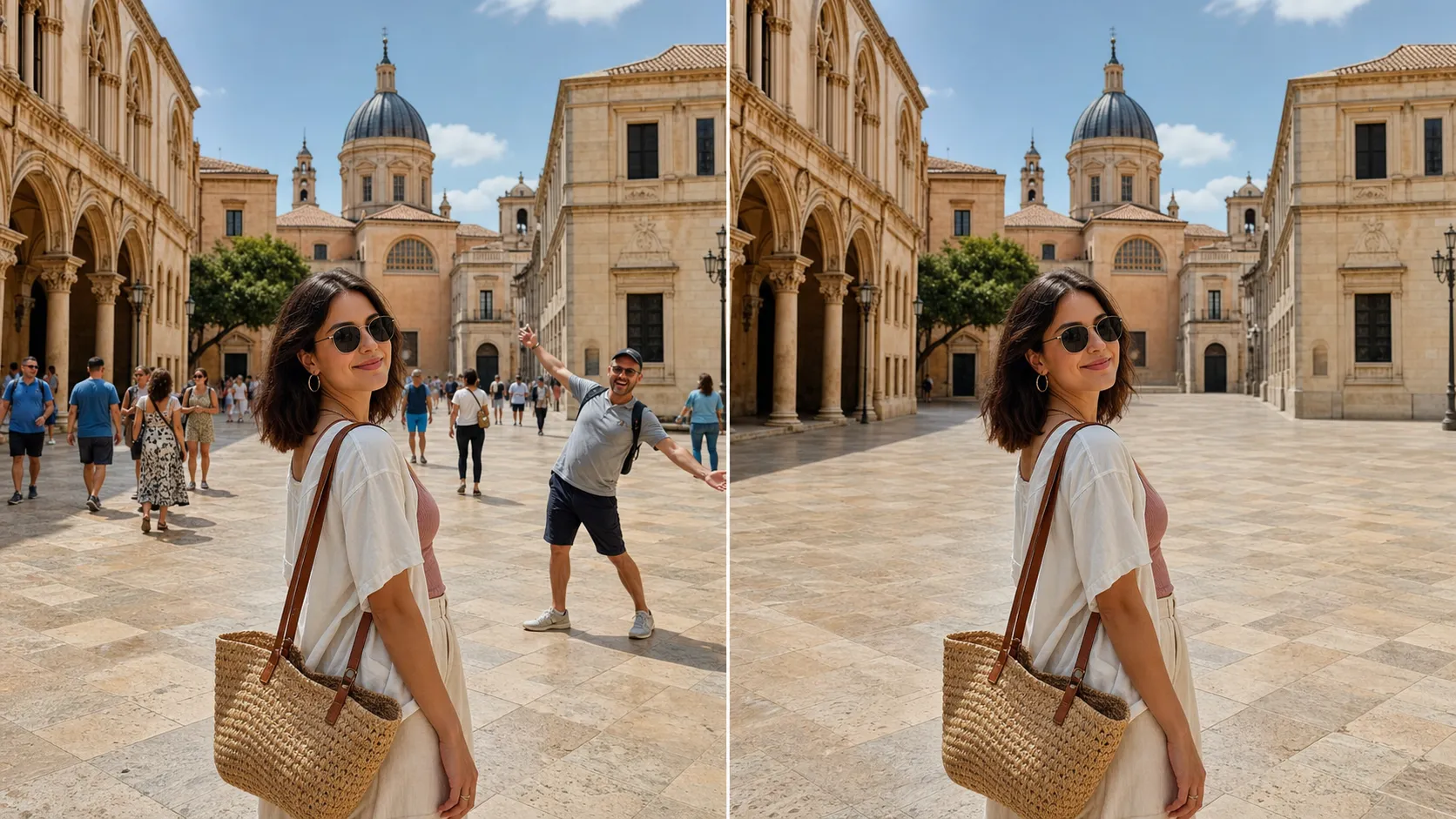
The perfect vacation photo rarely happens in an empty place. A stranger walks behind you, a tour group covers the landmark, or a photobomber appears just as you press the shutter. Fortunately, you can now remove tourists from photos with AI instead of spending an hour cloning pixels in Photoshop.
The basic workflow is simple: upload the photo, describe who should disappear, generate a cleaned version, and inspect the reconstructed background. The best results keep the main subject unchanged while rebuilding the pavement, walls, scenery, and shadows behind the removed people.
To clean a photo now, open the AI People Remover, upload your image, and use a short instruction such as “remove all people in the background but keep the person in the red jacket.”
Quick answer: how do you remove tourists from a photo?
Use this four-step process:
- Upload the highest-quality version of the vacation photo.
- Identify the people you want to keep and the people you want removed.
- Write a precise prompt that describes their position, clothing, or role in the scene.
- Generate the edit, zoom in, and check whether the background was reconstructed naturally.
For a simple image with one main subject and a few distant strangers, one generation may be enough. A dense crowd in front of detailed architecture may require several targeted edits.
The important point is that removing a person is only half the job. The AI also needs to imagine what was hidden behind that person. Cleaner instructions and visible background context make that reconstruction easier.
How AI tourist removal works
An AI people remover analyzes the people, objects, surfaces, lighting, and perspective in an uploaded image. When it removes a person, it generates replacement pixels based on the surrounding scene.
If a tourist is standing on an open beach, the tool can continue the sand, water, or sky behind them. If someone is blocking a patterned tile floor or part of a historic building, the edit is harder because the hidden area contains details that must be reconstructed.
This process is often called generative inpainting. You do not need to understand the technical term to use it, but it explains why results vary by photo. The AI is not revealing the original hidden background. It is creating a visually plausible replacement.
That makes tourist removal useful for:
- vacation photos at busy landmarks
- beach pictures with strangers in the background
- wedding and event photos with accidental guests
- street photography with distracting pedestrians
- family pictures interrupted by photobombers
- real estate and outdoor photos with passersby
How to remove tourists from photos without Photoshop
Follow this workflow for a clean result while protecting the people and details you want to keep.
1. Start with the original photo
Upload the original file when possible, rather than a screenshot or a compressed social media copy. More detail gives the AI better information about faces, edges, textures, shadows, and background patterns.
A strong input image usually has:
- a clearly visible main subject
- enough resolution to inspect small details
- limited motion blur
- natural exposure
- some visible background around the unwanted people
Do not crop too tightly before editing. Extra surrounding context can help the AI understand how walls, pavement, railings, waves, or vegetation should continue behind a removed person.
2. Decide exactly who should stay
Before generating, identify the protected subject. A vague instruction such as “remove people” can be risky when the photo contains someone you want to keep.
Describe the keeper by position or appearance:
Keep the woman in the yellow dress in the center. Remove every other person from the background.
If the main subject is obvious, the tool may preserve them automatically, but stating the instruction removes ambiguity.
3. Remove people in logical groups
For a lightly crowded image, you can remove all background tourists at once. For a dense scene, work in smaller groups: left side, right side, distant crowd, then remaining individuals.
This gives the AI a smaller area to rebuild during each edit. It also makes it easier to spot which change introduced a strange texture or architectural error.
4. Review the reconstructed background
Zoom in and check the places where people were removed. Look for:
- repeated pavement or brick patterns
- bent railings or warped building edges
- duplicated signs, windows, or plants
- floating shadows
- missing reflections
- blurry patches
- altered hands, clothing, or hair on the main subject
If one area looks unnatural, refine the instruction around that area rather than regenerating the entire concept with a completely different prompt.
5. Export only after the edit looks natural
Choose the resolution based on how the photo will be used. A standard output can work for social media, while a higher-resolution version is better for printing, photo books, wallpapers, or detailed crops.
Copy-and-paste prompts for removing people
The strongest prompts identify who to remove, who to preserve, and what the repaired area should look like.
Remove all background tourists
Remove all tourists and pedestrians in the background. Keep the main subject in the foreground completely unchanged. Reconstruct the landmark, pavement, and shadows naturally with consistent lighting and perspective.
Keep one person and remove everyone else
Keep only the person standing in the center wearing a blue shirt. Remove every other person from the photo. Preserve the main person's face, body, clothing, and pose, and fill the background realistically.
Remove a single photobomber
Remove the person entering the frame on the right side. Keep the couple in the center unchanged. Continue the beach, ocean, and natural shadows behind the removed person.
Remove a crowd from a landmark
Remove the crowd across the lower half of the image while preserving the main traveler in front. Reconstruct the plaza stones, steps, barriers, and visible architecture with accurate perspective and natural daylight.
Remove distant people only
Remove only the small distant people near the monument. Do not change the foreground subjects, trees, signs, buildings, or sky. Keep the photo realistic and consistent with the original camera image.
You can adapt these prompts with real visual details from your photo. “Person on the left wearing a white hat” is more useful than “that person.”
Which tourist removal scenes are easiest?
AI removal tends to work best when unwanted people occupy a small part of the image and stand against a predictable background.
Easier scenes include:
- a few tourists on open pavement
- a photobomber against a beach or sky
- distant pedestrians on a simple street
- people standing in front of a plain wall
- isolated figures surrounded by grass or water
These scenes provide enough nearby texture for the AI to continue the background convincingly.
Which scenes are more difficult?
Some photos need more careful prompting or multiple edits:
- dense crowds with overlapping bodies
- tourists covering a large part of the main landmark
- people blocking text, signs, artwork, or intricate architecture
- strong reflections in windows or water
- complex shadows across patterned surfaces
- unwanted people touching or overlapping the main subject
- low-resolution or heavily compressed images
When a crowd hides most of a building, there may not be enough visual evidence to reproduce it accurately. The result can still look attractive, but it may not be architecturally exact.
For difficult scenes, remove smaller groups in sequence and preserve the best intermediate version. If the AI changes an important building feature, instruct it to keep that feature unchanged and focus only on the remaining people.
How to fix common removal problems
The background looks blurry
Ask for specific reconstructed materials instead of a generic “clean background.” Mention stone pavement, brickwork, grass, ocean, wooden decking, or another visible surface. Generate at a higher resolution only after the basic reconstruction is correct.
The landmark becomes distorted
Reduce the number of people removed in one pass. Tell the AI to preserve architectural lines, windows, signs, and perspective. Dense crowds may need several local edits.
The tool removes the main subject
Describe the subject you want to keep before describing the people to remove. Use clothing color, position, pose, or relationship to the camera.
Shadows remain after people disappear
Include shadows in the removal request:
Remove the background tourists and their cast shadows. Reconstruct the sunlit pavement with consistent light direction.
Small distractions are still visible
After removing people, you may notice a suitcase, selfie stick, bag, bicycle, or temporary barrier left behind. Use the AI Object Remover for these remaining distractions instead of asking the people-removal step to solve every detail at once.
The final image looks soft
Complete the structural edit first. Then use an AI Photo Enhancer to improve overall clarity, or an AI Image Upscaler when you need a larger final file. Enhancement cannot repair a badly reconstructed building, so always fix geometry before sharpness.
AI removal vs Photoshop
Photoshop gives experienced editors precise control over masks, clone sources, layers, and small repairs. It is useful when exact pixels matter or when a client requires a carefully documented editing workflow.
AI tourist removal is better suited to people who want a fast browser-based result without learning manual selection and retouching tools. It can reconstruct a large area in one generation instead of requiring repeated cloning.
The trade-off is control. AI decides how the hidden background should look. That is usually acceptable for personal travel photos and social posts, but important documentary or commercial images should be reviewed carefully for invented details.
A final quality checklist
Before downloading the cleaned photo, inspect it at full size:
- Is the intended main subject unchanged?
- Are all unwanted people and their shadows gone?
- Do straight architectural lines remain straight?
- Do repeated textures look natural?
- Are reflections consistent with the edited scene?
- Are there duplicated objects or strange background fragments?
- Does the image still feel like the original photo?
- Is the resolution sufficient for its destination?
If the answer is yes, the edit is ready. If not, make one targeted correction instead of replacing the entire prompt.
FAQ
Can AI remove tourists from a photo automatically?
Yes. AI can identify and remove unwanted people while generating a replacement background. Clear prompts are especially helpful when the image contains a main subject who must stay.
Can I remove one person without changing everyone else?
Yes. Describe the person's location, clothing, or position in the frame. Also specify which people and important objects should remain unchanged.
Can AI remove a large crowd?
It can, but dense crowds are more difficult because they hide more of the original background. Removing the crowd in smaller sections usually gives you more control over the reconstructed scene.
Will the background be the real background that was behind the tourist?
Not exactly. The AI creates a plausible reconstruction based on surrounding pixels and its understanding of the scene. Always check important architecture, signs, artwork, and documentary details.
What prompt should I use to remove photobombers?
Try: “Remove the person entering the frame on the right. Keep the main subjects unchanged and reconstruct the background, lighting, and shadows naturally.” Replace the position with details that match your image.
Do I need Photoshop or editing experience?
No. A browser-based AI people remover can perform the main edit from an uploaded image and a short instruction. You only need to review the result and refine the prompt if a complex area looks unnatural.
What is the best way to start?
Open the AI People Remover, upload the original vacation photo, describe who should stay and who should disappear, and generate a first version. Review the background closely, then make targeted corrections until the scene looks natural.
Try it
Run your own prompt in the generator
Pick a model, run one prompt, and compare the results side by side. New accounts start with free credits.

How to Make AI Product Photos Look Real: A 5-Minute Check
Fix fake-looking AI product photos by checking product accuracy, lighting, shadows, reflections, materials, scale, and perspective.

No Limit AI Image Generator Guide
Learn what a no limit AI image generator really means, which limits still matter, and how to create more images efficiently.